
Alerts on indicators
Get told when an indicator does what you're waiting for, not just when price touches a line.
Add an alert
Right-click the chart and pick Add alert on
- Alert me when: the indicator (or price).
- Plot: which of its lines.
- Condition:
- crossing (crosses above / below);
- a level (above / below a value);
- entering or leaving a channel;
- moving by an amount or a percentage.
- Value.
- Trigger: Once only, Once per bar, Once per bar close, or Every time.
Advanced options opens the full form in the Alerts panel. There you can also choose to check Instantly or On bar close, set an expiration, and add a note.
Add condition adds up to 3 more conditions; the alert fires only when all of them are true on the same candle. A live price card sits at the top of the form. Alerts with extra conditions only run while a chart of that market and timeframe is open.


Alerts on signals
Price Action Toolkit, Price Action SolAtlas and Ritchi have signal conditions too. Examples are BOS, CHoCH, liquidity sweeps, order blocks, imbalances, and Ritchi BUY / SELL.
Where alerts show up
A fired alert shows as a toast and is kept in the account menu's Notifications tab. Indicator, signal and multi-condition alerts, and alerts checked On bar close, run in the app: keep Market Open open with a chart of that market and timeframe. Price alerts can also reach your lock screen (below). Email and webhook delivery are marked "soon".


Lock-screen notifications
Price alerts can reach your device even when Market Open is closed. In the Alerts panel, the banner Get price alerts on your lock screen, even when the app is closed. has a Turn on button, and the gear menu has Lock-screen notifications. Tap a notification to open that market's chart.
This works for price alerts that cross above / below, are above / below a level, or enter, exit, stay inside or stay outside a channel, set to Once only or Every time and checked Instantly.
- iPhone: iOS 16.4 or later. Add Market Open to the Home Screen, open it from there, then tap Turn on. In Safari the banner shows these steps.
- Android (Chrome) and desktop Chrome, Edge and Firefox work directly.
- If notifications are blocked, the banner tells you to allow them in your browser or phone settings.
For this, the server keeps only this device's push subscription and the alert rule with its text. It isn't linked to your account, and a device that hasn't opened Market Open for 60 days is dropped.

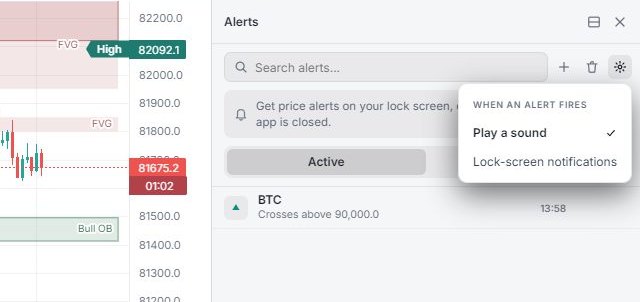
Pause, resume, delete
In the Alerts panel each alert can be paused and resumed. A paused alert stays on the chart, faded, and won't fire. The panel footer counts Active, Paused and Total. Signed in, your alerts follow you to other devices.