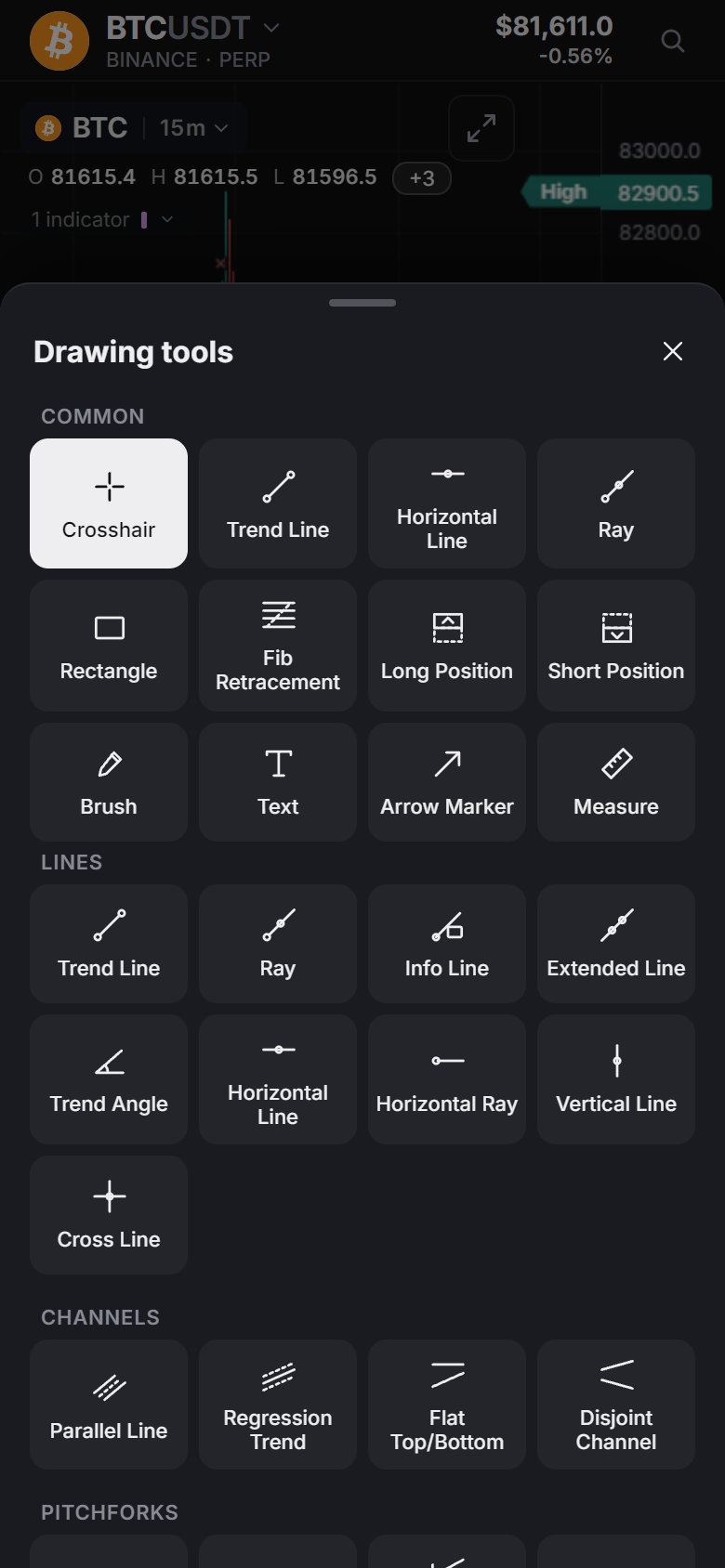
Drawing tools
The toolbar on the left of the chart holds 87 drawing tools, from a plain trend line to Fibonacci, Elliott waves and long / short positions. They sit in 9 groups, plus Measure on its own button. Drawings belong to the chart and the market: each chart in a layout keeps its own drawings per market, and switching back to a market brings its drawings back.
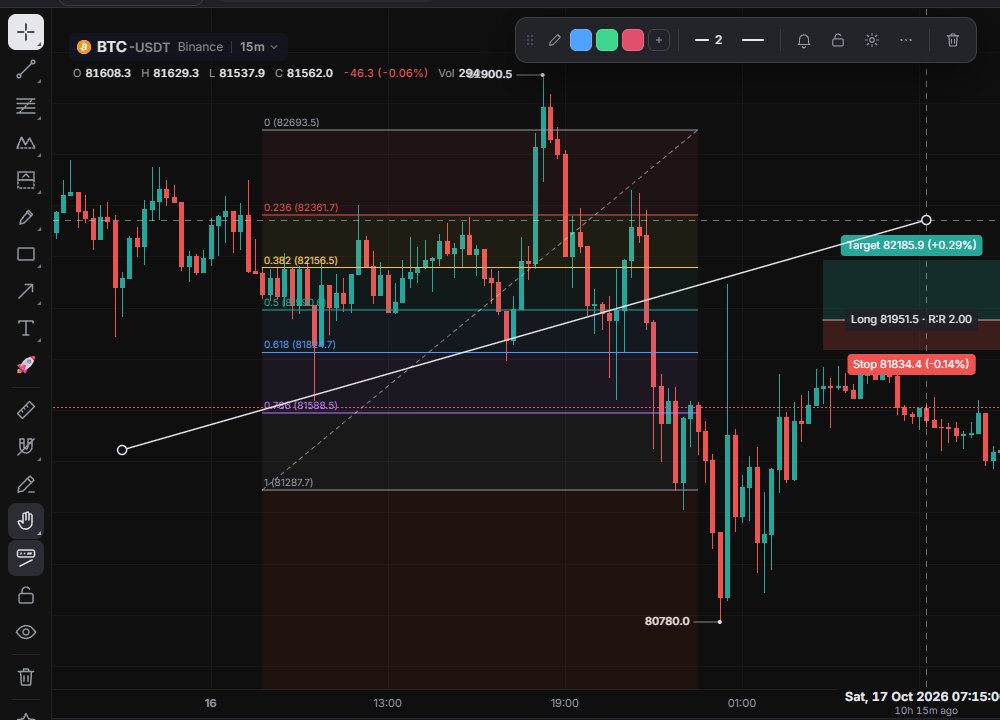
The toolbar
At the top is Crosshair; its flyout switches between the Crosshair and Arrow cursor. Then come the 9 tool groups. Each button shows the last tool you used in that group, and the small arrow in its corner opens the flyout. Below them are Measure (Shift + Left Click), the drawing options described further down, Remove drawings and Favorite Drawing Tools.
The « at the very bottom hides the toolbar (Shift + F); a small Show drawing toolbar button brings it back.
The 9 groups
The button's tooltip is the group's first tool. Inside the flyout the tools are split into sections.
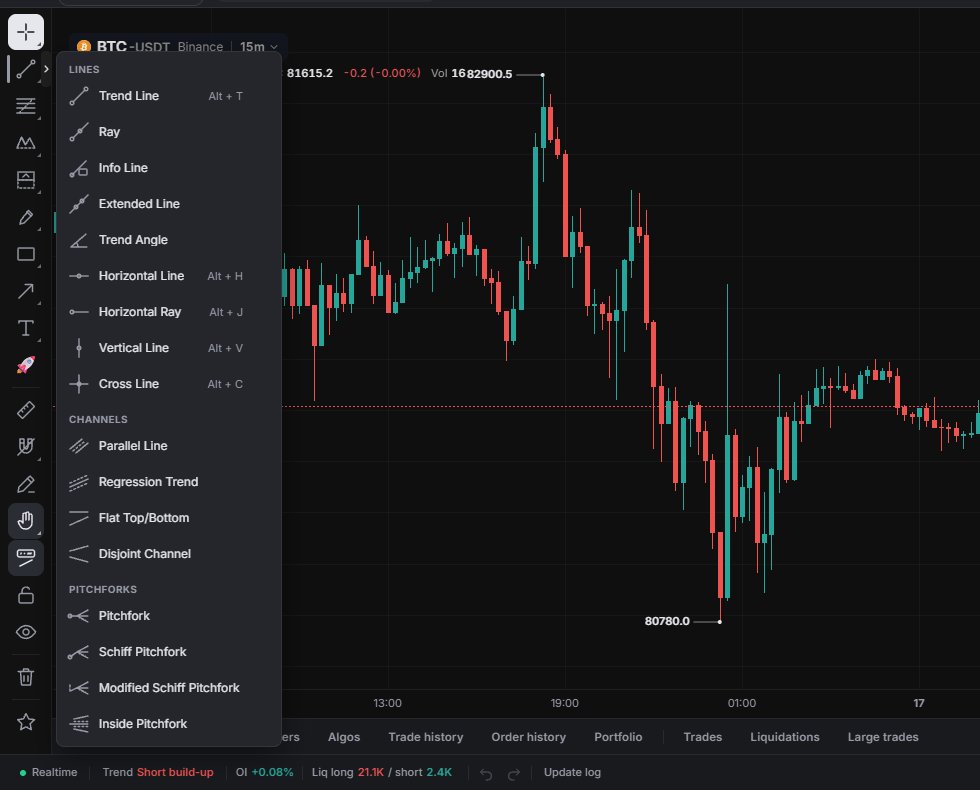
- Trend Line (Alt + T): Lines, Channels, Pitchforks, 17 tools. Trend Line, Ray, Horizontal Line, Vertical Line, Cross Line, Parallel Line, Regression Trend, Pitchfork.
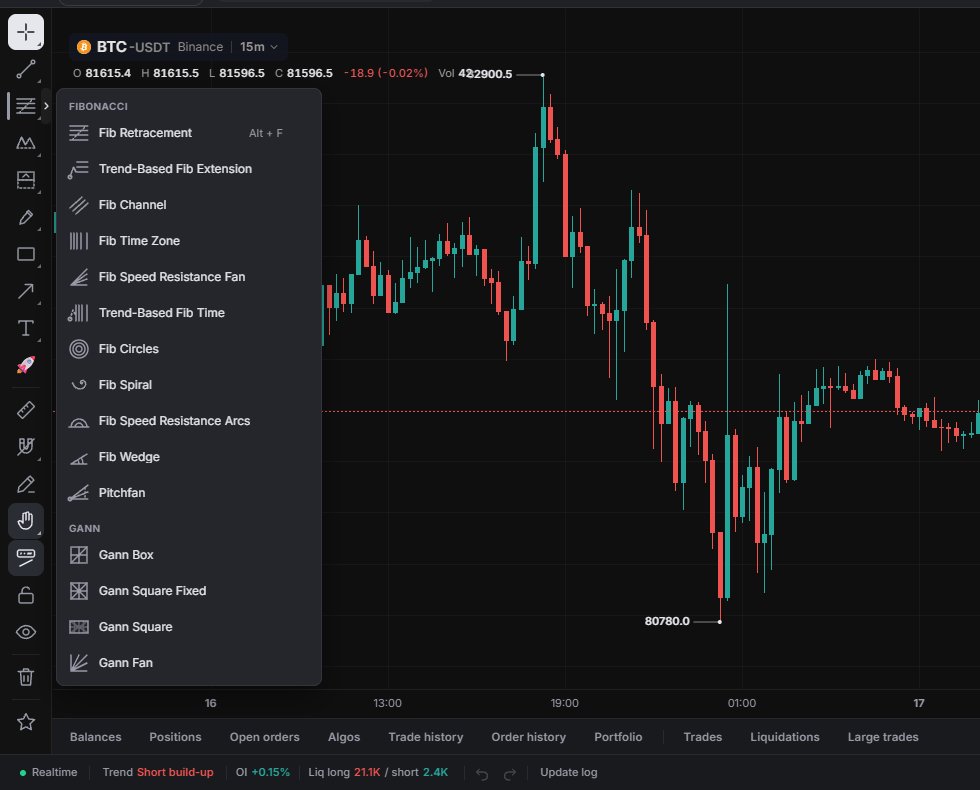
- Fib Retracement (Alt + F): Fibonacci and Gann, 15 tools. Fib Retracement, Trend-Based Fib Extension, Fib Time Zone, Fib Spiral, Gann Box, Gann Fan.
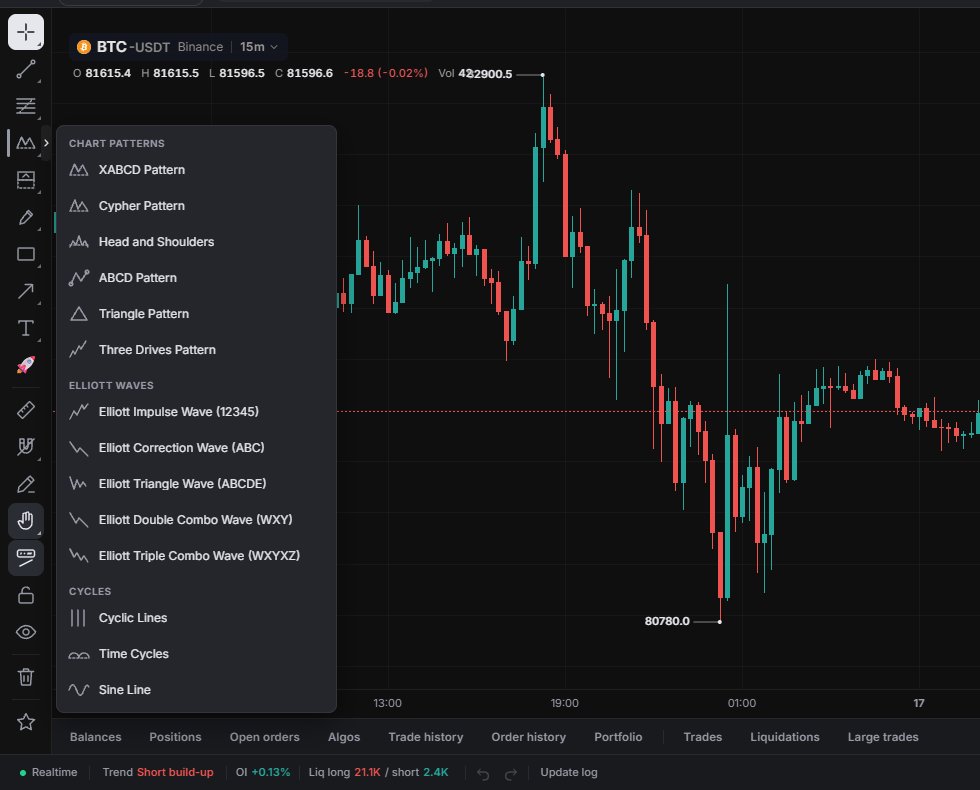
- XABCD Pattern: Chart Patterns, Elliott Waves, Cycles, 14 tools. XABCD Pattern, Head and Shoulders, Three Drives Pattern, Elliott Impulse Wave (12345), Elliott Correction Wave (ABC), Cyclic Lines, Sine Line.
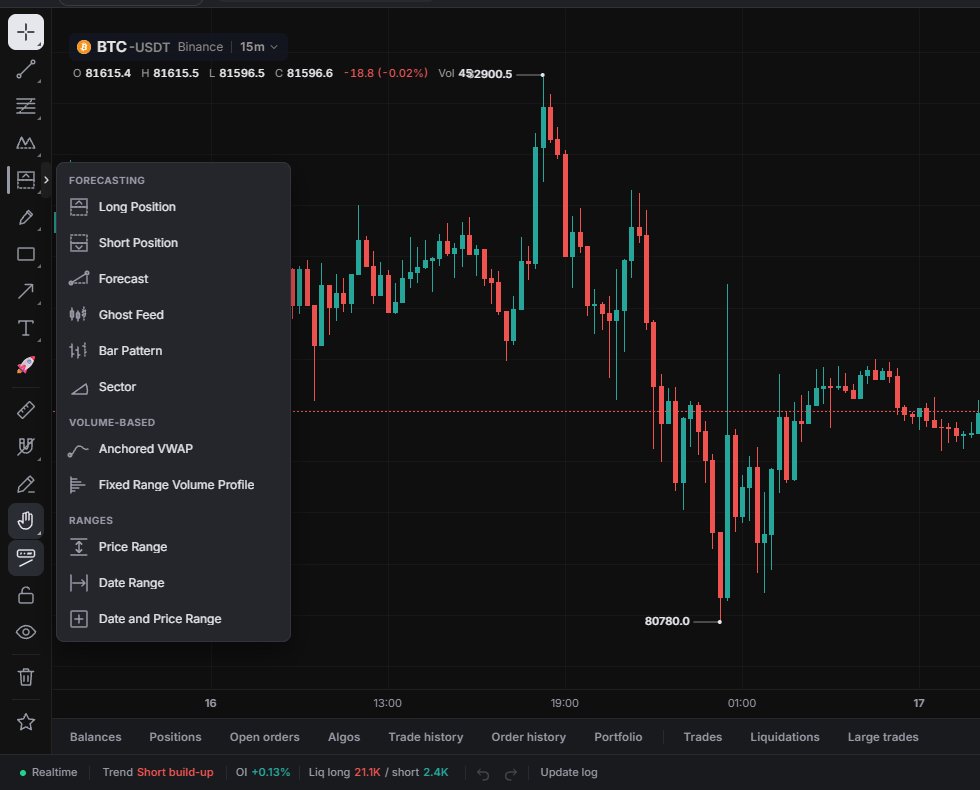
- Long Position: Forecasting, Volume-Based, Ranges, 11 tools. Long Position, Short Position, Forecast, Anchored VWAP, Fixed Range Volume Profile, Price Range, Date and Price Range.
- Brush (Alt + B): Brushes, 3 tools. Brush, Highlighter, Path.
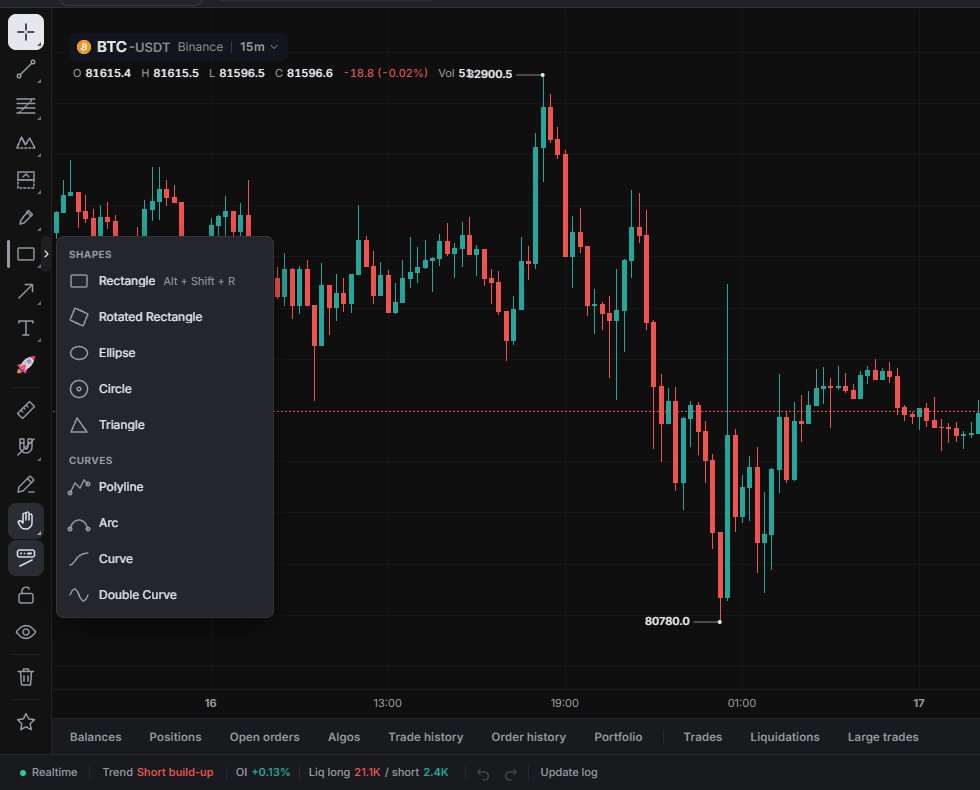
- Rectangle (Alt + Shift + R): Shapes and Curves, 9 tools. Rectangle, Rotated Rectangle, Ellipse, Circle, Triangle, Polyline, Arc, Curve.
- Arrow Marker: Arrows, 7 tools. Arrow Marker, Arrow, Arrow Mark Up / Down / Left / Right, Flag Mark.
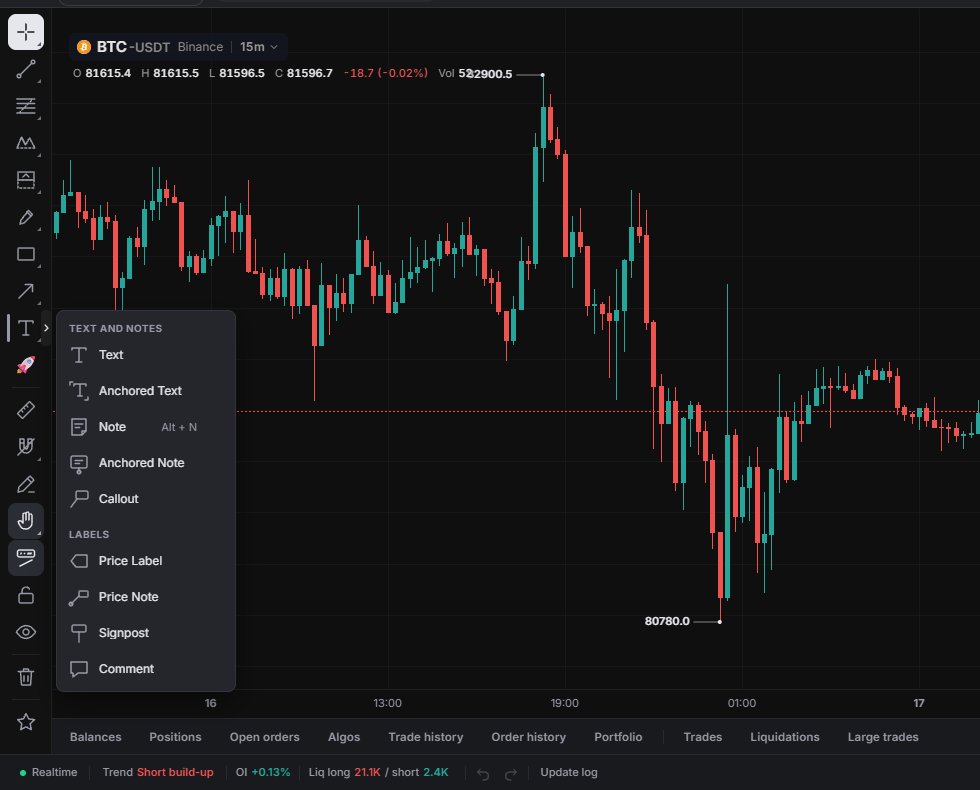
- Text: Text and Notes and Labels, 9 tools. Text, Anchored Text, Note, Callout, Price Label, Price Note, Signpost, Comment.
- Emoji: one tool with an emoji picker (Emojis and Icons tabs).
More Alt shortcuts: Horizontal Line Alt + H, Horizontal Ray Alt + J, Vertical Line Alt + V, Cross Line Alt + C, Note Alt + N.
Drawing on the chart
Pick a tool and click its anchor points on the chart. Two-point tools also work with press, drag and release. For Polyline and Path, click each point and double-click to finish. Brush and Highlighter draw freehand while you hold the button down.
After one drawing the cursor goes back to the crosshair. To draw several in a row, double-click the tool to keep it active, or turn on Stay in drawing mode. Esc cancels the drawing in progress.
Magnet, lock and favourites
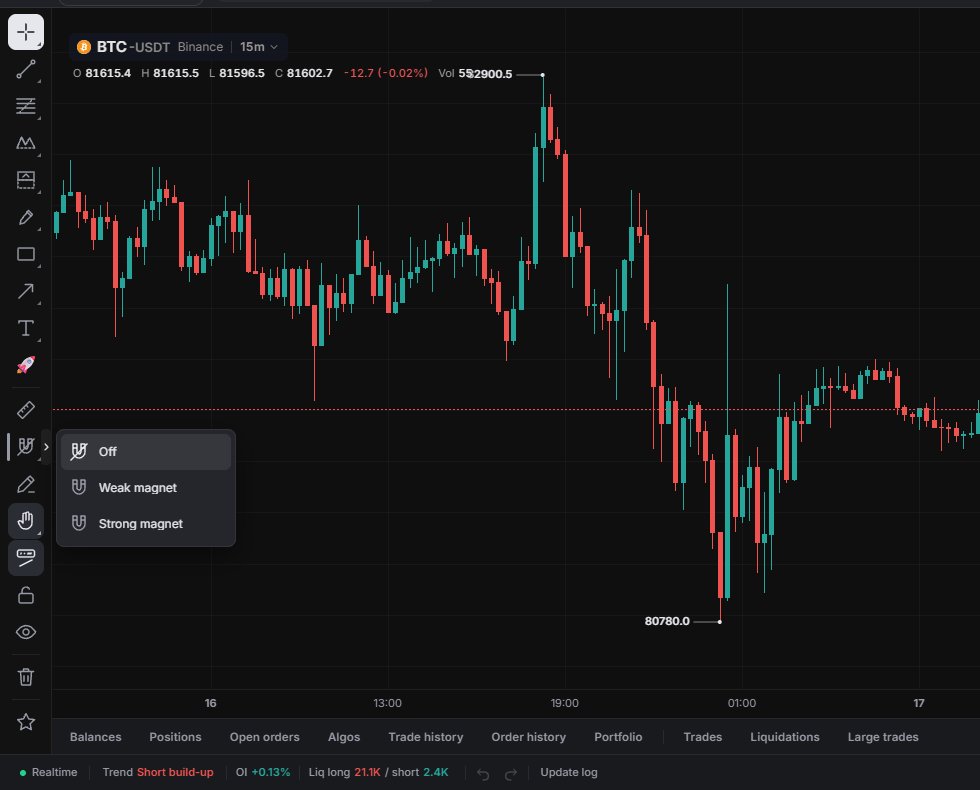
- Magnet snaps anchors to the nearest open, high, low or close of the bar. The flyout has Off, Weak magnet (pulls only within 8 px) and Strong magnet (always snaps). It is off by default; the button turns it on as Strong. Shortcut Alt + Shift + M.
- Stay in drawing mode keeps the tool selected after each drawing. Off by default.
- Toolbar after drawing pops up the drawing toolbar after each drawing. On by default.
- Lock drawings stops all drawings from being moved. Click again to unlock.
- Hide onchart indicators hides the indicators drawn on the price chart. See Indicators.
- Remove drawings removes the selected drawing. With nothing selected it asks "Delete all drawings on this chart?" first.
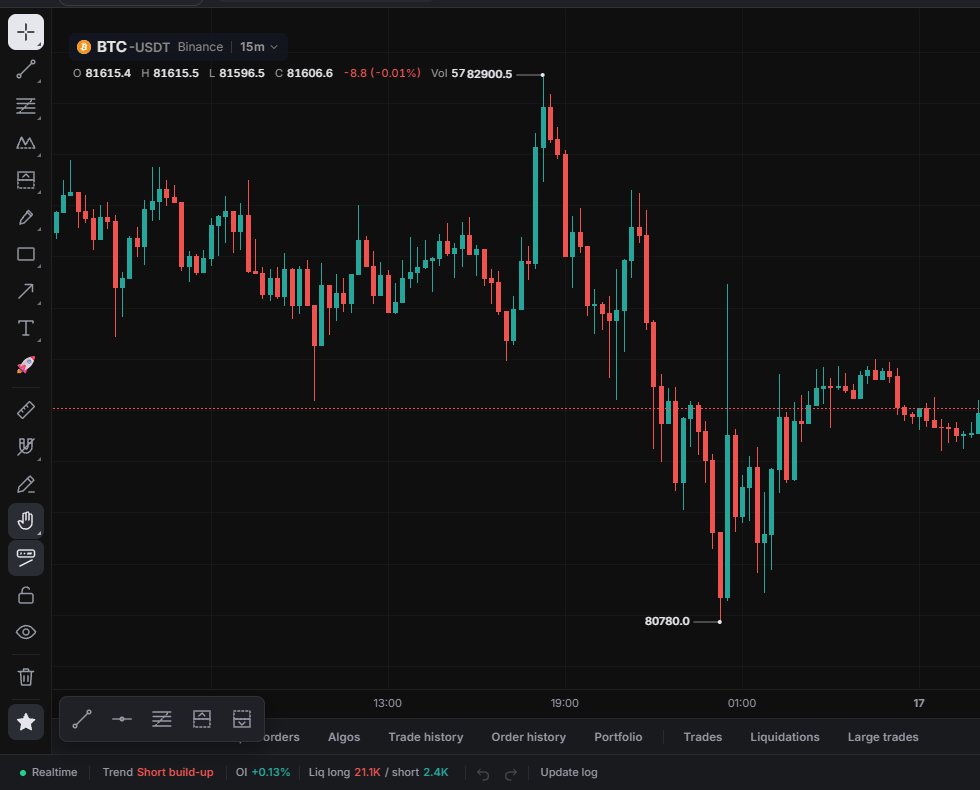
- Favorite Drawing Tools shows or hides a floating bar with your starred tools. Star a tool in any flyout (Add to favorites) to put it there.
To hide every drawing without deleting it, right-click the chart › Hide drawings, or press Ctrl + Alt + H. Show drawings brings them back.
Draw by holding
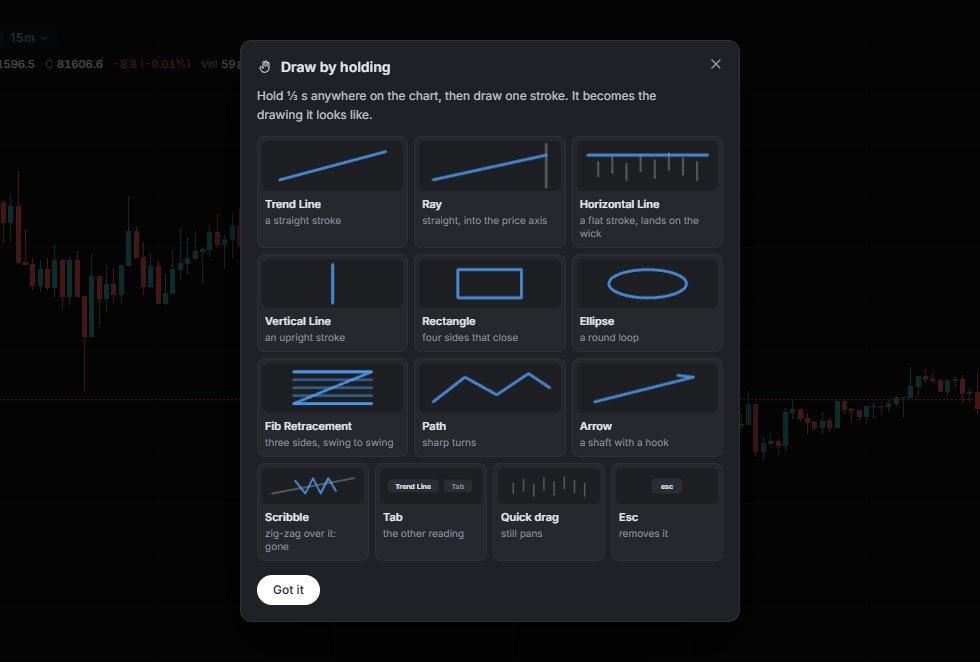
This is on by default. Hold anywhere on the chart for ⅓ second, then draw one stroke. Market Open turns it into the drawing it looks like: Trend Line, Ray, Horizontal Line, Vertical Line, Rectangle, Ellipse, Fib Retracement, Path or Arrow.
- Scribble over a drawing to erase it.
- Tab switches to the other reading of your stroke.
- Esc removes it.
- A quick drag still pans the chart.
The Draw by holding flyout has the on / off switch and How it works, which shows the strokes for each drawing.
Editing a drawing
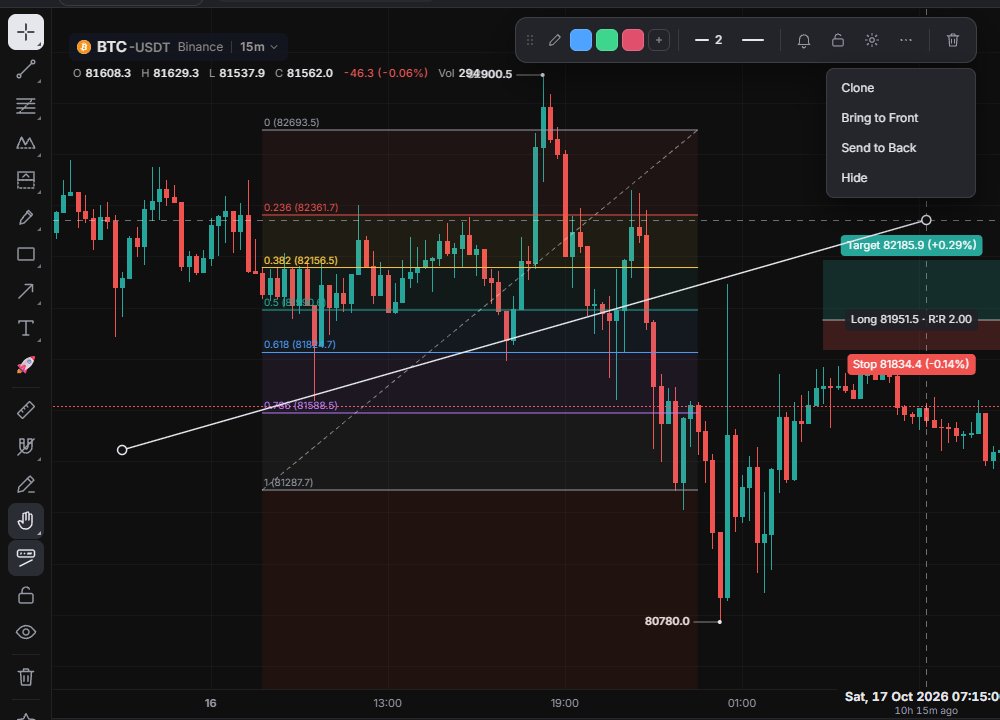
Click a drawing to select it. A floating toolbar appears with a drag handle, colour swatches (Color / Stroke, plus Fill for closed shapes), Line width, Line style (Solid / Dashed / Dotted), Add alert on {tool}, Lock drawing, Settings, More options and Remove. More options has Clone, Bring to Front, Send to Back and Hide.
Add alert on {tool} creates a price alert at the drawing's anchor price closest to the last price. Alerts are covered on the Alerts page.
Other keys: Ctrl + Z / Ctrl + Shift + Z to undo / redo (the arrows in the status bar do the same), Ctrl + C / Ctrl + V to copy and paste a drawing, Delete or Backspace to remove the selected one.
The Drawings tab of the Objects panel (Panels › Yours › Objects, Alt + Shift + O) lists the chart's drawings with show / hide and remove, so a hidden drawing comes back there. Text and Note drawings show up in the Journal panel too, marked "On chart".
There are no drawing templates. Templates exist for indicator settings only.
On a phone
On the Chart tab, the first button in the tool row (it shows the pointer or the active tool) opens the Drawing tools sheet. Common at the top holds the everyday tools (Trend Line, Horizontal Line, Fib Retracement, Long and Short Position, Measure and a few more). Below come all the sections, Emoji, and Options with Magnet, Stay in drawing mode, Draw by holding, Lock drawings and Remove drawings.
The pen chip at the bottom-right of the chart shows the desktop-style rail on the phone (hidden by default). More (…) › Drawing tips opens the Draw by holding help.