A short tour of the interface
Market Open fits a lot onto one screen. This page goes through it once, top to bottom, so you know where things live. Screens 600 px and wider get the desktop layout below; phones get their own layout with a tab bar, covered at the end.
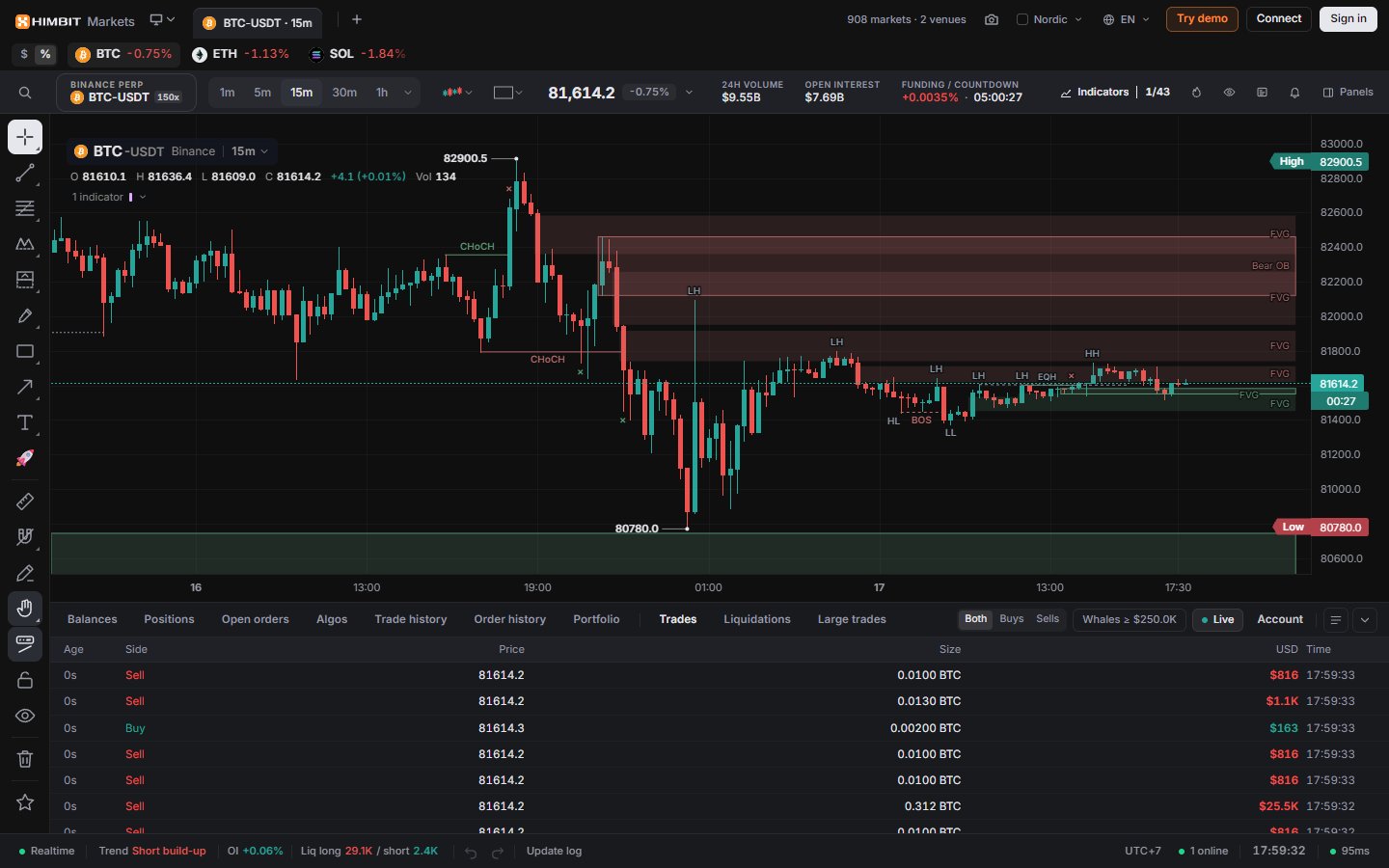
The screen at a glance
- Top bar: layout tabs, app buttons and your account.
- Watch strip: your watchlist markets as chips. Click one to open it. The $ / % switch shows last price or 24h change.
- Ticker bar: search, market, interval, chart type and the main tools.
- Drawing toolbar on the left (Drawing tools), the chart in the middle, panel columns on the right when you open them.
- Bottom dock with account and market tabs.
- Status bar along the bottom.
Top bar
Next to the logo sit your layout tabs (Layouts). On the right:
- the live count of markets and venues;
- Take a screenshot (Ctrl + Shift + S): Download PNG or Copy to clipboard;
- Theme, showing the theme name or "Auto" (Themes), and Language;
- Try demo for a paper account with no wallet, and Connect for Binance or Hyperliquid;
- Sign in with your Himbit ID. After that it becomes your avatar menu (Account settings).

Ticker bar
Left to right:
- Search the platform (Ctrl + K): markets, indicators, panels and actions in one box.
- The symbol box, for example BINANCE PERP / BTC-USDT 150x: venue, pair and the venue's max leverage. Click it to change market.
- The interval buttons, Chart type and Layout.
- The price with Market stats: 24h change and volume, open interest, funding with its countdown, mark price.
- Indicators (/), with a count like 1/85 (Indicators).
- Heatmap (Alt + Shift + H), and quick buttons for Watchlist, Orderbook and Alerts.
- Panels, for everything else (Order flow).
Picking a market
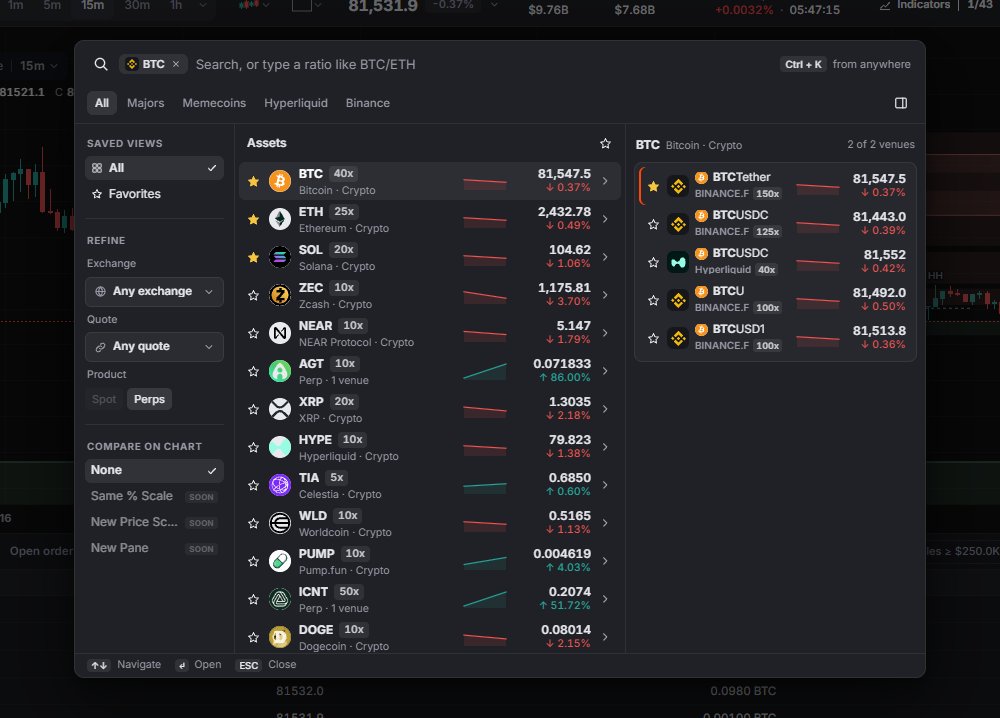
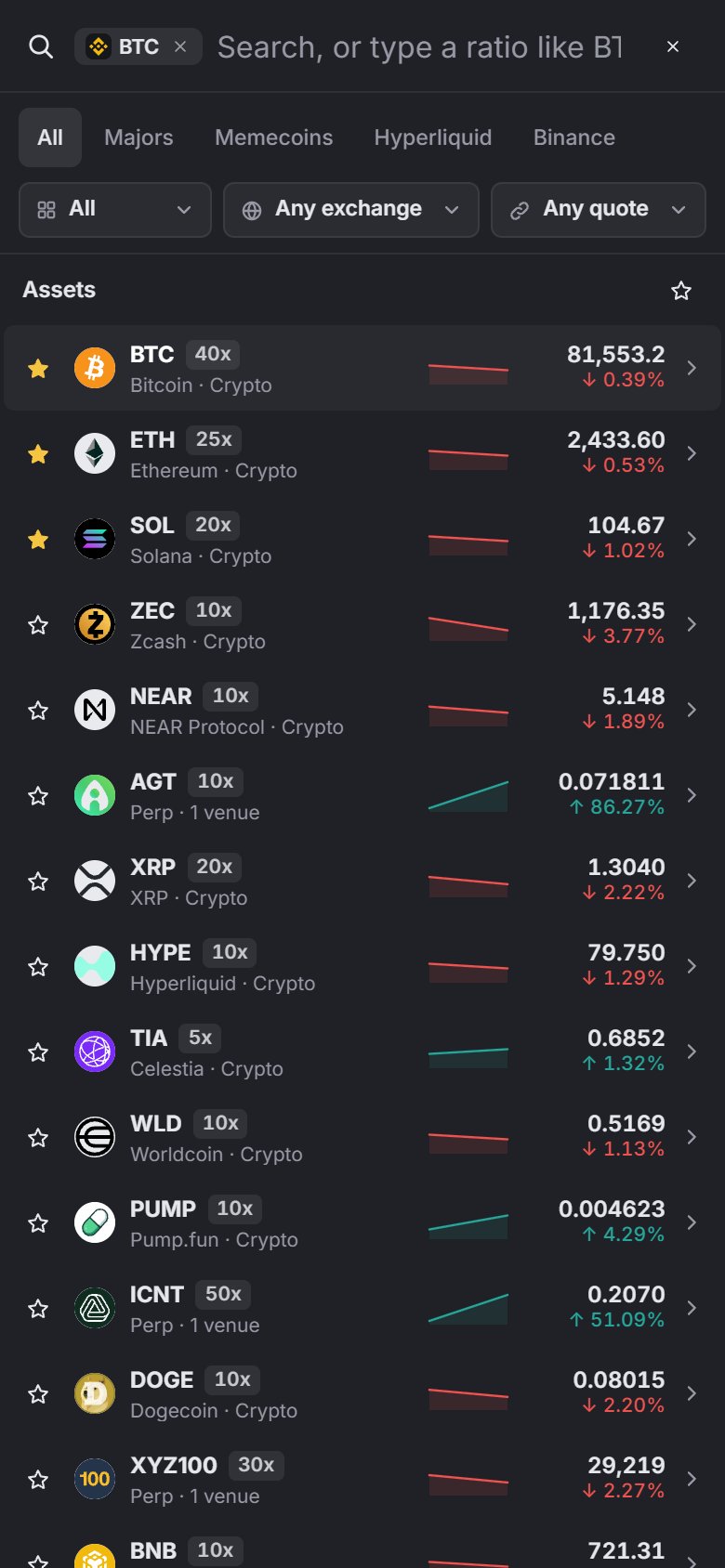
Symbol search opens from the symbol box, the symbol in the chart legend, or Ctrl + K. Type a name, or a ratio like BTC/ETH.
- Tabs: All, Majors (the 20 assets with the most 24h volume), Memecoins, Hyperliquid, Binance.
- One row per asset, sorted by 24h volume. The panel on the right lists every venue market of the highlighted asset.
- Filter on the left by exchange and quote (USDT, USDC, USD).
- The star adds a market to your watchlist, which also feeds the watch strip and the phone Home tab.
Markets are perpetual futures only: Binance USDⓈ-M and Hyperliquid, including HIP-3 markets. Spot is not supported yet.
Intervals
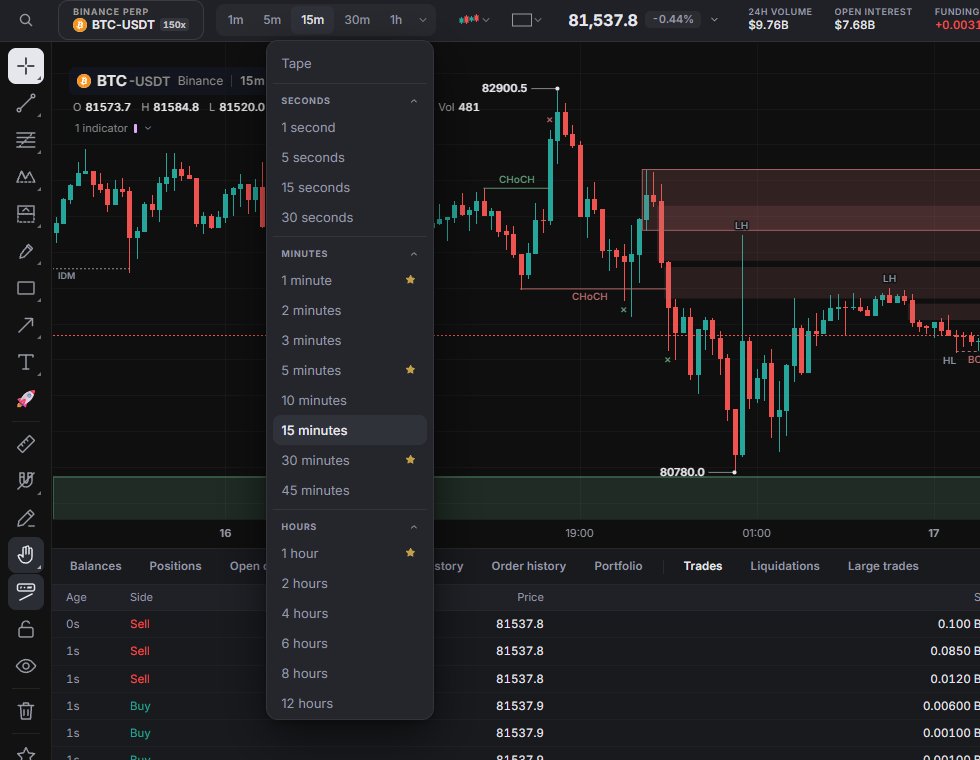
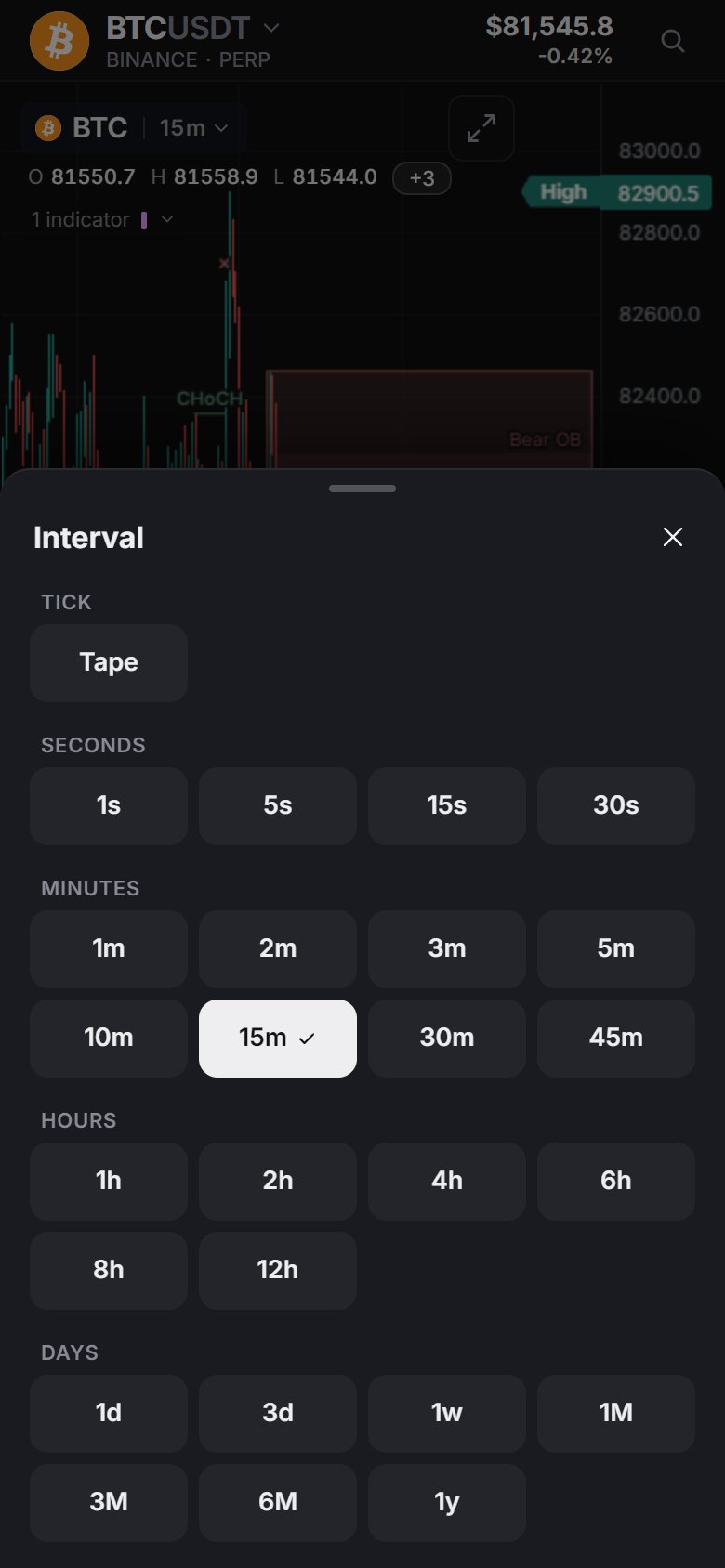
25 intervals plus Tape, which shows every trade live (see Tape mode below).
| Group | Intervals |
|---|---|
| Seconds | 1s 5s 15s 30s |
| Minutes | 1m 2m 3m 5m 10m 15m 30m 45m |
| Hours | 1h 2h 4h 6h 8h 12h |
| Days | 1d 3d 1w 1M 3M 6M 1y |
Every interval works on every venue. If a venue doesn't serve one, the app builds it in the browser; seconds and Tape come from live trades. Star an interval under More intervals to put it on the buttons. Defaults are 1m, 5m, 30m and 1h, and the one you're on always shows.
In the chart legend, click the interval next to the market name (for example 15m ▾) to open the same interval menu, stars included; click the name to change market.

Tape mode
Pick Tape in the interval buttons or menu to watch every trade as it happens. The chart draws live 1-second candles, and each trade appears as a bubble with its size inside. Bid and ask lines with their sizes sit at the price axis. The chart follows the live edge; if you scroll back, Back to live » brings you to the latest trade.
The gear next to Tape opens its settings:
- Speed: Slow, Normal or Fast for how quickly the chart moves with the feed.
- Print style: Heat, Sphere, Flat, Comet or Sizes, plus a Size slider for the bubbles.
- Min print size: hide trades below a size you set, separately for each market. 0 shows every trade.
- On the chart: Bid/ask lines, Size labels, Live edge strip, Mute projected edge and Candles.
- Auto-open order book: opens the Orderbook panel when you turn Tape on.
- Reset to defaults.


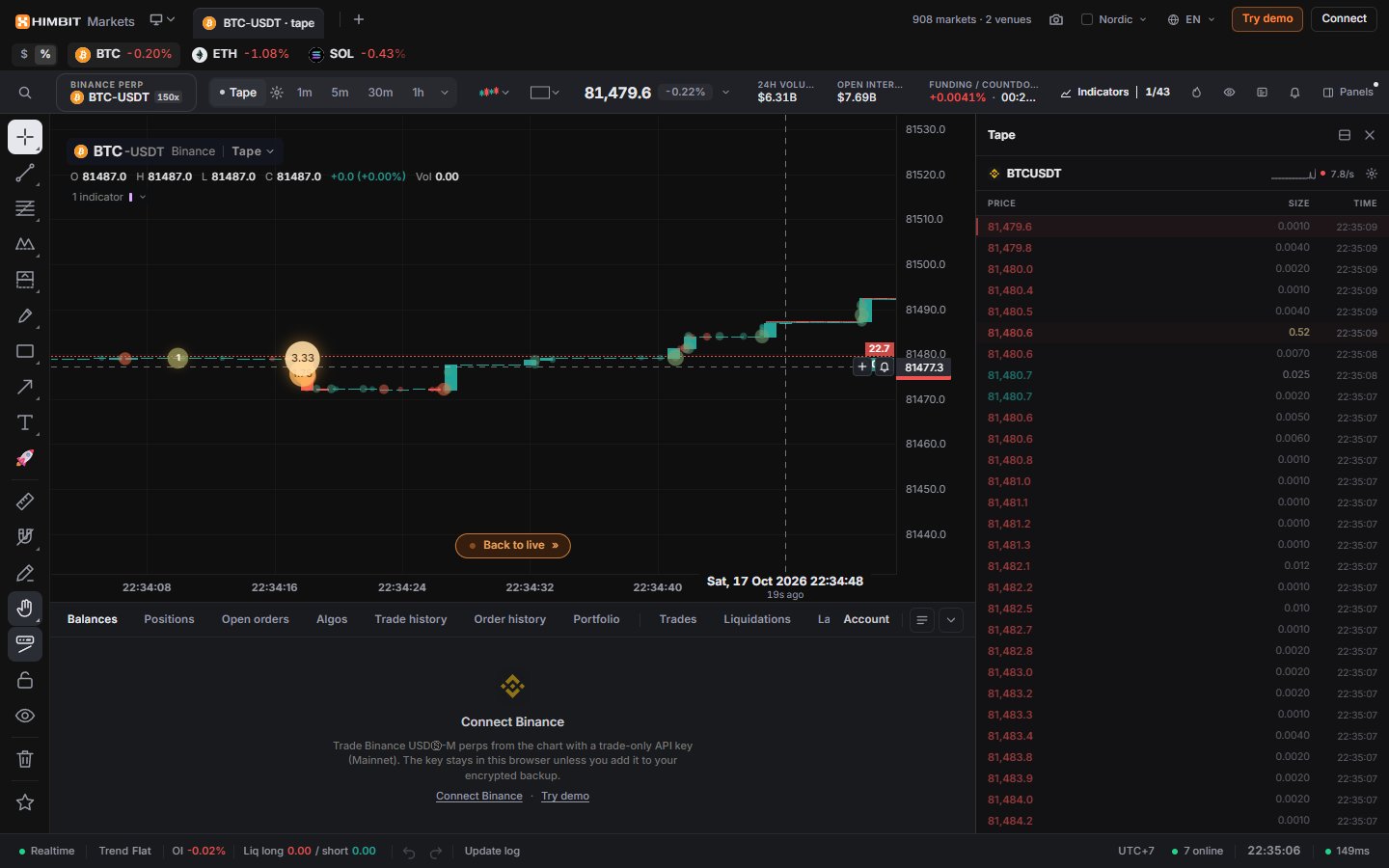
Chart types
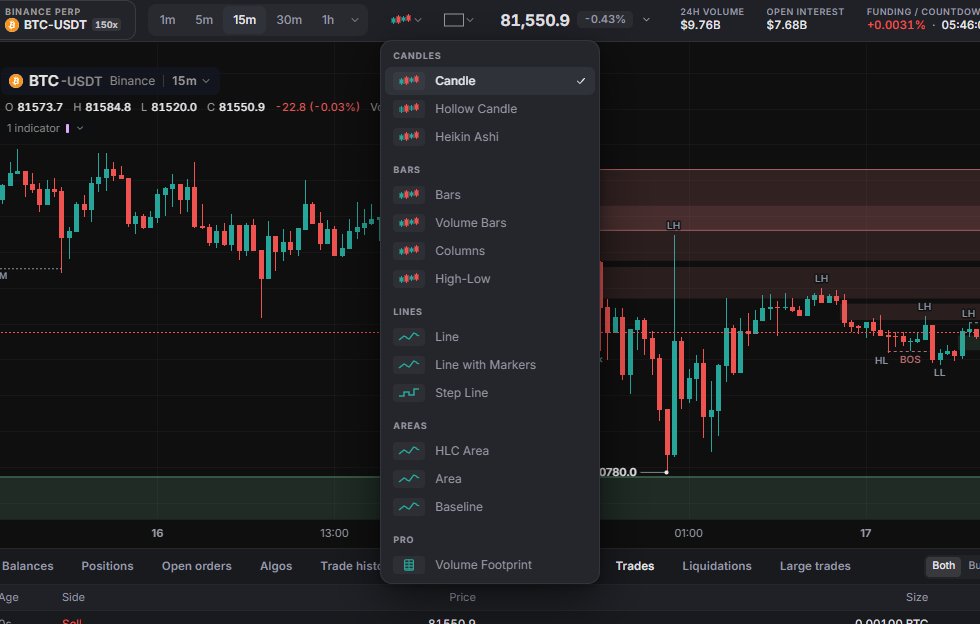
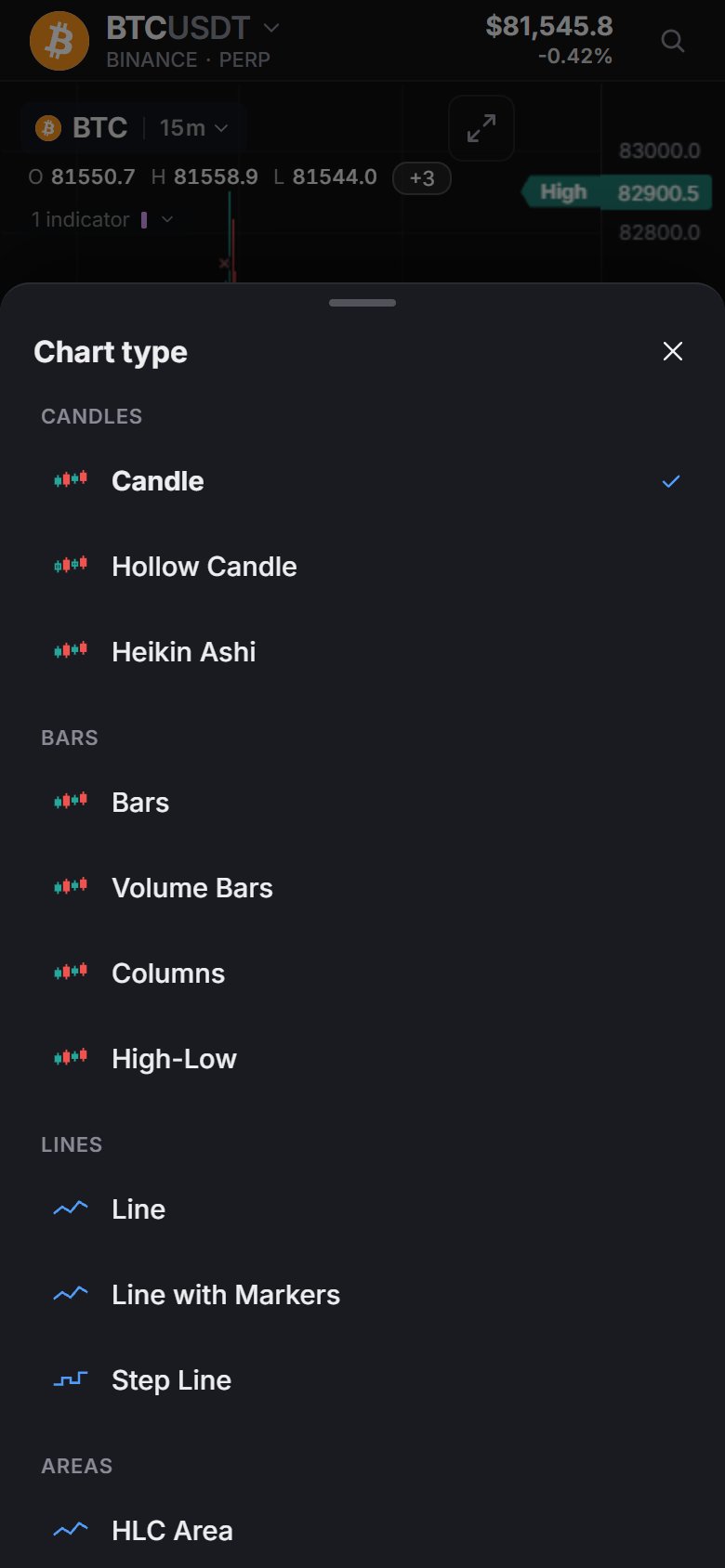
13 types in 4 groups:
| Group | Types |
|---|---|
| Candles | Candle, Hollow Candle, Heikin Ashi |
| Bars | Bars, Volume Bars, Columns, High-Low |
| Lines | Line, Line with Markers, Step Line |
| Areas | HLC Area, Area, Baseline |
The desktop menu also has a Pro section with Volume Footprint, a toggle on top of the chart rather than a 14th type. In a split layout each chart keeps its own type.
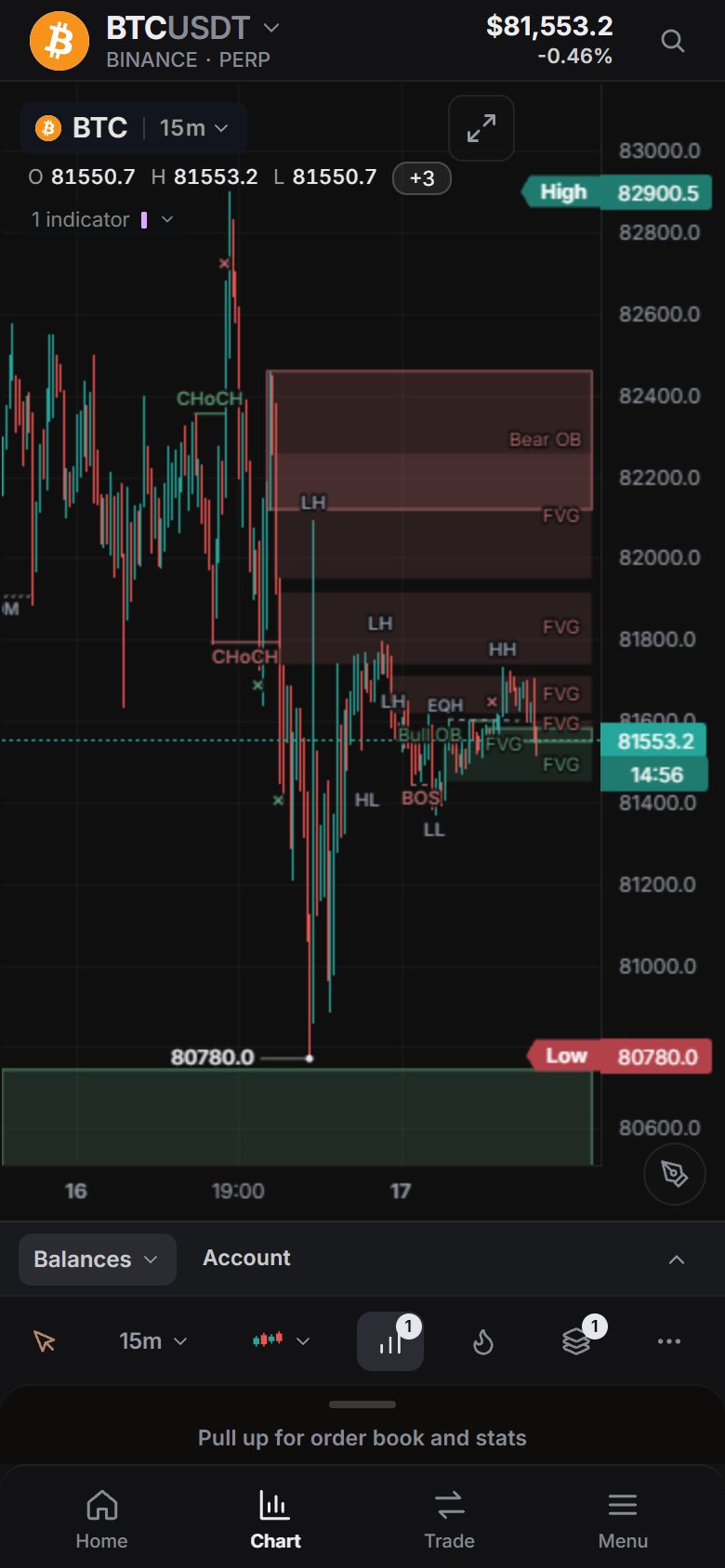
The legend at the top left of a chart shows the symbol and interval (click to change market), O H L C, change and volume, and the indicator row, which expands to one line per indicator.
Bottom dock and status bar
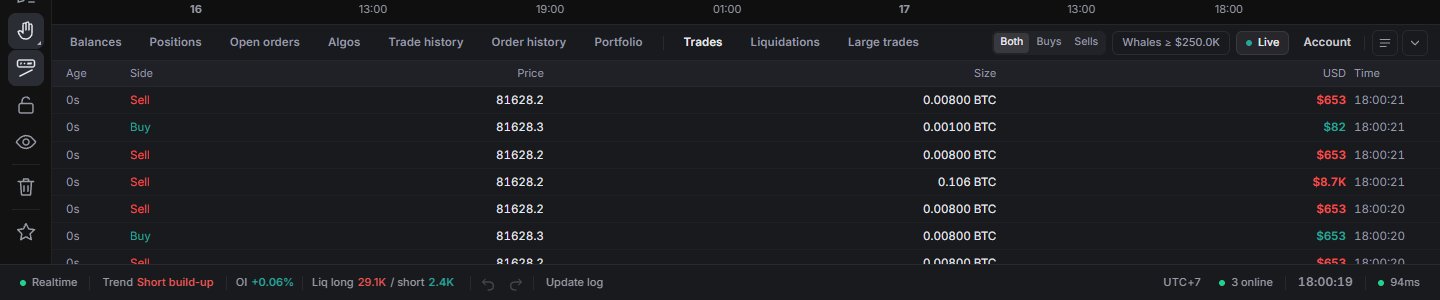
The dock holds your account tabs (Balances, Positions, Open orders, Algos, Trade history, Order history, Portfolio) and three market tabs: Trades, Liquidations and Large trades. Filter by Both / Buys / Sells, show only whales, or pause the feed. Hyperliquid doesn't publish liquidations, so that tab stays empty on its markets. Drag the top edge to resize; double-click resets it. The dock opens by default on screens 1200 px and wider.
The status bar shows the connection, the trend from price and OI over the last 12 bars, OI change, liquidations, funding warnings, undo / redo for drawings, Update log, the next Tokyo, London or New York open or close, the chart time zone (click for 18 choices), how many people have Market Open open right now, the clock and your latency to the venue.
On a phone
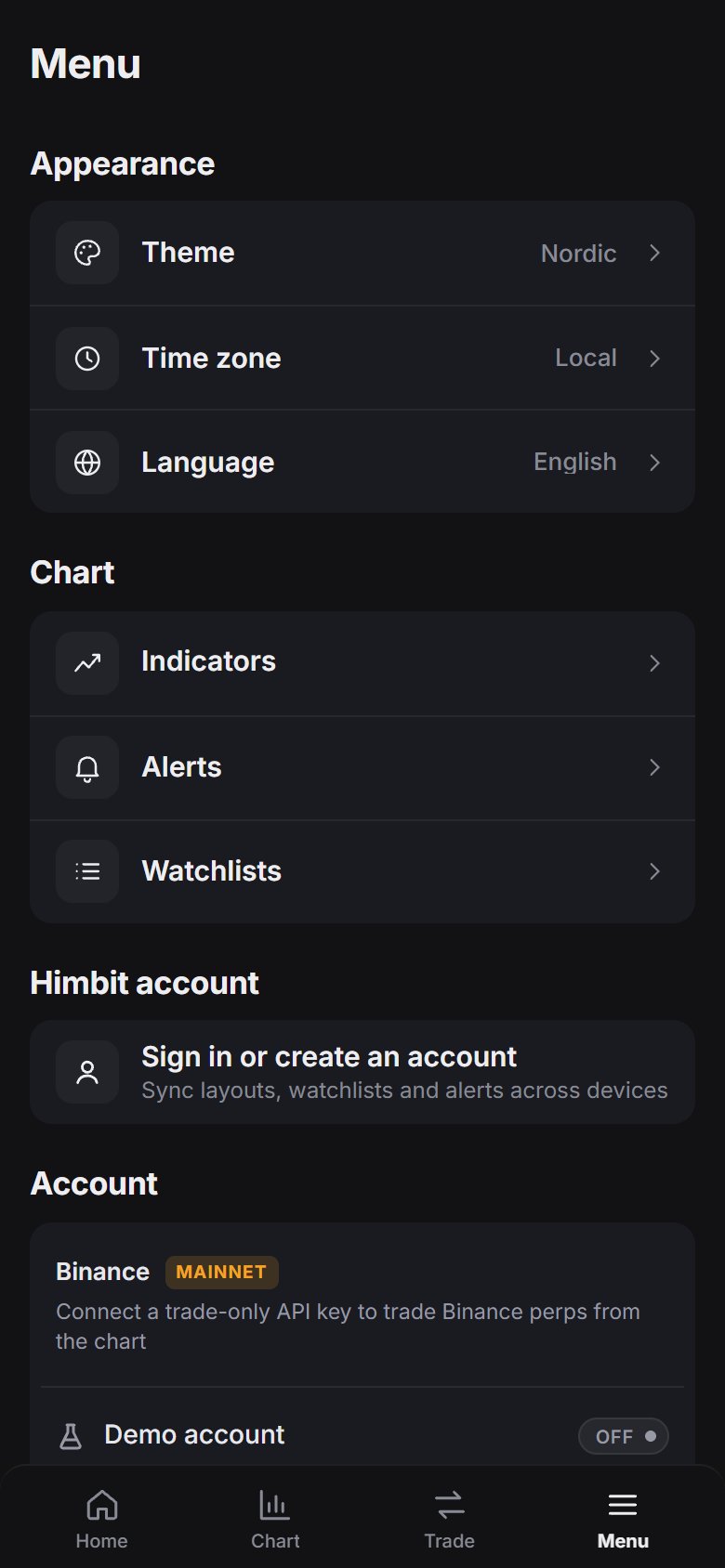
The tab bar is Home · Chat · Chart · Trade · Menu.
- Home: search, Top Moves (Gainers, Losers, Volume), your Watchlist and Explore.
- Chat: the community room (Chat).
- Chart: price header, the chart and a tool row with drawing tools, interval, chart type, indicators, heatmap, objects and More. Pull the bottom sheet up for the order book and stats.
- Trade: opens the order sheet (Trading on a phone).
- Menu: your Himbit account and trading account first, then chart tools (watchlists, alerts, indicators), display (language, theme, time zone), app settings and About.
More (…) on the Chart tab holds Panels, Layouts, Alerts, Bar replay, Screenshot, Drawing tips and Settings.
Keyboard shortcuts
- Ctrl + K search, / indicators.
- Space / Shift + Space: next / previous watchlist symbol.
- Alt + → / Alt + ←: next / previous chart.
- Alt + E or `: expand the chart. Shift + F: hide the tool sidebar.
- Alt + R: reset the chart range. Alt + S: auto / manual scale.
Ctrl + / opens the full list.
Report a problem
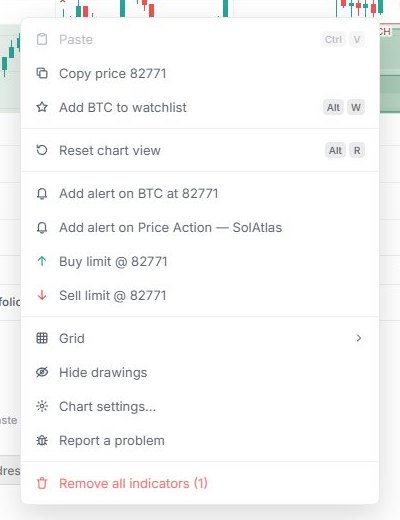
Right-click the chart and pick Report a problem. It is also in the account menu, in Menu on a phone, and behind Report a bug or request a feature at the bottom of the What's new window. On a phone it opens as a bottom sheet.
- Pick Bug, Feature or Feedback and write a few words, up to 500 characters.
- Under Attached, tick what to send: Load log, Version, chart and recent errors, and The chart, as it looked (a screenshot, with a preview). A bug report ticks all three; Feature and Feedback start with none.
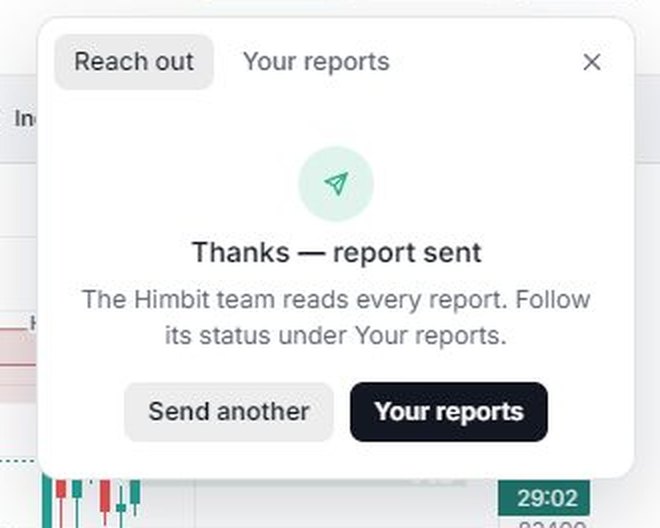
- Press Send report. Thanks — report sent confirms it.
Reports never include your keys, passwords, email or wallet data. Your reports lists what you sent from this browser, with a search box and a status: New, Seen or Resolved.