Indicators
Market Open comes with 85 built-in indicators in five groups. On your first visit only Price Action — SolAtlas is on; the rest are a click away in the Indicators dialog, and what you set up is saved with your layout.
Open the Indicators dialog
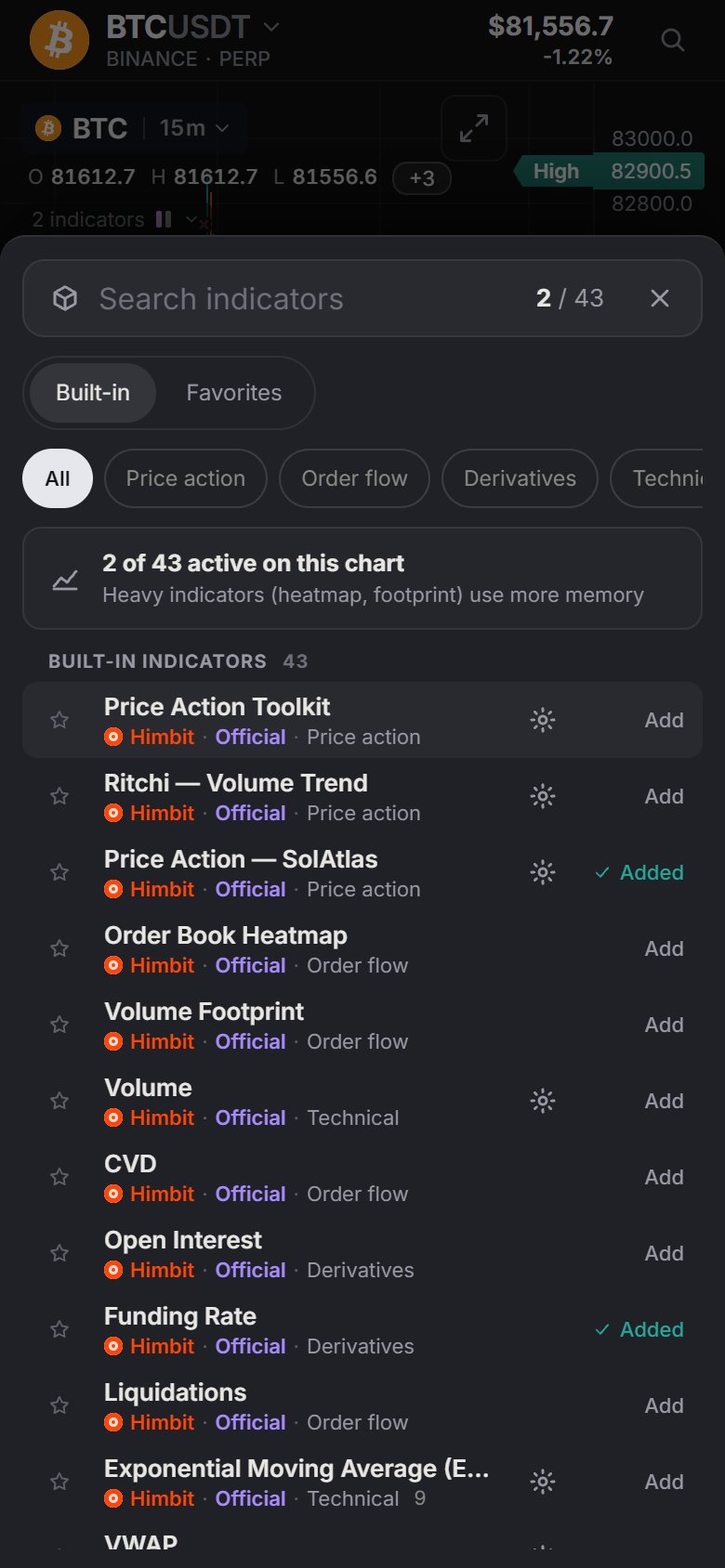
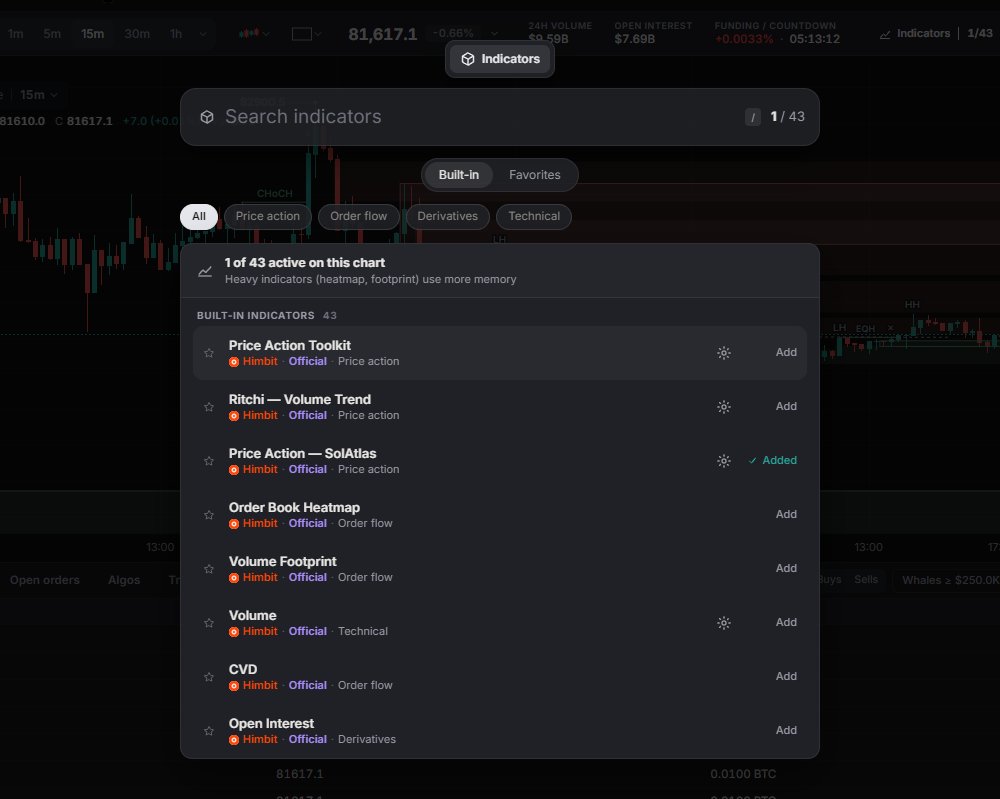
Click Indicators in the ticker bar (it shows a count such as 1/85), press /, or use Ctrl + K. The dialog has:
- a Search indicators box and a counter, for example "1 of 85 active on this chart";
- three tabs, Built-in, Favorites and New (the indicators added in the last few days, newest first; recent ones carry a New badge in every list);
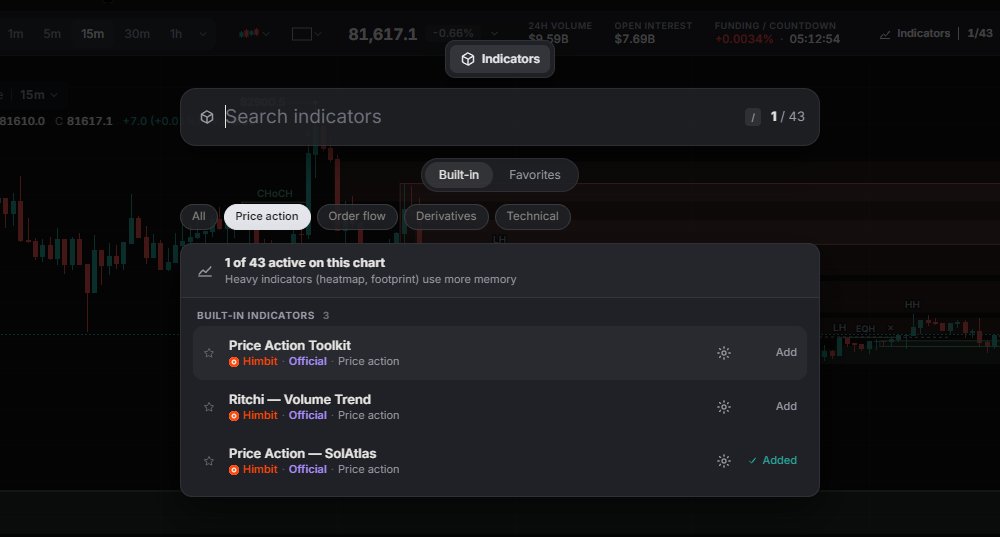
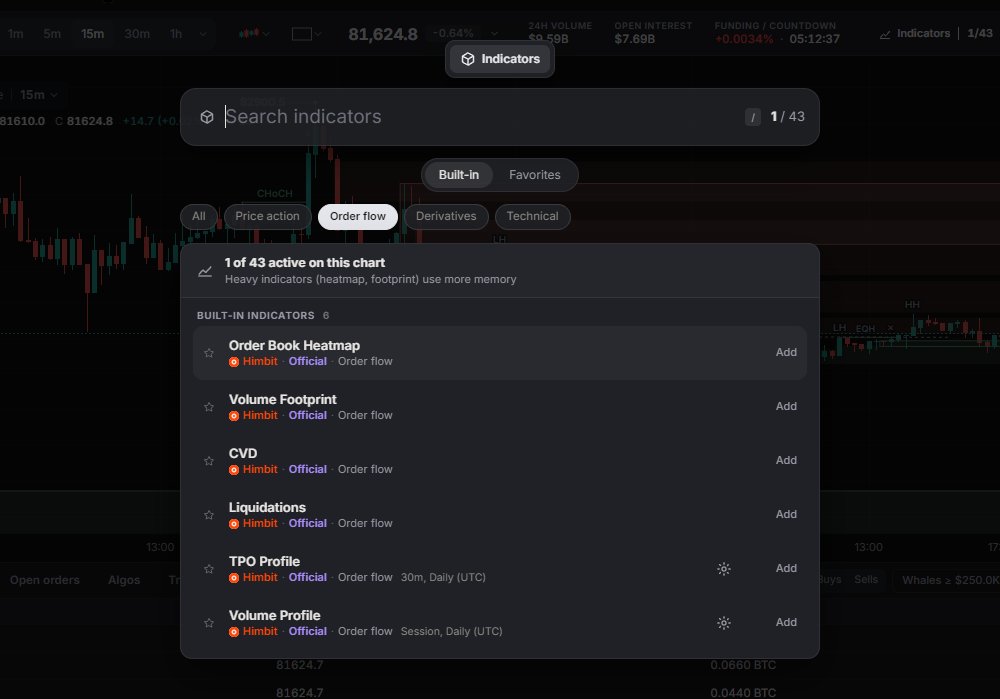
- category chips: All, Price action, Order flow, Levels & structure, Derivatives, Technical.
The Add button on a row (or ↑ / ↓ and Enter) adds it straight away. It then shows ✓ Added, and another click removes it.
Click the indicator itself to open its page: a picture of your current chart with only that indicator on (taken live; nothing changes on your chart), Add to chart or On the chart · Remove, its settings, and an introduction: what it shows, how to read it, the key settings and what to know, with Learn more in the Academy where a lesson fits. Back returns to the list. The same introductions are on these pages, one per indicator: click a name in the list below. The gear opens its settings and the ☆ puts it under Favorites. Technical rows show their inputs, such as 9 for EMA or 14, close for RSI. Heavy indicators (heatmap, footprint) use more memory, so add them when you need them.
The 85 indicators
Price action (10): Price Action Toolkit, Ritchi — Volume Trend, Price Action — SolAtlas, Equal Highs/Lows FVG Breakouts, Session Sweep + Inverse FVG, Breakout Tests & Retests, Marubozu, Gravestone Doji, Piercing Line, Mirage Liquidity Sweep Pro.
Order flow (15): Order Book Heatmap, Volume Footprint, CVD, Liquidations, TPO Profile, Volume Profile, Liquidity Sweeps, Volume Delta, CVD Divergence, Absorption, Big Trades, Volume Bubbles, Volume Delta Pro, Liquidation Bursts, Session Volume Profile. Big Trades is live only: its bubbles start from the moment you open the chart. The heatmap, TPO Profile and Volume Profile are explained in detail on the Chart tools page.
Levels & structure (9): Session Sweeps, Asian Session Sweeps, Structure Shift Sweeps, Supply and Demand Zones, Prior Day High/Low FVG, Anchored Market Structure, Key Levels (Prior Day High/Low), Market Sessions, Day Type.
Derivatives (3): Open Interest, Funding Rate, OI Changes.
Technical (48): Volume, Exponential Moving Average (EMA), VWAP, Relative Strength Index (RSI), Bollinger Bands, Moving Average Convergence Divergence (MACD), Average True Range (ATR), Simple Moving Average (SMA), Ichimoku Cloud, Parabolic SAR, Average Directional Index (ADX), Stochastic Oscillator, Commodity Channel Index (CCI), Money Flow Index (MFI), Accumulation / Distribution Line (ADL), Weighted Moving Average (WMA), Hull Moving Average (HMA), Volume Weighted Moving Average (VWMA), Supertrend, Keltner Channels (KC), Donchian Channels (DC), Aroon, Awesome Oscillator (AO), Stochastic RSI, Momentum, Rate of Change (ROC), Williams %R, On-Balance Volume (OBV), Chaikin Money Flow (CMF), Pivot Points Standard, Zig Zag, Anchored VWAP, Williams Alligator, Moving Average Cross, Chandelier Exit, SafeZone Stop, Choppiness Index (CHOP), Gator Oscillator, Volume Zone Oscillator (VZO), Average Daily Range (ADR), Garman-Klass Volatility, Parkinson Volatility, Rogers-Satchell Volatility, Yang-Zhang Volatility, EWMA Volatility, Volume Ratio, Volume Heat Hours, Bar Statistics. Volume Heat Hours only works on timeframes of 1h and below.
Oscillators such as RSI, MACD, ADX and Stochastic open in their own pane under the price chart, and so do CVD, Open Interest, Funding Rate and Liquidations. Volume can sit on the price pane or in its own pane: Volume settings › Placement › Overlay / Own pane.

The legend on the chart
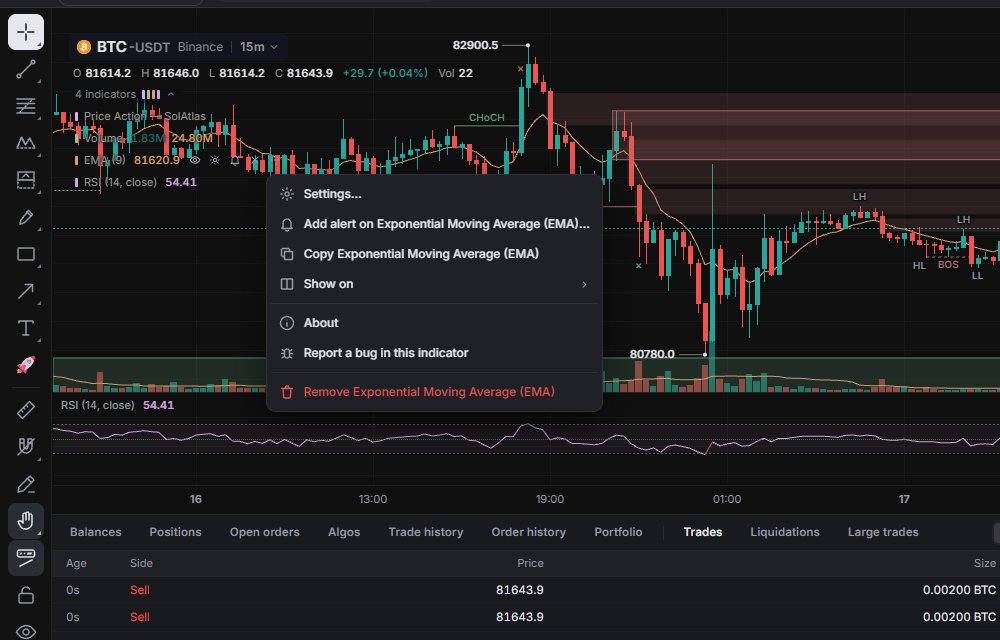
Under the OHLC line a row like 4 indicators expands into the list; coloured ticks match each line to its indicator. Each row shows the name, inputs and live values, then:
- the eye to Show / Hide it;
- the gear for Settings (double-clicking the row does the same);
- × to Remove it;
- More (…).
The More menu has Settings…, Add alert on {name}…, Copy {name} (copies its settings to the clipboard), Show on › All splits / This split, About (a short text on what the indicator does), Report a bug in this indicator and Remove {name}.
The symbol chip at the top of the legend has its own eye, which hides or shows all indicators on that chart at once, plus a More menu that lists "{name} settings…" for every indicator that has settings.
Settings and templates
Most indicators have a settings dock. The ones without their own settings are Order Book Heatmap (it uses the Heatmap card instead), Volume Footprint, CVD, Open Interest, Funding Rate and Liquidations.
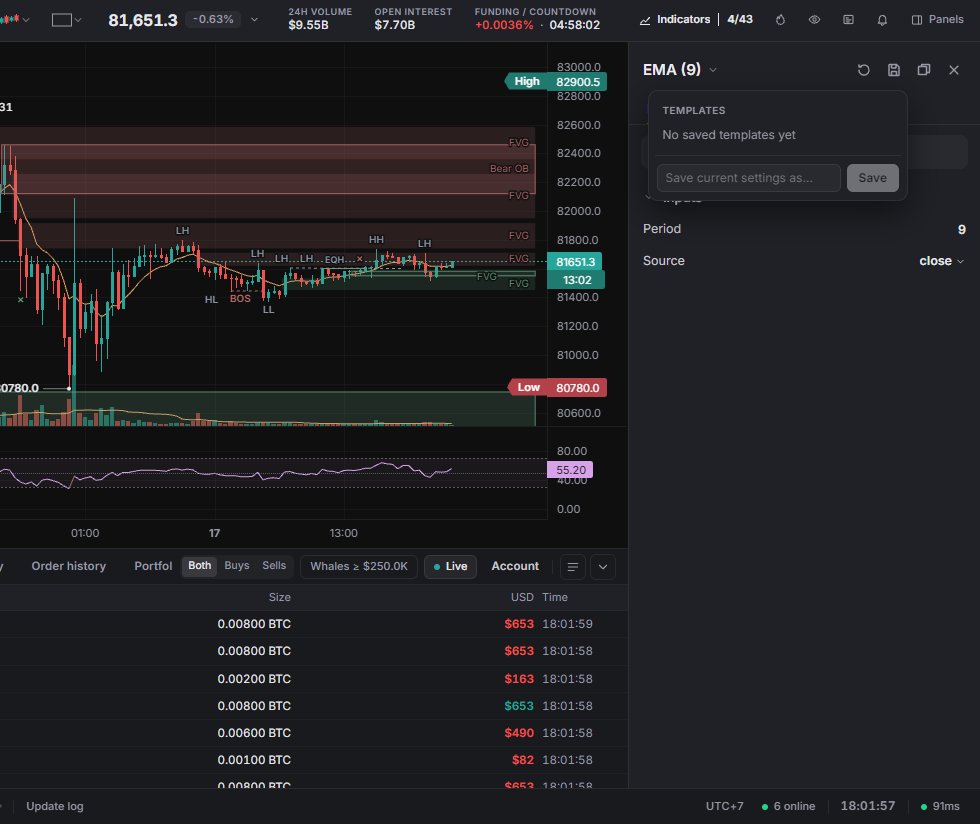
The dock sits on the right (Dock to the side) or floats (Float as a window); click its title to switch indicator. Settings are split into tabs, such as Inputs and Style for EMA, and Filter {n} settings finds an option fast. Reset to defaults puts everything back, and each changed row has its own reset. Changes apply straight away and are saved with the layout (synced if you are signed in with a Himbit ID). There is no "save as default": a new layout starts from the built-in defaults.
Templates keep settings you use often. Type a name under Save current settings as… (up to 40 characters) and press Save. Click a template to apply it, or × to delete it. Templates are kept per indicator and only in this browser; they don't sync to your Himbit ID.
Hide, show and remove
- One indicator: the eye in its legend row, or the Indicators tab of the Objects panel (Panels › Yours › Objects, Alt + Shift + O).
- All indicators on a chart: the symbol-chip eye, or Show all / Hide all in the Objects panel. The Hide onchart indicators eye on the drawing toolbar hides only the ones drawn on the price pane.
- Remove one: × in the legend, More › Remove, its row in the dialog, Chart settings › Indicators, or the Objects panel.
- Remove all: right-click the chart › Remove all indicators ({n}).
- Only on one chart of a multi-chart layout: More › Show on › This split. See Layouts.
Alerts on an indicator
Right-click the chart (long-press on a phone) and pick Add alert on {indicator}. You can set conditions for crossing, levels, channels, moves in %, and the indicator's own signals, such as a bullish BOS or a bearish CHoCH. Alerts run in the app while a chart of that market and interval is open. The whole flow is on the Alerts page.
On a phone
On the Chart tab, the indicators button (bars icon, with the count) opens the same dialog as a bottom sheet, category chips included. Menu › Chart › Indicators gets you there too. The legend works the same way as on desktop, and settings open full width.