
Chat
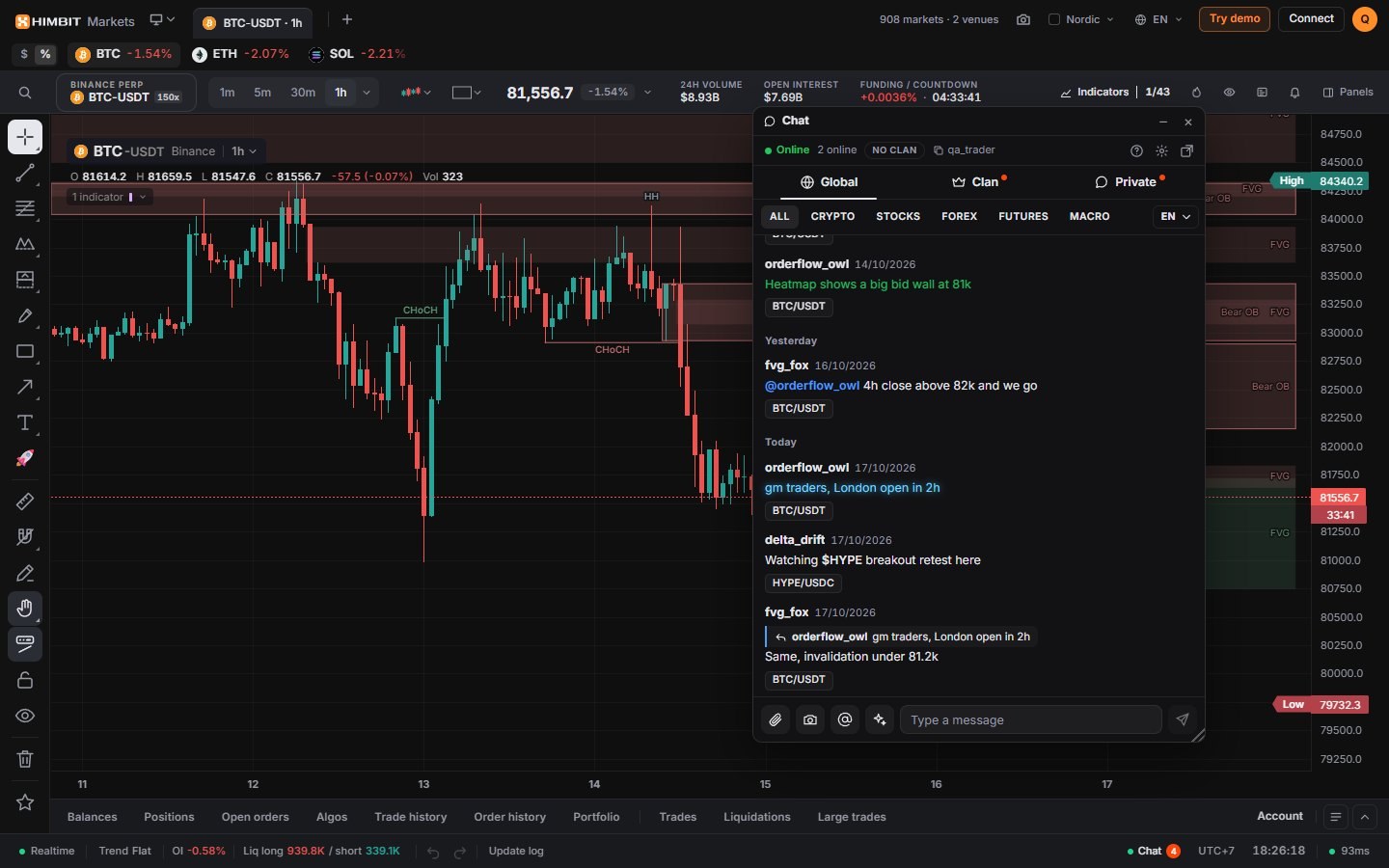
Chat is where traders talk about what they see on the chart: a shared room, rooms in your language, clans and private messages. Anyone can read the public rooms. To post, sign in with your Himbit ID.
Where to find it
- Desktop: Panels › Community › Chat opens it next to the chart, and the ● Chat button in the status bar shows or hides it, with your unread count. Pop it out into a floating window you can drag, resize and minimise, or dock it back.
- Phone: the Chat tab in the bottom bar, between Home and Chart. A badge shows unread messages.
The first time you open Chat, a short guide walks you through it. A message you started typing is kept if you switch away.

Rooms
Global is the room everyone shares. The pills at the top filter it: All, Crypto, Stocks, Forex, Futures and Macro. Next to them you can switch to a room in your language. A room can have slow mode, for example one message every 10 seconds; the room shows it when it is on. Messages are grouped under date dividers, newest at the bottom.

Write a message
- Type $ and a ticker, for example $BTC, to tag a market. The tag shows as a chip; tap it to open that chart.
- Type @ to mention someone. Market Open suggests people who posted recently.
- Reply to a message to quote it above yours.
- ✦ opens Text effects for your next message: 10 colours (Yellow, Red, Green, Cyan, Purple, White, Flash 1, Flash 2, Glow 1, Glow 2) and 5 motions (Wave, Wave 2, Shake, Scroll, Slide).
- A message can be up to 300 characters. Links show as [link] instead of the address.


Share a chart or a picture
Tap 📎 to share a snapshot of the chart you are looking at, with an optional line of text. It posts as a card with the symbol and timeframe, and anyone who taps Open chart gets the same symbol and timeframe on their own screen.
You can also attach or paste a picture. Pictures are resized before they are sent, and you can send up to 4 a minute and 40 a day.
Private messages
The Private tab holds your one-to-one conversations. Each one shows whether the other person is online and when they are typing, and a dot marks unread messages. Only the two of you can read a private conversation.

Clans
A clan is a group with its own room. Under Clan you can create one (the name is 3–20 characters: letters, numbers, spaces, _ or -) or accept an invite. Members invite others by @username. Ranks are Owner, Officer and Member, the clan can pin a notice at the top of its room, and Members lists everyone. You can leave a clan at any time.


People
Right-click a name, or use the ⋯ menu on a message, to Reply, Send message, Add friend, Block, Report or Copy username. Everyone you block is listed in Chat settings.
Chat settings
The gear in the Chat header opens Chat settings: Text size (Small, Medium, Large) and your Blocked users.

Keep it safe
Use Report on anything that breaks the rules; moderators review reports. Never post your seed phrase, private key, API secret or backup password, and don't trust anyone in chat, including in private messages, who asks for them.