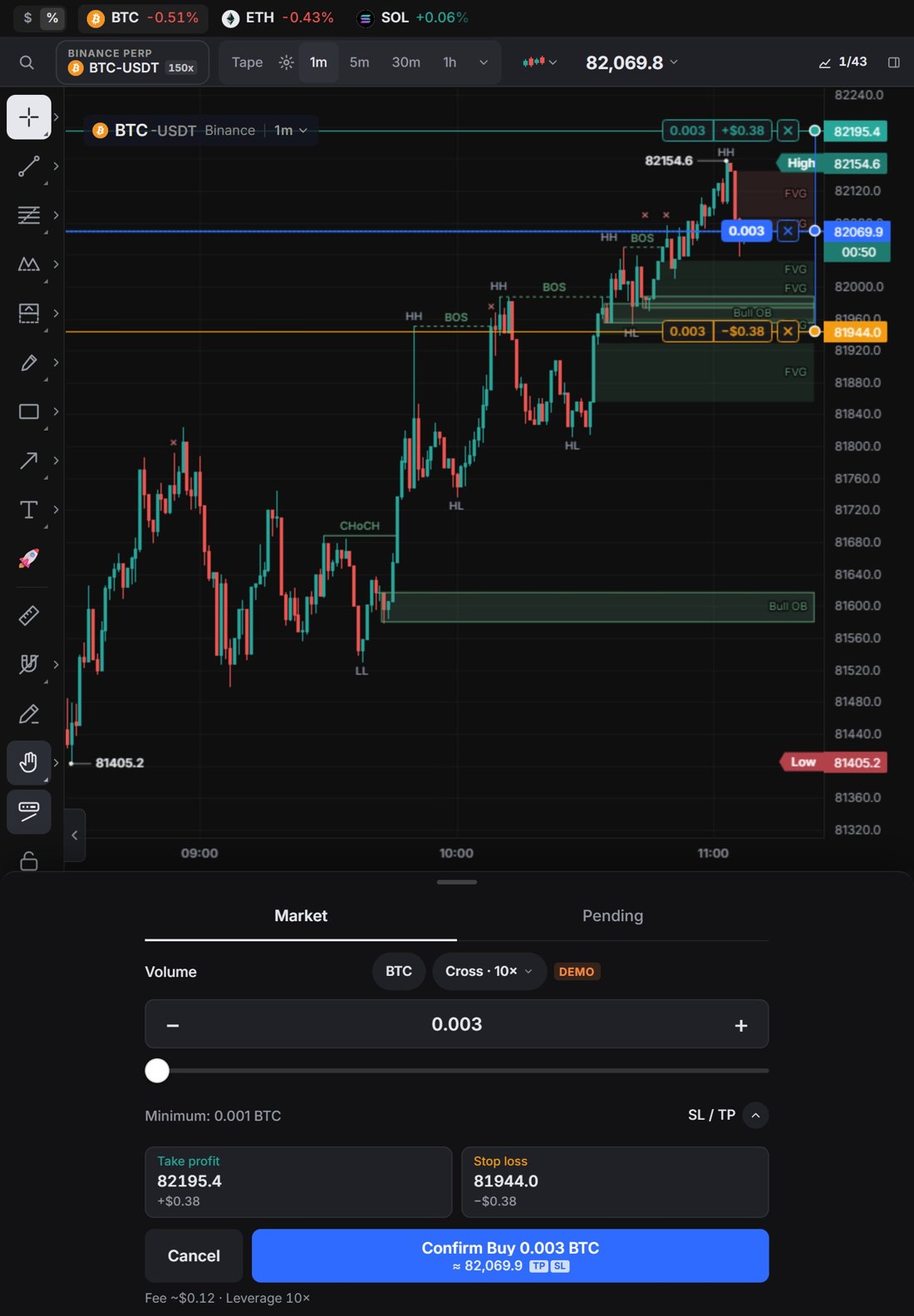
On-chart trading
Once a wallet (Hyperliquid) or an API key (Binance, beta) is connected, your positions and orders live on the chart. Every action asks for confirmation first.
The position line
Labels sit at the left of the chart and stay short, with sizes like 219.3K so they cover less of the price. At the right edge of the position line:
- Reverse: flip the position to the other side.
- TP and SL boxes: drag one up or down from your entry to set a take-profit or a stop-loss. While you drag, the line shows how far it sits from entry, for example +0.13% or −0.40%. A box disappears once that order exists. A plain click opens the TP/SL dialog.
- Size and PnL.
- ×: close the position.
Order lines read like Sell · Stop ≤ price · size · value. Drag a limit, TP or SL line to a new price.


Markers
- B / S: your own fills. Hover for the average price (VWAP) and fees.
- Star: a TP or SL that triggered.
- Episode marker on the time axis: where each position started and ended.
Lines that are off-screen show as ↑ / ↓ markers at the edge, with the same % from entry.
In the Himbit app, the SMC chart on the Perp tab shows the same fill markers for the wallet you trade with, from the moment you enable trading.


Fees
Each Hyperliquid fill pays a 0.055% Himbit builder fee on top of Hyperliquid's own fees, shown before you trade. You approve it in the same step as Enable trading: after you tap Enable, your wallet signs the trading key and then, if it isn't approved yet, the builder fee (at most 0.055% per order). Neither signature can move or withdraw funds, and you can revoke the fee approval on Hyperliquid at any time.
In October 2026 Himbit moved this fee to a new builder account, so it has to be approved once more, even if you approved before. If trading is already on, your wallet asks for it when you tap Connect; nothing pops up on its own. If you reject that signature, your orders go through without the Himbit fee, and you aren't asked again for 7 days.

Deposit USDC to Hyperliquid
A new Hyperliquid account has no funds, so trading can't be enabled yet. When that happens, Enable trading shows a Deposit button. You can also start a deposit from Deposit USDC in the Hyperliquid account menu, or from the account card in the Trade panel.
- Deposit USDC shows your wallet, the network (Arbitrum One) and your USDC balance. Enter an amount or tap 20, 50, 100 or Max, then Continue. The minimum is 20 USDC, and only native USDC on Arbitrum works.
- Confirm deposit shows where the money goes: from your wallet to the official Hyperliquid Bridge, with the network fee. Your wallet signs the transfer. Hyperliquid credits the address that sent it.
- Funds usually arrive in about a minute. Deposited confirms it, with a link to the transaction on Arbiscan, and Enable trading takes you back to finish.
If your wallet is on another network, or doesn't have enough USDC or ETH for the network fee, the sheet tells you before anything is sent.


Order size
The Trade panel opens on Market. Next to Order size, the unit button (for example USDC ⇄) opens Unit options:
- The coin, for example STRK: you enter and see the size in the coin.
- USDC: you enter the size in dollars, either as Order size (the position value) or as Cost (the initial margin). With Cost the position is cost × leverage, so $100 at 5× opens a $500 position.
Market Open remembers your choice in this browser.

Trading on a phone
On phones, and on iPad mini and iPad Air in portrait, big Sell and Buy buttons with the live bid and ask sit under the chart, with the Spread between them. The Trade tab in the bottom bar opens the same sheet.
Tap one to open a compact order sheet. The chart stays visible above it.
- Market or Pending (a limit order).
- Volume with − / + and a 0–100% slider, the Minimum size, and Deposit. Tap the unit next to Volume to open Unit options: the coin, or USDC as Order size or Cost (the initial margin), the same as on desktop.
- SL / TP, and the margin mode and leverage chip, for example Cross · 10×.
- Cancel and one confirm button that names the side and size, for example Confirm Buy 0.036 BTC, with the price under it (≈ for market, @ for a limit). The footer shows the estimated fee and the leverage.
While you type a size or price, the sheet folds down to that field, with Cancel and the confirm button just above the keyboard, so the chart stays visible.
Before you confirm, the order shows on the chart as a line with TP and SL boxes. Drag them out to place a take-profit or a stop-loss; each line shows the size and the profit or loss at that price, with its label at the right next to the price axis, and the fields in the sheet fill in. While you order, the chart legend shows only the symbol. For a Pending order, drag the entry line to set the limit price, even when it starts at your open position's price.
If the account doesn't have enough margin, Not enough money shows how much the order needs and how much is available, with Deposit; on the demo account it offers Use the maximum instead. If you aren't connected yet, the confirm button reads Connect wallet, Connect Binance or Enable trading, with a Try the demo account link under it.
Stop and TWAP orders are only on the desktop Trade panel. iPad in landscape and iPad Pro keep the Trade panel at the side, as on desktop.