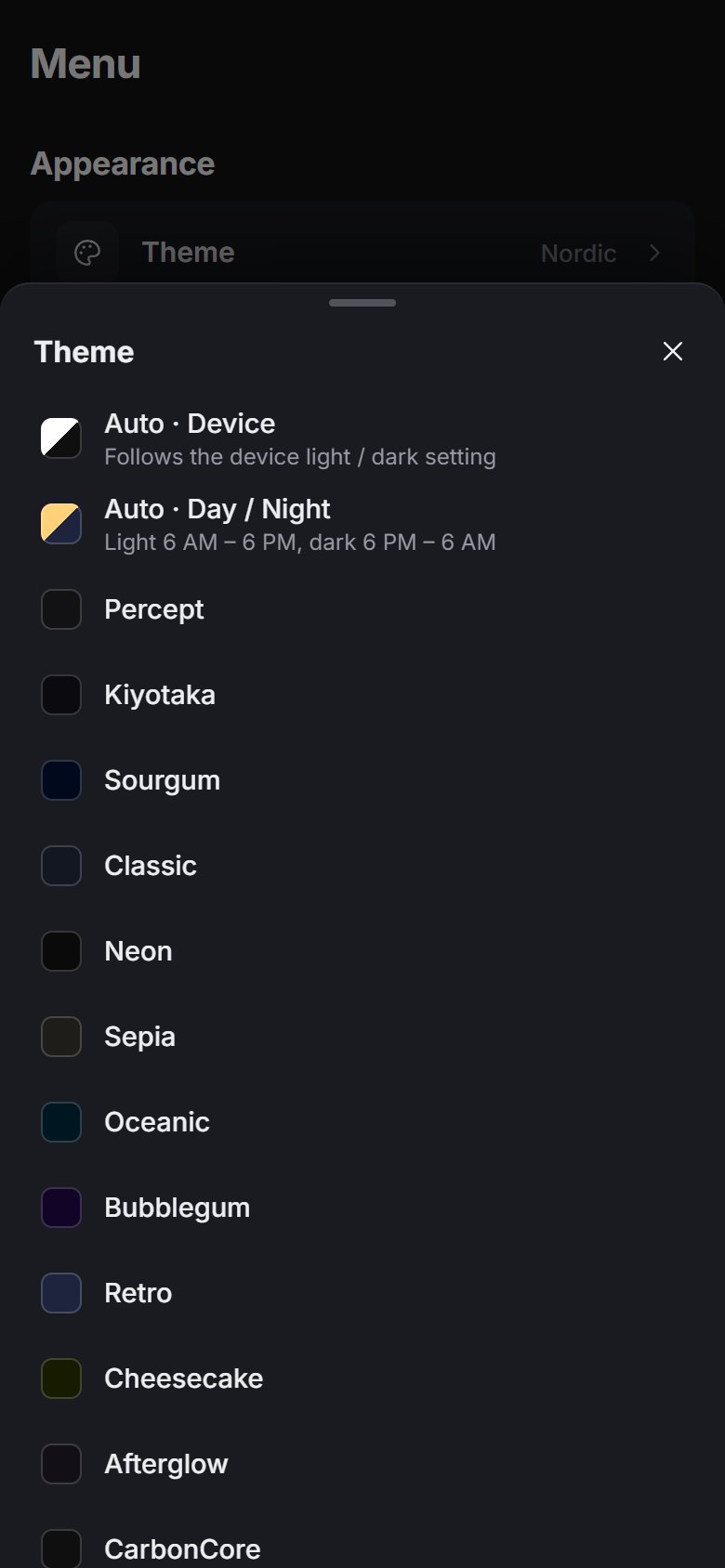
Themes and appearance
Market Open has 19 themes plus 2 Auto modes. This page covers how to pick one and the other settings that change how the chart looks: colours, scale, labels, the heatmap, language and time zone.
Pick a theme
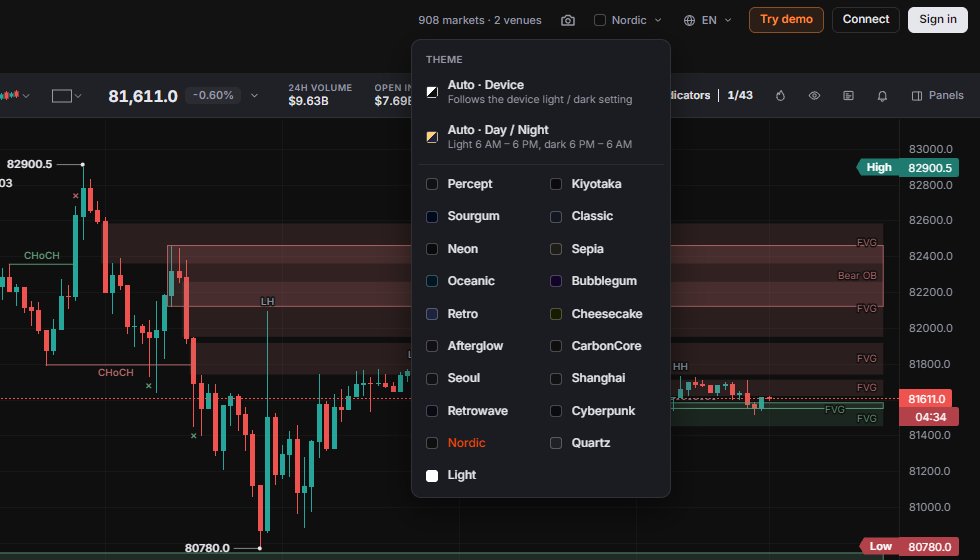
Click Theme in the top bar. It shows the current theme name, or "Auto". The menu lists the two Auto modes first, then the themes:
- Dark (18): Percept, Kiyotaka, Sourgum, Classic, Neon, Sepia, Oceanic, Bubblegum, Retro, Cheesecake, Afterglow, CarbonCore, Seoul, Shanghai, Retrowave, Cyberpunk, Nordic, Quartz.
- Light.
Each dark theme sets the chart background, and the panels and menus take their tint from it. You can also get there from Chart settings › Style › Theme, or press Ctrl + K and type "theme".
Your pick is remembered. Signed in with your Himbit ID, it syncs to your account too (Layouts).
Auto modes
- Auto · Device follows your device's light or dark setting.
- Auto · Day / Night goes light from 6 AM to 6 PM and dark from 6 PM to 6 AM, by your device's clock.
Both switch between Light and the last dark theme you picked yourself, or Nordic if you never picked one. On a first visit, phones and touch devices start on Auto · Device and desktops on Auto · Day / Night.
Chart settings
Right-click the chart and choose Chart settings…, use More settings… in the price axis menu, or search "Chart settings" with Ctrl + K. The panel docks on the right, with tabs for Indicators, Pane, Source, Style, Price axis and Alerts. Chart settings are saved with the layout, and Reset chart settings puts them back.
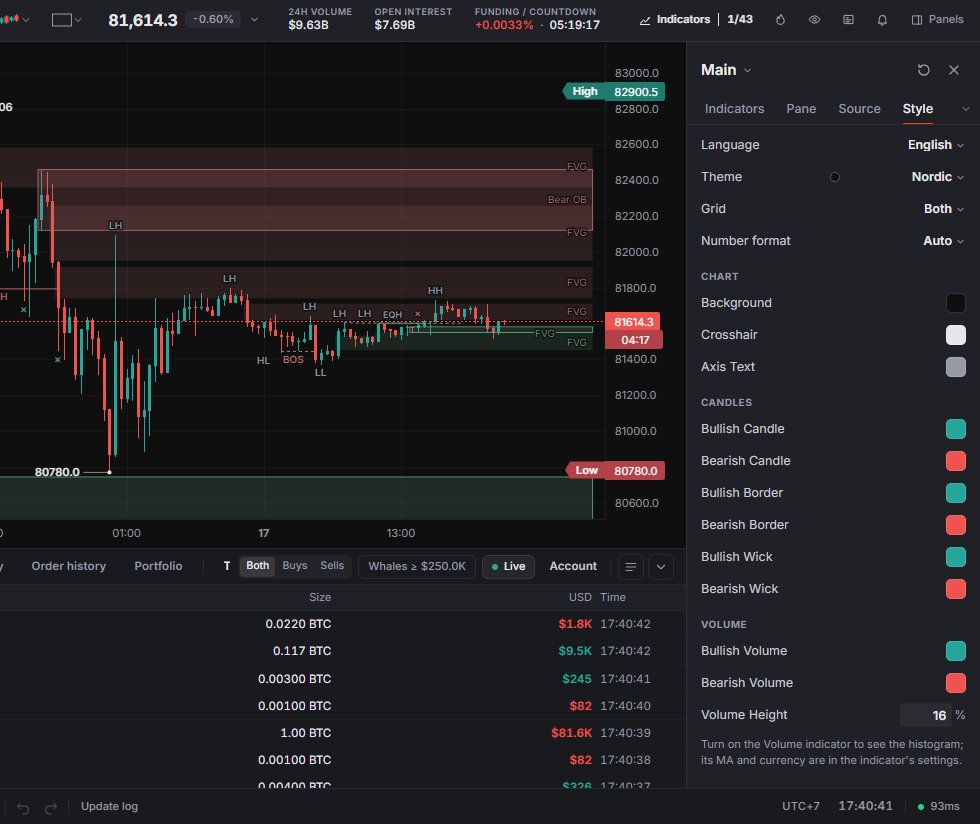
Style holds the look:
- Language and Theme.
- Grid: None, Vertical, Horizontal or Both (the default).
- Number format: Auto, 1,234.56 or 1.234,56.
- Colours for the background, crosshair and axis text; for bullish and bearish candles, borders and wicks; and for bullish and bearish volume. A changed colour gets a Default arrow to reset it.
- Volume Height: 5–60 %, default 16 %. Turn on the Volume indicator to see the bars.
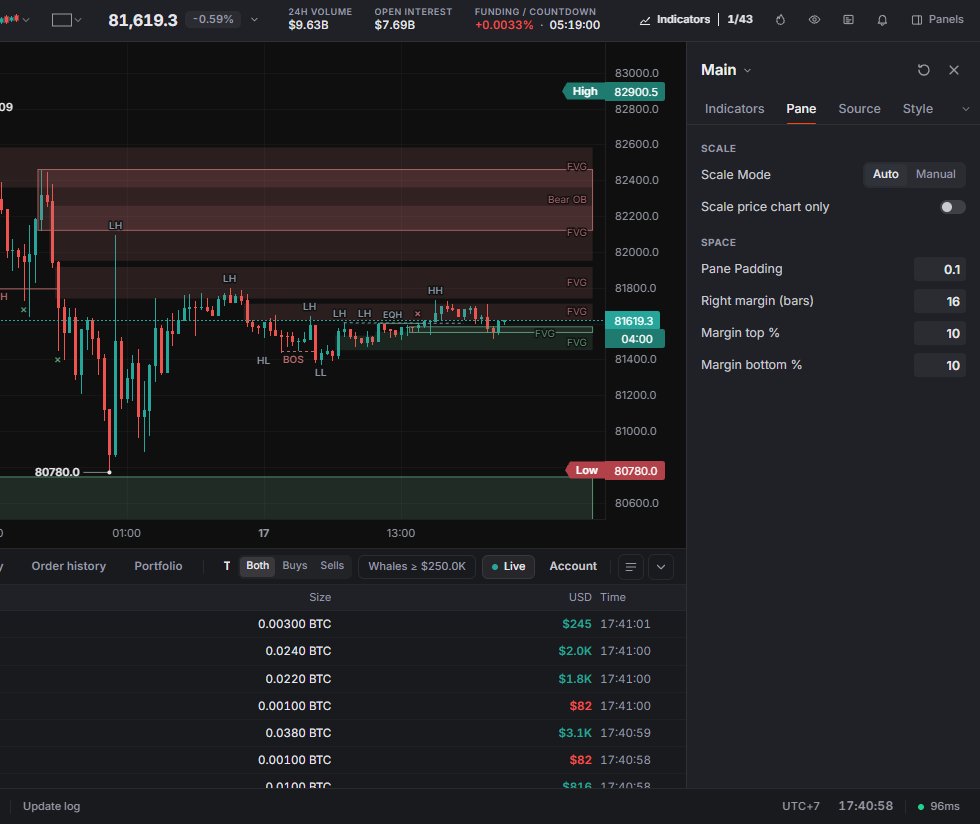
Pane, Source and Price axis
- Pane: Scale Mode (Auto or Manual), Scale price chart only, pane padding, right margin up to 200 bars (default 16), and top and bottom margins.
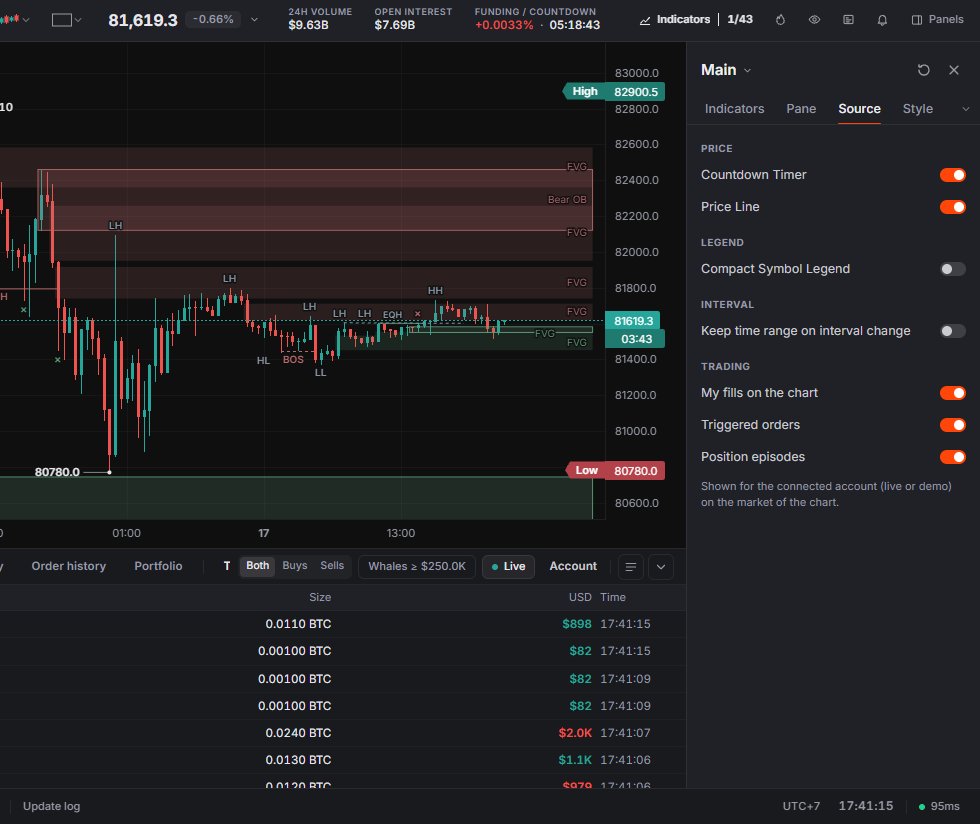
- Source: Countdown Timer, Price Line, Compact Symbol Legend, Keep time range on interval change, and your fills, triggered orders and position episodes on the chart for the connected account, live or demo.
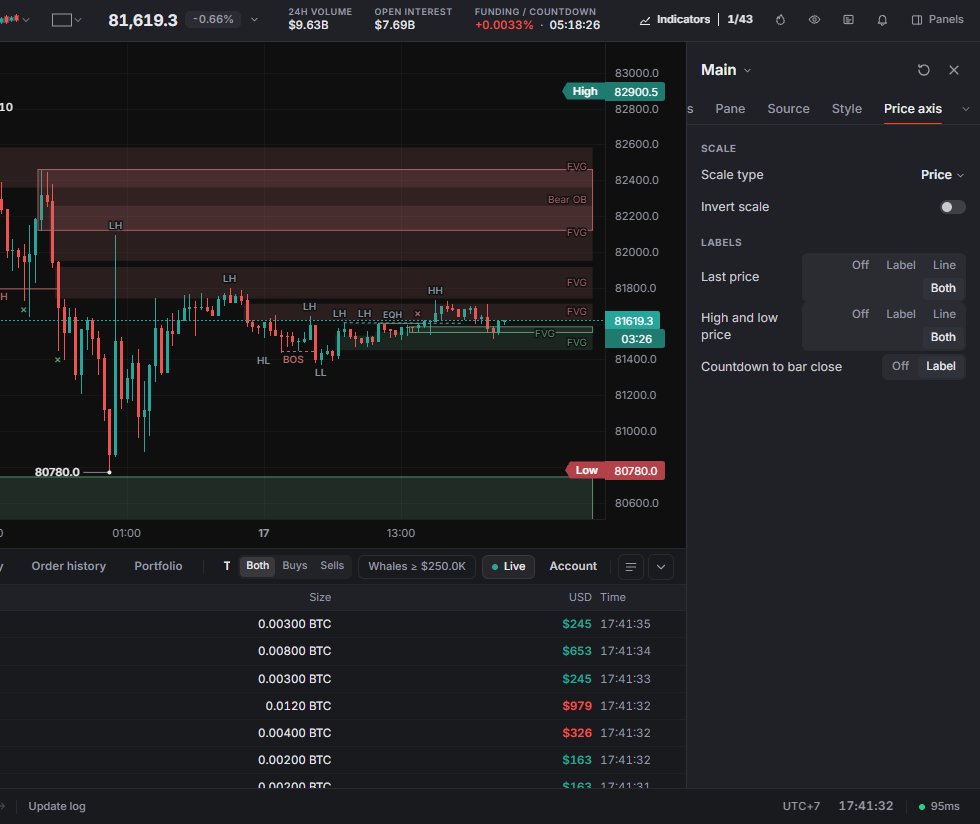
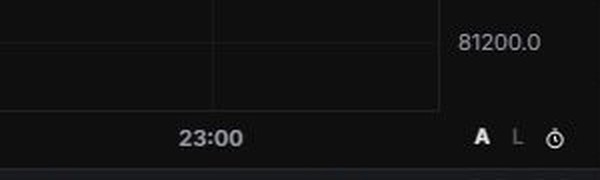
- Price axis: scale type (Price, Percent, Indexed to 100, Logarithmic), Invert scale, how the last price and the high and low show (Off, Label, Line or Both), and the countdown to bar close. On desktop and tablet, three small switches sit in the corner under the price axis: A for auto scale, L for the logarithmic scale and the clock for the candle countdown.
The Indicators and Alerts tabs list what's on the chart (Indicators, Alerts).
Momentum arrows (on by default) draws two small chevrons next to the live candle at the current price: up when the price ticks up, down when it ticks down. They appear on a move of at least 1% of the visible price range, last about 0.8 seconds with a soft pulse, and are off in Bar replay and Tape. Turn them off in Chart settings.
The High / Low price labels are off by default. Turn them on in Chart settings → High / Low, or right-click the price axis and choose High and low price labels.
Live trade flow (on by default) shows the money changing hands in the bottom-left corner of the chart, for example + $51: green for buying, red for selling. Trades are summed per second and the bigger side of that second gets a row. The newest row comes in at the bottom and pushes the older ones up; up to 4 rows show, and they fade after about 7 seconds without trades. It is hidden in Bar replay and Tape. Turn it off in Chart settings → Live trade flow.

Heatmap look
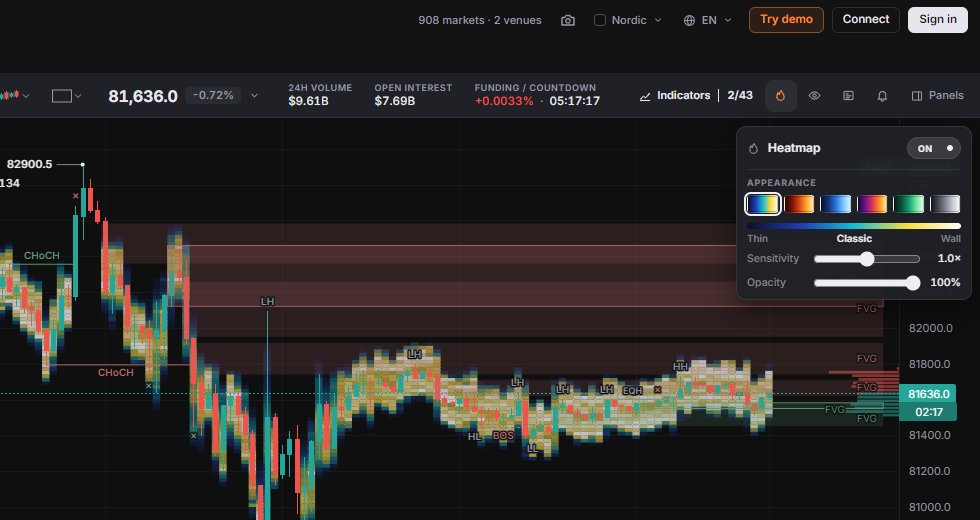
The flame button in the ticker bar (Alt + Shift + H) opens the Heatmap card. Switch it on and Appearance shows up: Colour scheme (Classic, Fire, Cold, Thermal, Emerald, Mono), Sensitivity, Opacity from 10 to 100 %, and Reset.
Language and time zone
There are 19 languages. Change them from the language button in the top bar, Chart settings › Style, or Account settings. The time zone button in the status bar offers 18 choices and is saved with the layout.
On a phone
Menu › Appearance has Theme, Time zone and Language. The Theme sheet lists the Auto modes and every theme.