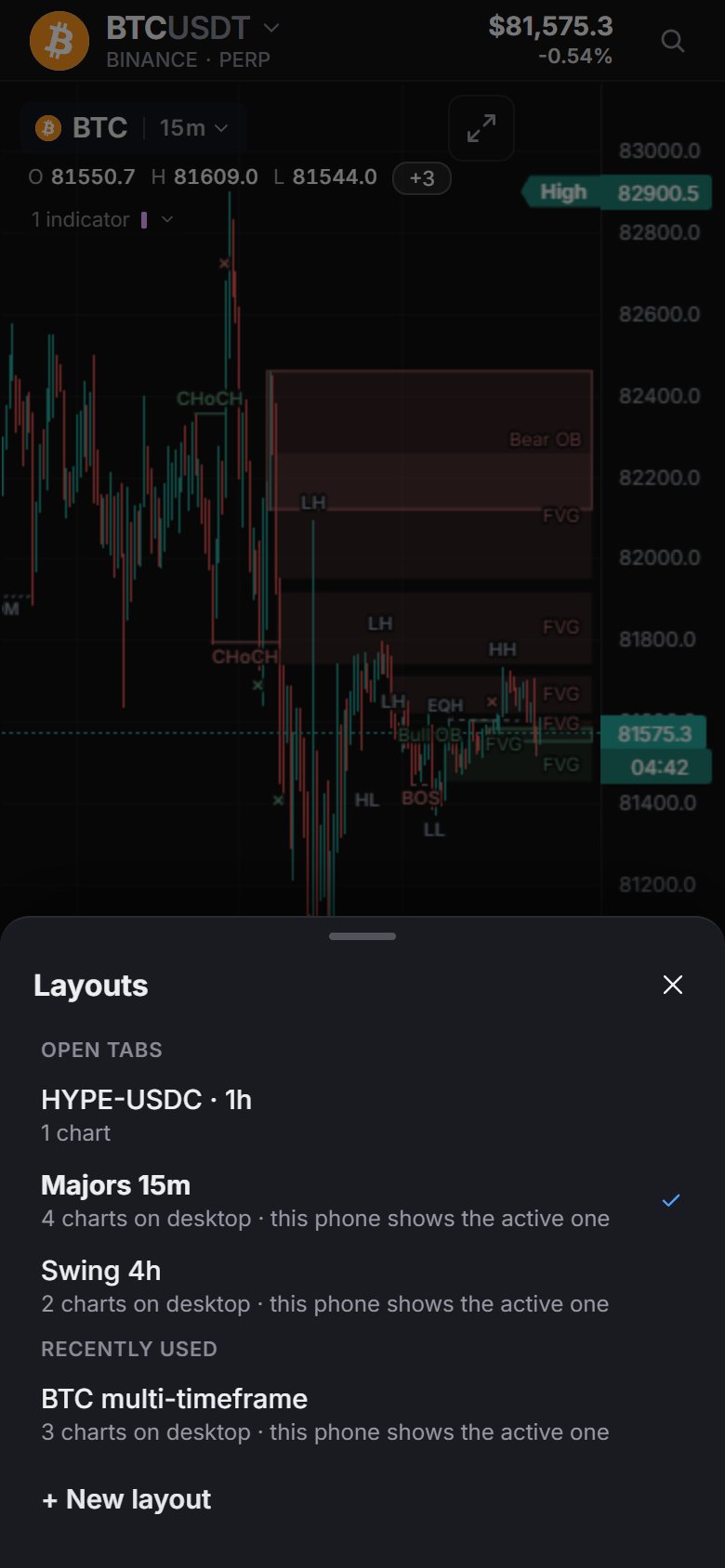
Layouts
"Layout" means two things in Market Open. A split layout is how many charts one tab shows and how they're arranged. A layout tab is a whole workspace: its charts, indicators, settings, drawings and panels, kept as a tab in the top bar.
Split one tab into several charts
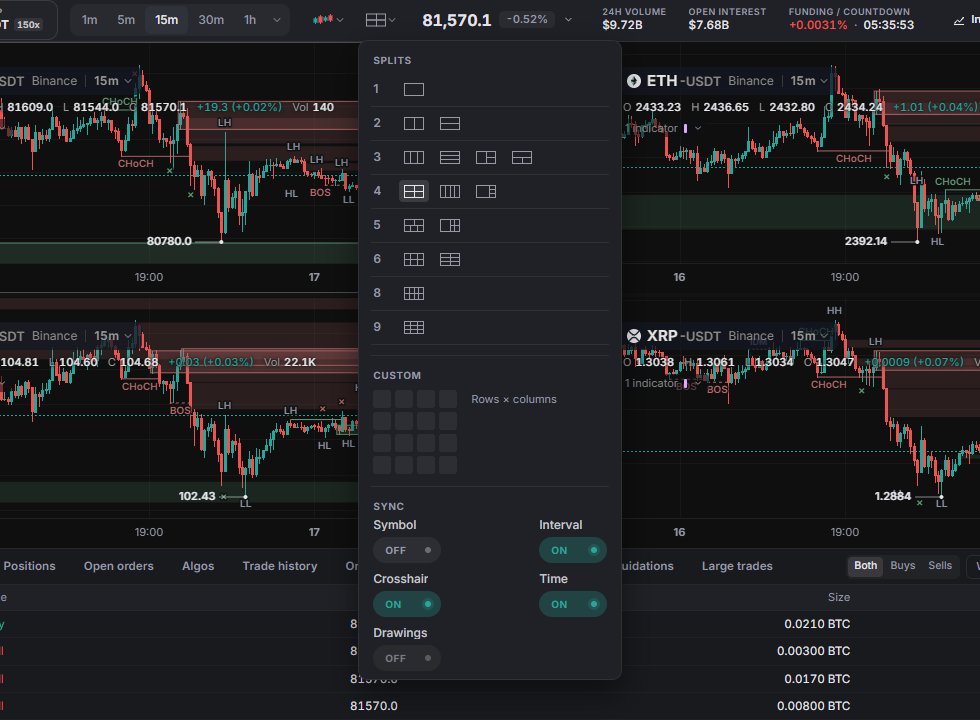
Click Layout in the ticker bar. The menu has three parts:
- Splits: 16 presets from 1 to 9 charts, from 2 side by side up to a 3 × 3 grid.
- Custom: hover over the grid to pick rows × columns, then click. The limit is 9 charts; bigger picks turn red and can't be applied.
- Sync: which things the charts share (next section).
New charts open on the big perps in this order: ETH, SOL, XRP, DOGE, BNB, LINK, AVAX, SUI, on the same venue and interval as the first chart. Click a chart to make it active. The ticker bar, panels and Indicators act on the active chart. Alt + → and Alt + ← move between charts.
Sync between charts
All sync switches are off by default and saved per layout.
- Symbol: change the market on the active chart and every chart follows.
- Interval: same for the interval.
- Crosshair: the crosshair time under your mouse shows on the other charts.
- Time: scroll or zoom one chart and the others move with it.
- Drawings: always off. Each chart keeps its own drawings.
Crosshair and Time only matter with 2 or more charts. Chart type is always per chart. Indicators are on for the whole layout; to keep one on a single chart, use Show on › This split in its legend menu (Indicators). Bar replay on a multi-chart layout asks whether to replay this chart only or all charts together.
Layout tabs
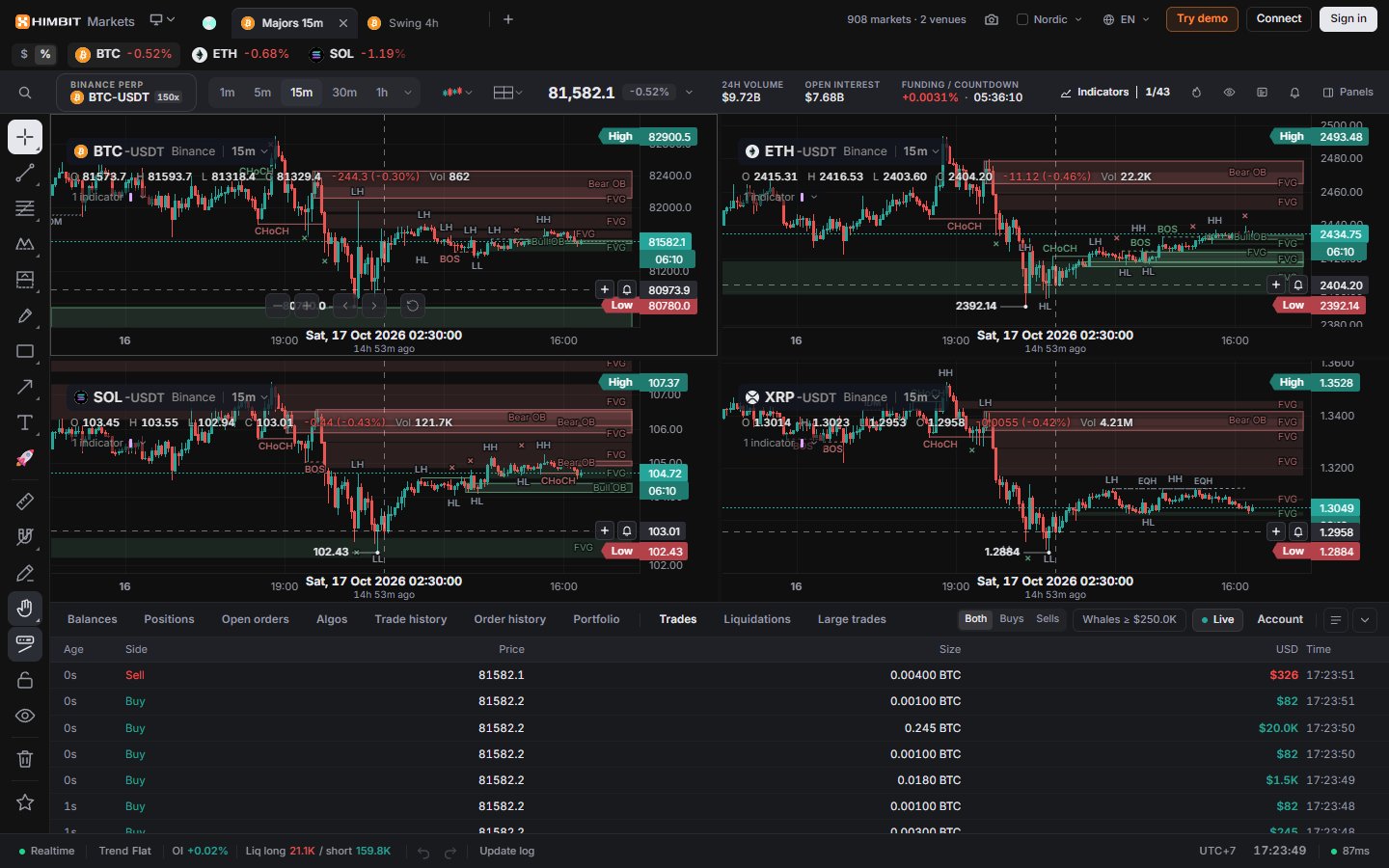
Open layouts sit as tabs in the top bar. A tab is named after its active chart, for example BTC-USDT · 15m, until you rename it.
- Click to switch, double-click to rename (up to 40 characters), drag to reorder, middle-click or × to close. The last tab can't be closed.
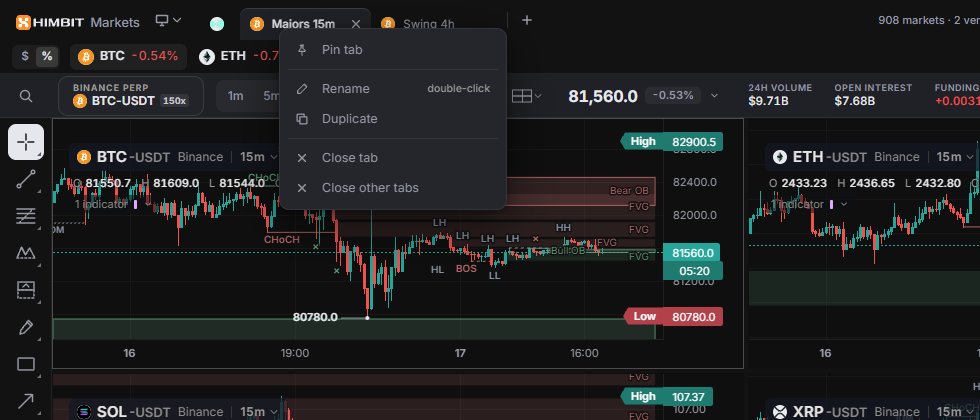
- Right-click a tab for Pin tab, Rename, Duplicate, Close tab and Close other tabs. Pinned tabs move left and show only the coin icon.
- + opens a new tab: Default workspace (default indicators and settings, no panels, no drawings), a recent layout, or All my layouts….
- The monitor icon left of the tabs (key .) opens the Layouts menu: search, Open tabs, Recently used, New layout and All my layouts.
You can have up to 8 open tabs and up to 60 saved layouts. Past 60, the least recently used closed layouts are dropped.
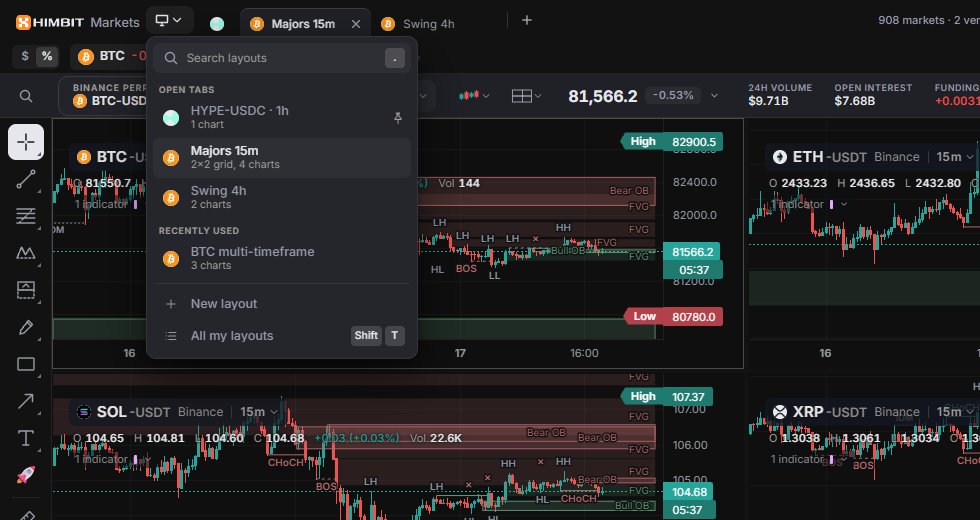
My layouts
All my layouts (Shift + T) lists every saved layout with its shape, market and when it was last edited, tagged Current, Open or Pinned. Search, sort by Recent or Name, start a New layout, or Rename, Duplicate and Delete one. Delete can't be undone, and the last layout can't be deleted.
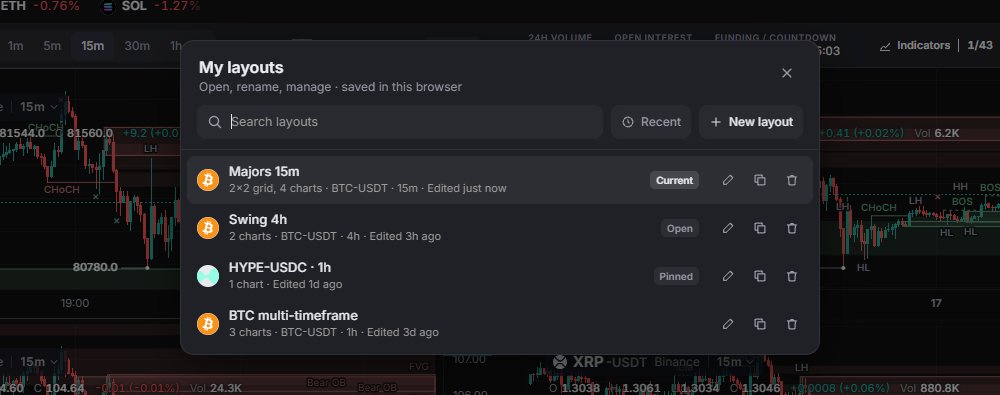
What gets saved
A layout keeps its charts (market, interval, chart type), sync switches, name, indicators and their settings, open panels, chart settings, time zone and drawings.
There's no Save button. Every change is saved straight away on this device. Signed in with your Himbit ID, your layouts and tabs also sync to your account (Himbit ID). If another device changed something, the account menu shows Updates from another device with Reload.
On a phone
A phone shows one chart: the active chart of the layout. Open the Chart tab, tap More (…) › Layouts for Open tabs, Recently used and + New layout. New layout is greyed out once 8 tabs are open.