
Order flow panels
Order flow panels sit next to your charts and show what the market is doing right now: the book, every print, the big trades, liquidations and a few live stats. They follow the chart you are working on, and the ones you open are saved with your layout.
Opening panels
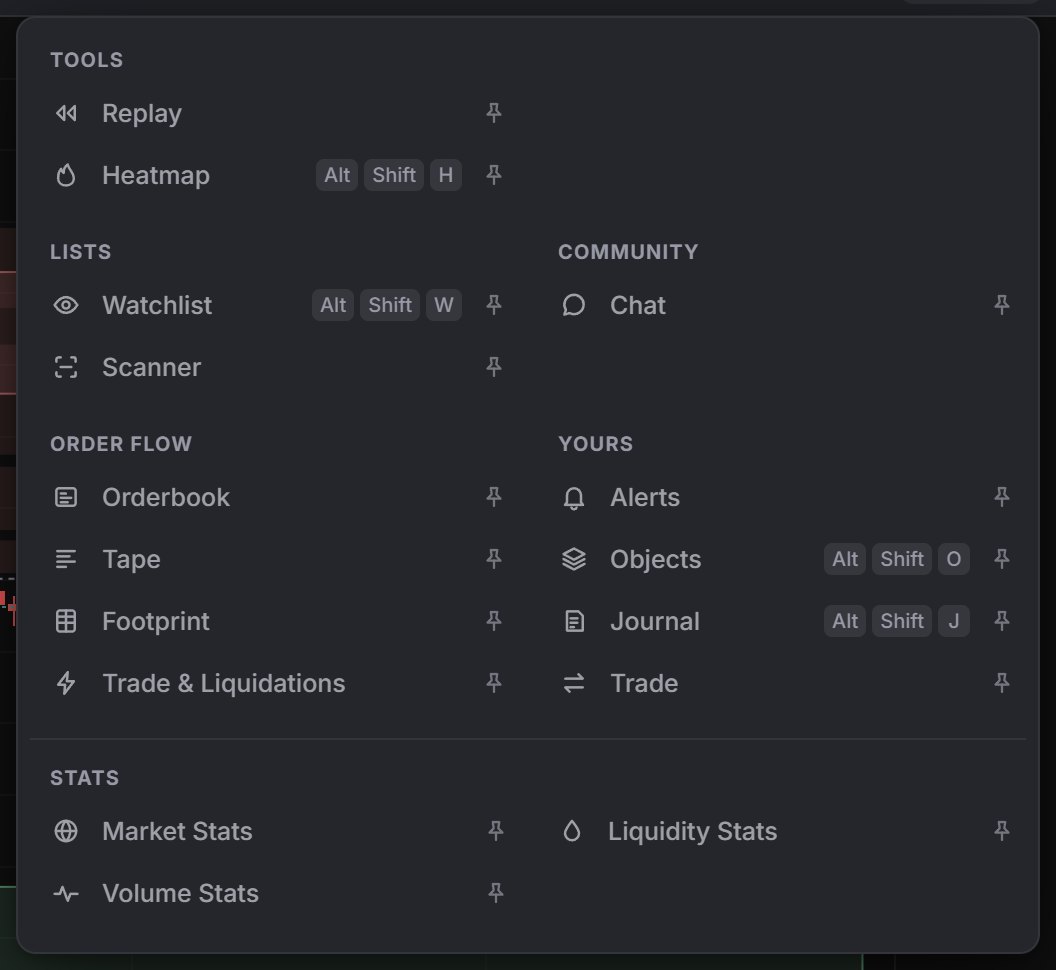
Open Panels in the ticker bar. Each row opens or closes a panel, and the pin on the right shows which are open. The groups that matter here are Lists (Watchlist, Scanner), Order flow (Orderbook, Tape, Footprint, Trade & Liquidations) and Stats.
Panels open in columns on the right of the charts. Add a panel below stacks another one in the same column, × closes it, and you can drag the column edge between 240 and 640 px. Panels show the market of the active chart, except a Tape you have unpinned.
Orderbook
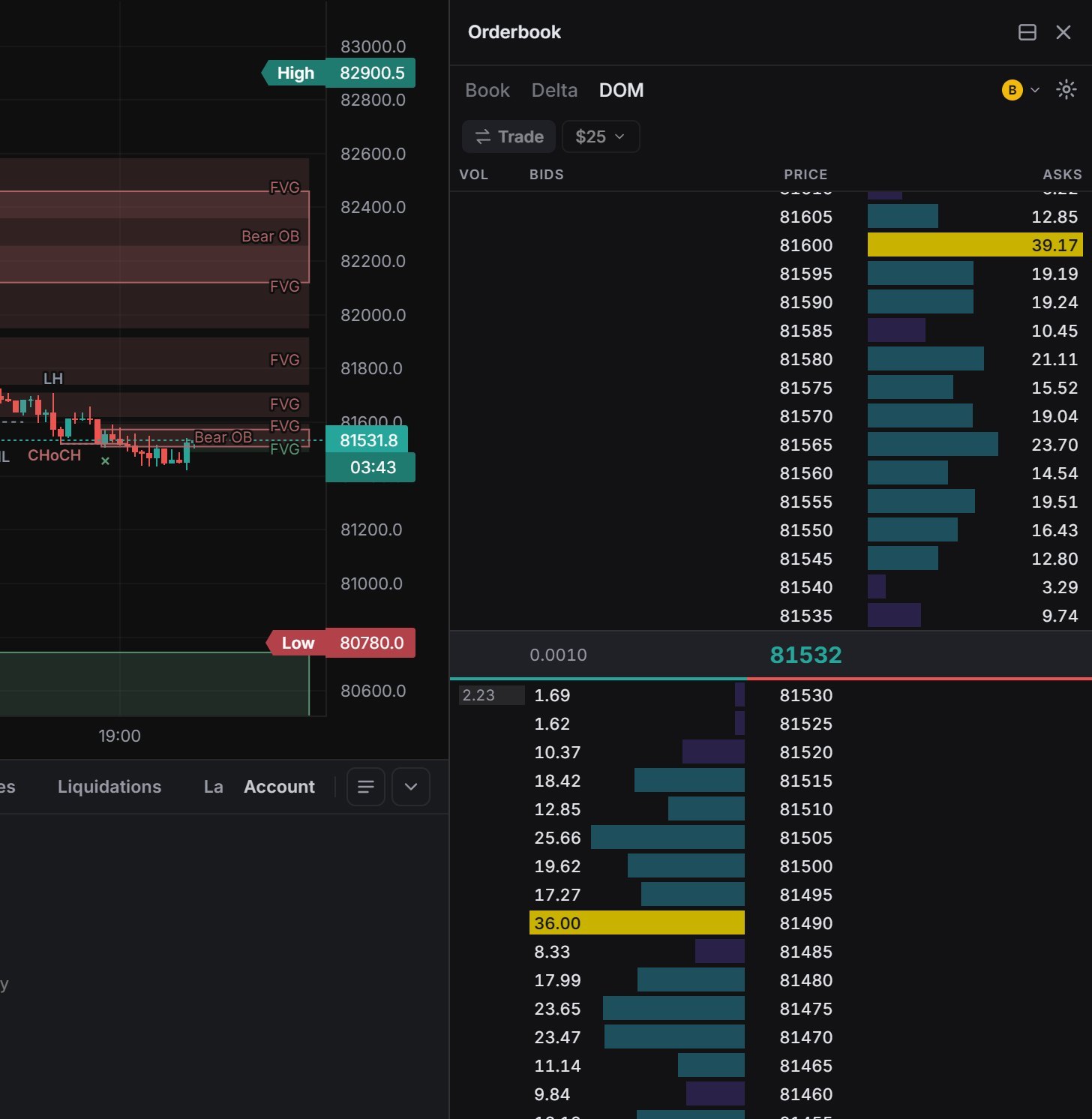
Panels › Order flow › Orderbook has three tabs:
- Book: Price, Amount and Total, asks on top, bids below, with the last price and the spread in the middle. A bar under the ladder compares bid and ask value over the 20 nearest levels on each side.
- Delta: Price, Added and Subtracted, the change in resting size over the last 60 seconds.
- DOM: Vol, Bids, Price and Asks on a continuous price ladder, empty levels included, with the volume traded at each level.
Grouping sets the price step. The gear holds Show cumulative (on by default) and Highlight large orders at 2×, 3×, 5× or 10× the median size (3× by default). Re-centre returns to the price. Hyperliquid streams 20 levels per side, Binance more. The DOM ladder lesson explains how to read it.
Sizes can be shown in USD or in coin.
For BTC, grouping goes up to 1000, and Scroll to center brings the ladder back to the price.
Tape
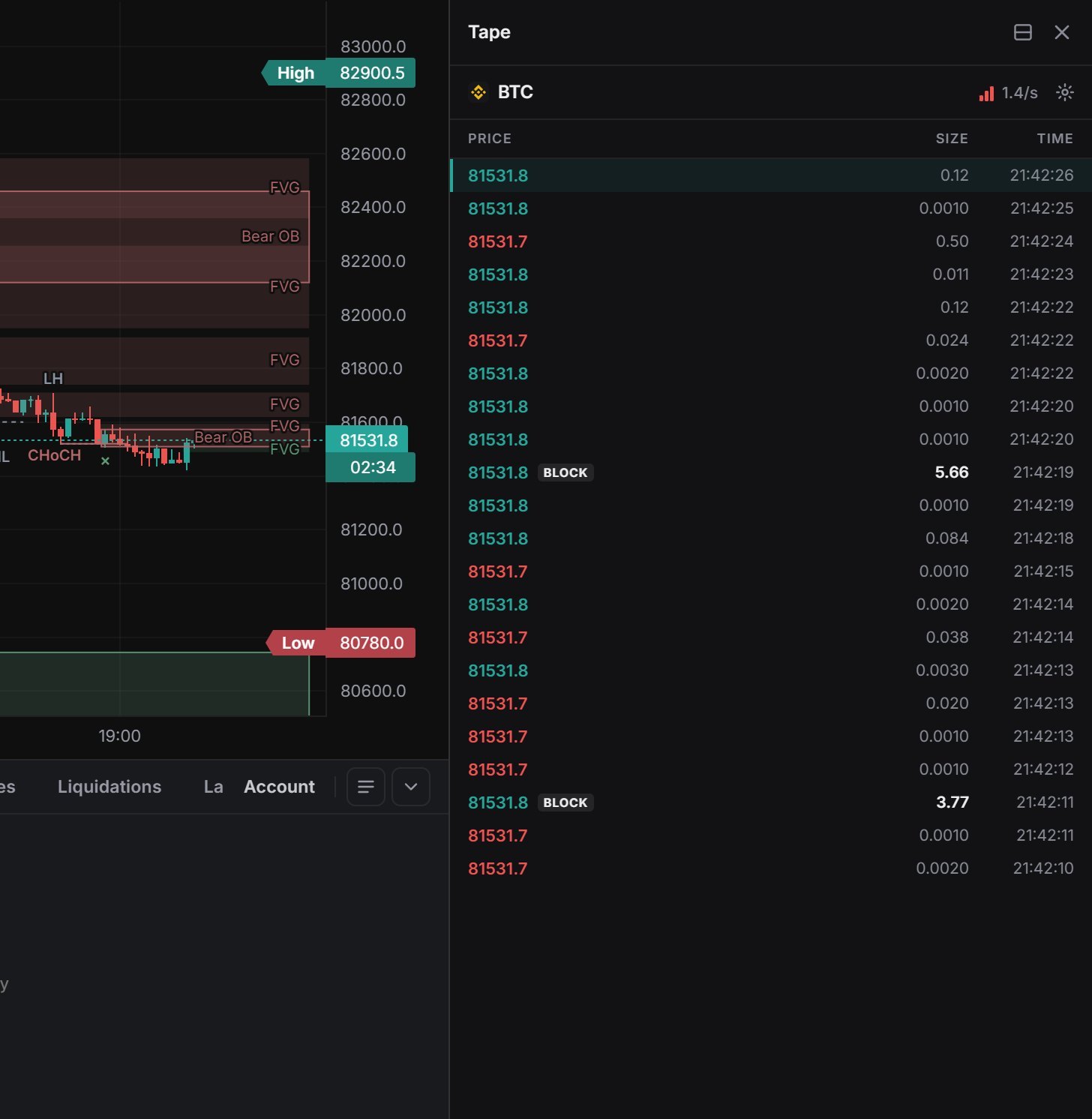
Panels › Order flow › Tape is live time & sales for the chart's market, up to 250 rows. The pace gauge in the header shows trades per second over the last 10 seconds next to the 1-minute average. Two tags stand out:
- BLOCK: one print at or above the block threshold ($100K by default).
- SWEEP: same-side prints across at least 3 price levels within 500 ms, totalling at least $50K.
In Tape Settings you can change those thresholds, pick BASE or QUOTE units, set a Min Size filter, turn on Whale highlights (from $200K), show Blocks/Sweeps only, or turn on Reconstructed tape to merge the fills of one order into a single print. Sync to Main Chart is on by default. Turn it off and the tape is Pinned to its market while you switch charts.
This panel is not the Tape interval in the interval menu, which turns the chart itself into live 1-second candles with trade bubbles (see Tape mode). The panel shows sizes with thousands separators and colours each row by trade-size tier.
Trades and Large trades
The bottom dock has Trades and Large trades tabs: Age, Side, Price, Size, USD and Time. Filter Both, Buys or Sells, set Whales ≥ $X on Trades, and switch between Live and Paused. Large trades keeps only the big prints. More on the bottom dock in the interface page.
Trade & Liquidations
Panels › Order flow › Trade & Liquidations shows large trades on top and liquidations below for the chart's market and any you add with +. Each section has four amount Thresholds with their own buy colour, sell colour and sound. Defaults are $50K / $125K / $500K / $5M for trades and $25K / $50K / $100K / $1M for liquidations. Range multiplies every threshold at once. Each section keeps the latest 150 events, and either feed can be turned off.
Liquidations
You find liquidations in the Liquidations tab of the bottom dock, in the lower half of Trade & Liquidations, and as the Liquidations indicator under Indicators › Order flow.
All of them come from Binance. Hyperliquid does not publish a public liquidation stream, so on Hyperliquid markets these views stay empty.
Footprint
Panels › Order flow › Footprint shows the current bar of the active chart as a Sells | Buys | Price ladder built from trades. Modes: Split, Delta, Total, Cluster, Imbalance Only and Ladder. The settings can show 3:1 imbalances and set ticks per row. Background in the footprint lesson.
Stats panels
Under Panels › Stats:
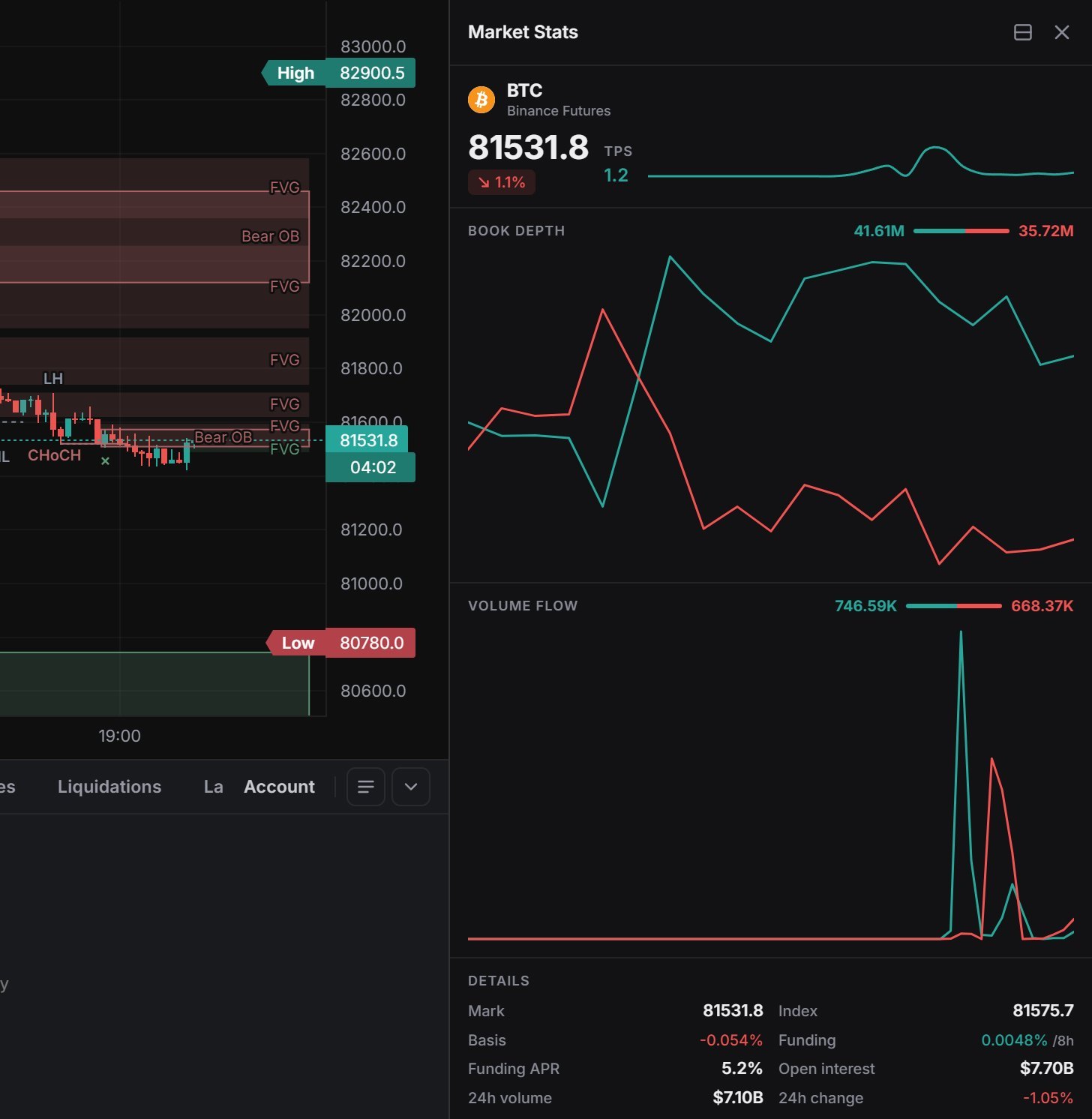
- Market Stats: trades per second, Book depth (bid vs ask size within ±2 % of mid), Volume flow (taker buys vs sells, last 5 minutes) and Details: Mark, Index, Basis, Funding, Funding APR, Open interest, 24h volume and 24h change. The derivatives data lesson explains these.
- Liquidity Stats: USD resting within ±2 % of mid on each side over the last hour. It samples every 3 seconds only while open, so it starts empty.
- Volume Stats: 24h volume against the previous 24h, in 15-minute buy and sell bars, or total volume where the venue does not publish the taker split.
Events
Panels › News & events › Events is the market calendar for the coming weeks. It lists US macro releases taken from the official schedules (FOMC rate decisions from the Fed; CPI and payrolls from the BLS; JOLTS; GDP, PCE and Core PCE from the BEA; ISM; weekly jobless claims from the DOL) and crypto expiries worked out by rule: Deribit BTC and ETH options (weekly, monthly and quarterly, 08:00 UTC) and CME bitcoin and ether futures (the last Friday of the month, 16:00 London, moved for holidays).
- Tabs: the current market, All markets or Major only. Filters: All, Macro, Expiries.
- Rows are grouped by day. Each shows an importance bar (1 to 3), the time in the chart's time zone (daylight-saving changes included), the event with a short note, and a countdown.
- The next major event also sits in the status bar as a countdown, for example FOMC in 8d 1h; click it to open the calendar.
This is a schedule with countdowns only. There are no forecast, previous or actual values.


Scanner
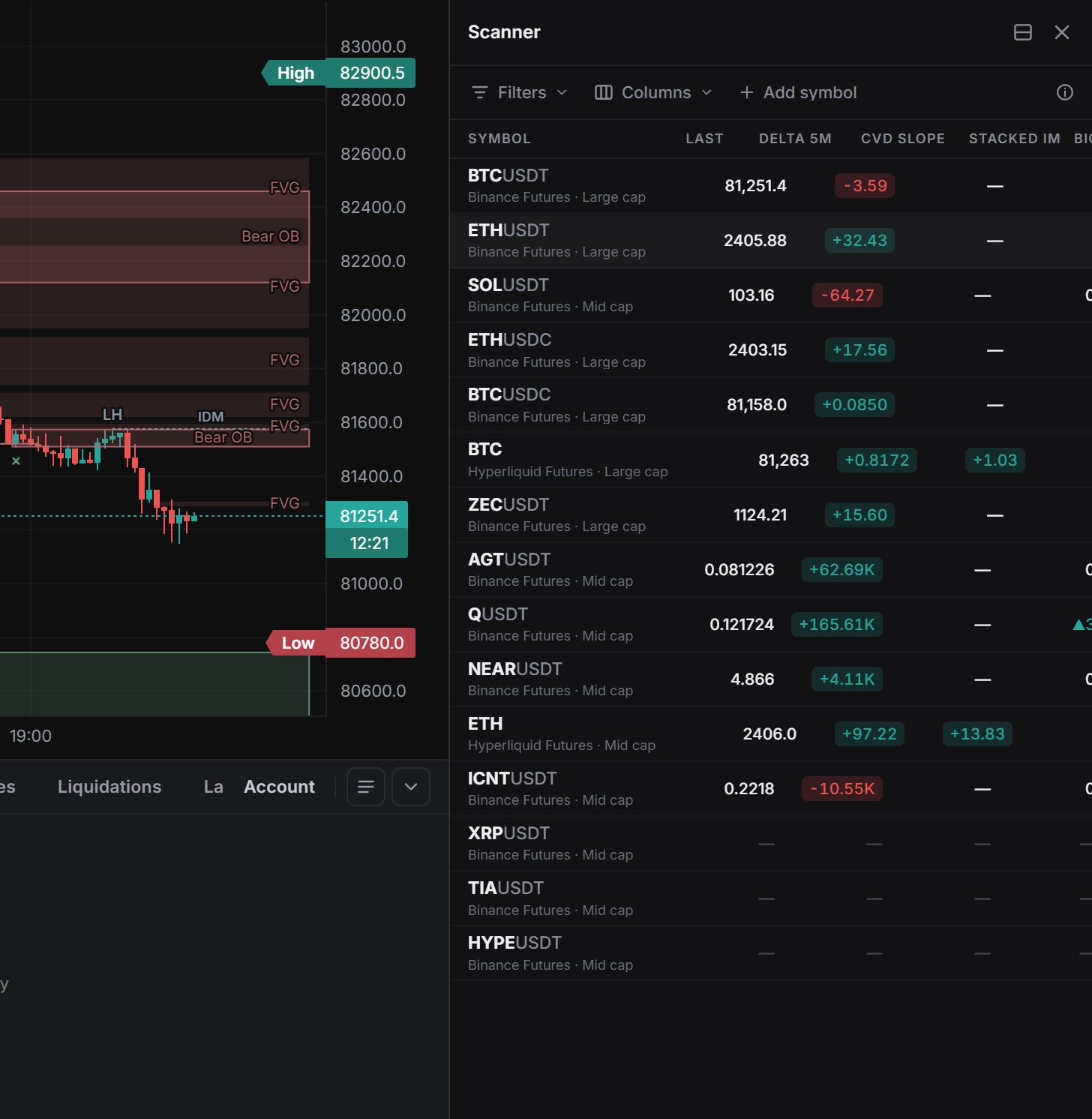
Panels › Lists › Scanner computes live 5-minute order flow for a set of markets in your browser, from the moment the panel opens. The columns are Symbol (click to open it on the chart), Last, Delta 5m (taker buy minus sell, in coins), CVD slope (coins per minute), Stacked imb (longest run of 3+ rows with a 3:1 imbalance), Big prints 5m, Rel vol (5-minute notional against the 24h average) and Pace (trades per second, last 10 seconds). Hover a title for its definition, or hide it from Columns.
Fill it with + Add symbol, Include watchlist or Top by 24h volume (6, 12 or 24), and filter by venue. At most 12 markets stream at once. The rest show "—".
Click any column title to sort. The filters include Stacked imbalance only, with +/− steppers and Reset, and the Columns menu has its own Reset.
Watchlist
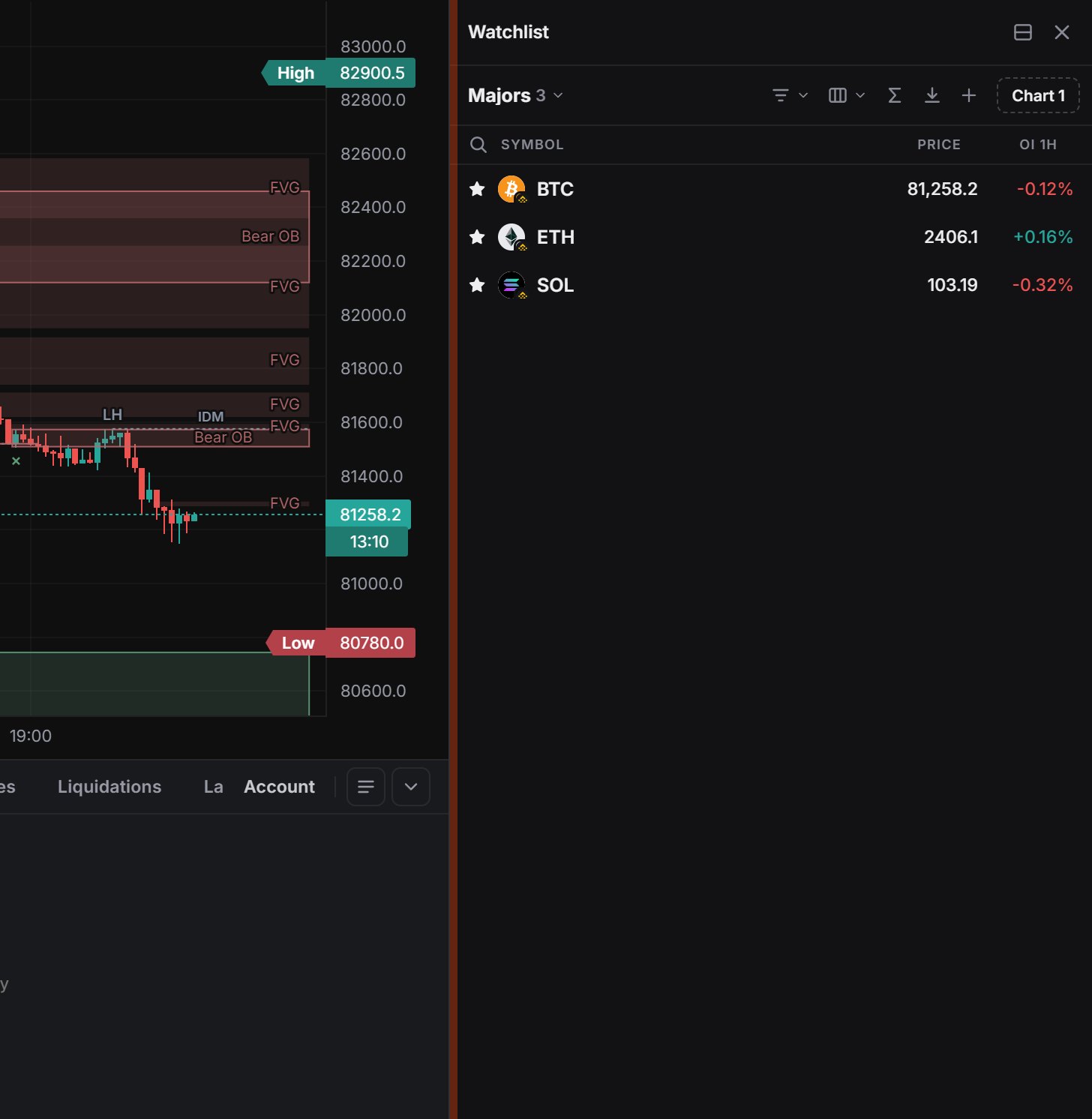
Panels › Lists › Watchlist (Alt+Shift+W) holds several named lists. The current one is the same list as the ★ in symbol search. Alt+W on a chart adds its market, and Space / Shift+Space step through the list. Columns are Symbol, Price and OI 1h: the open-interest change over an hour, or the 24h price change where the venue has no OI history. Import from TradingView takes a pasted TradingView list export. Signed in, lists sync with your Himbit ID.
The toolbar has one list switcher with the number of markets, Import and Add symbol as icons, and you can sort by any column.
Besides your own lists, hotlists show the top 25 Gainers, Losers, Most active, Biggest OI change and Extreme funding, filtered by venue and refreshed every 30 seconds. The column picker adds 24h %, 24h volume, OI, OI 1H / 24h and funding, in the order you choose.
On a phone
On the Chart tab, open More (…) › Panels. Each panel opens full screen with a back button. The sheet under the chart pulls up to a quick Order Book and Stats view.