
Connect Hyperliquid and Binance
Market Open trades from the chart on two venues: Hyperliquid with your own wallet, and Binance USDⓈ-M futures (beta) with your own API key. This page walks through both, step by step. You can look around without connecting anything: the chart, indicators and alerts work as they are.
Before you start
- No account needed to chart. You only connect when you want to trade.
- Try the demo account first if you like: paper trading with virtual USDC on live Hyperliquid and Binance prices, no wallet and no real money.
- Keys stay in your browser. The Hyperliquid trading key is created in this browser and can't withdraw. Your Binance key is kept in this browser too; only you can add it to your end-to-end encrypted backup.
- Just watching? Watch an address shows any Hyperliquid account under the chart, read-only. Nothing can be traded from it.
Hyperliquid: connect a wallet
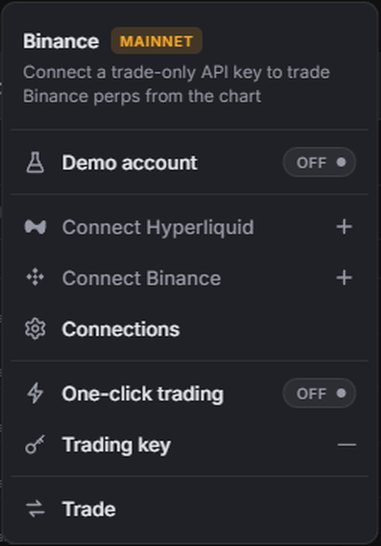
- Click Connect at the top right, then Connect Hyperliquid.
- Your wallet extension (MetaMask, Rabby, OKX Wallet or another one in this browser) asks to connect. Approve it.
- If the wallet is on another network, it asks to switch to Arbitrum. Accept: signatures only work there.
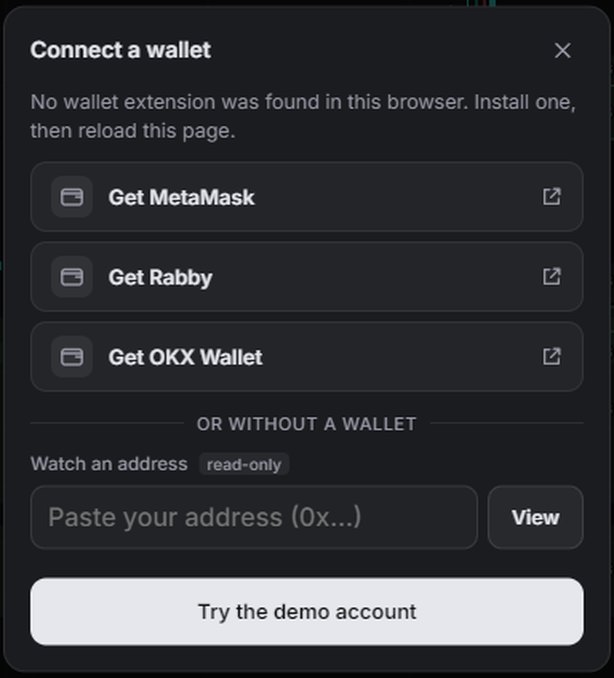
No wallet extension in the browser? Connect a wallet lists Get MetaMask, Get Rabby and Get OKX Wallet. Install one, then reload the page. Under or without a wallet you can paste an address to watch, or Try the demo account.
Hyperliquid on a phone
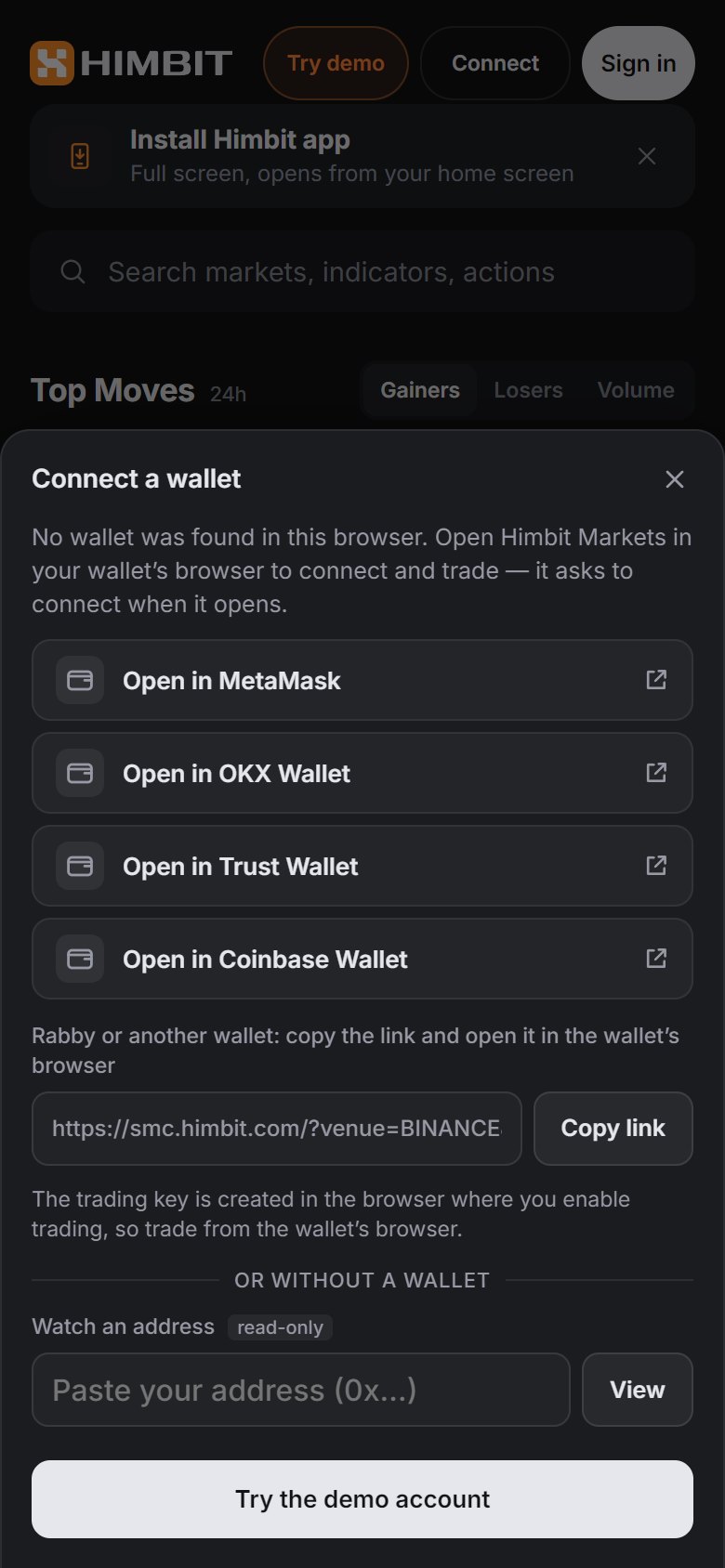
Wallets can't connect to a phone browser or to the home-screen app directly. Connect a wallet offers Open in MetaMask, Open in OKX Wallet, Open in Trust Wallet and Open in Coinbase Wallet: the link opens Himbit Markets inside the wallet's own browser, which asks to connect right away. For Rabby or another wallet, Copy link and open it in that wallet's browser.
The trading key is created in the browser where you enable trading, so keep trading from the wallet's browser. To trade on your phone with a wallet that lives on your computer, use Trade on a second device instead.
Enable trading on Hyperliquid
Connecting shows your account. To place orders, tap Enable trading, then Enable. Your wallet signs two things:
- the trading key, a key made in this browser that can place and cancel orders but can't move or withdraw funds;
- the Himbit builder fee (at most 0.055% per fill), if it isn't approved yet.
Neither signature can withdraw. A new Hyperliquid account has no funds, so trading can't be enabled until you deposit USDC: Enable trading then shows Deposit. The whole deposit flow is on On-chart trading.


Binance: make an API key
Click Connect › Connect Binance. The form has two ways to make the key.
Self-generated (the default):
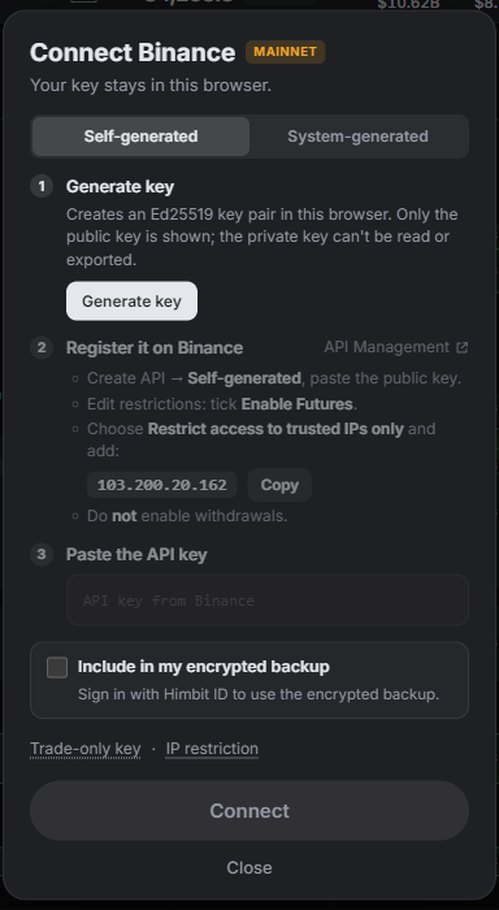
- Generate key creates an Ed25519 key pair in this browser. Only the public key is shown; the private key can't be read or exported. Copy public key.
- On Binance, open API Management (the link in the form), Create API → Self-generated, and paste the public key.
- Edit restrictions: tick Enable Futures, choose Restrict access to trusted IPs only and add 103.200.20.162 (the form has a Copy button). Do not enable withdrawals.
- Copy the API key Binance shows and paste it into Paste the API key.
System-generated: on Binance, Create API → System generated, set the same restrictions (Enable Futures, the trusted IP 103.200.20.162, no withdrawals), then paste both the API key and the Secret key. Copy them exactly as Binance shows them, letters and digits only.
Binance only allows futures on IP-restricted keys. Orders are signed in your browser and sent from Himbit's fixed IP, so the key works only from there.
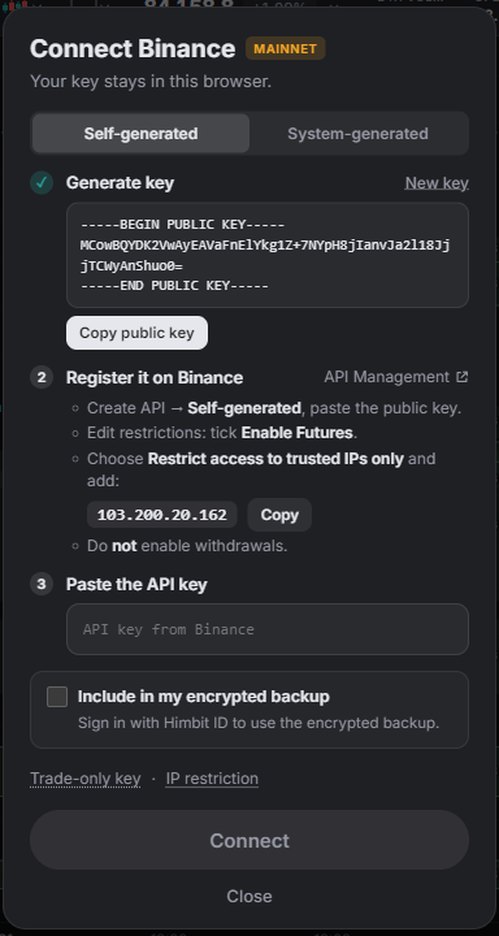
Binance: connect the key
Press Connect. Market Open checks the key with Binance (Checking with Binance…) and shows Binance connected with the environment and the key type. A key that can withdraw is refused.
- Include in my encrypted backup keeps a copy of the key in your end-to-end encrypted backup, so you can restore it on another device. It needs a Himbit ID; see Encrypted key backup.
- The badge says MAINNET: orders use real funds on your Binance account and always ask for confirmation.
- Testnet: open Binance Demo Trading, then the account menu › API Management, and make the key there. Demo Trading keys only work on Testnet, real keys only on Mainnet.
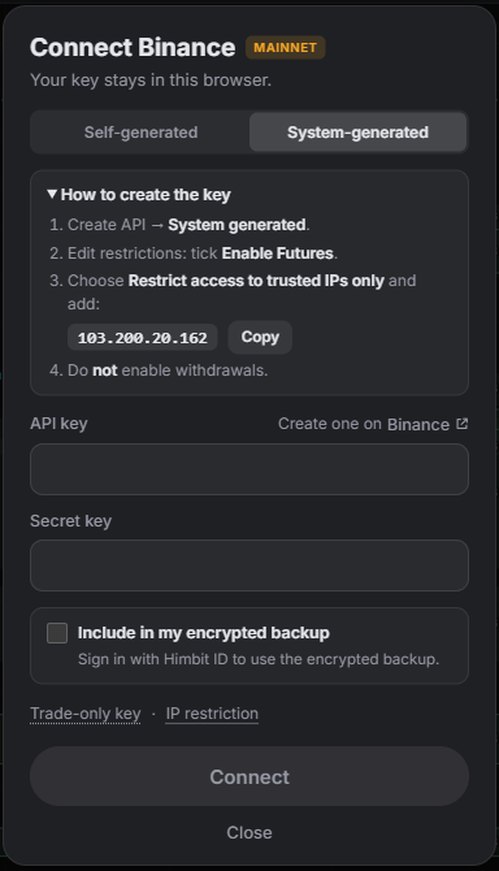
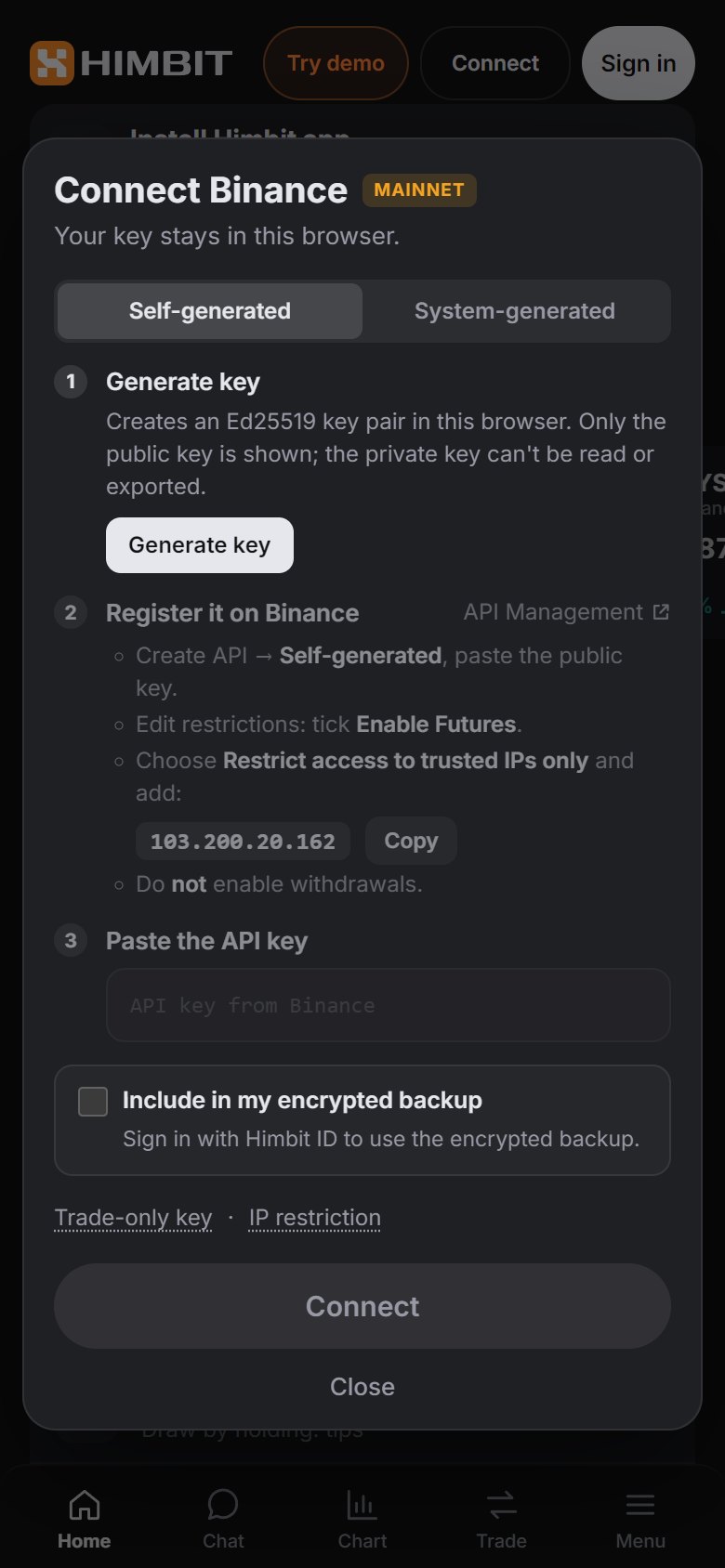
Manage your connections
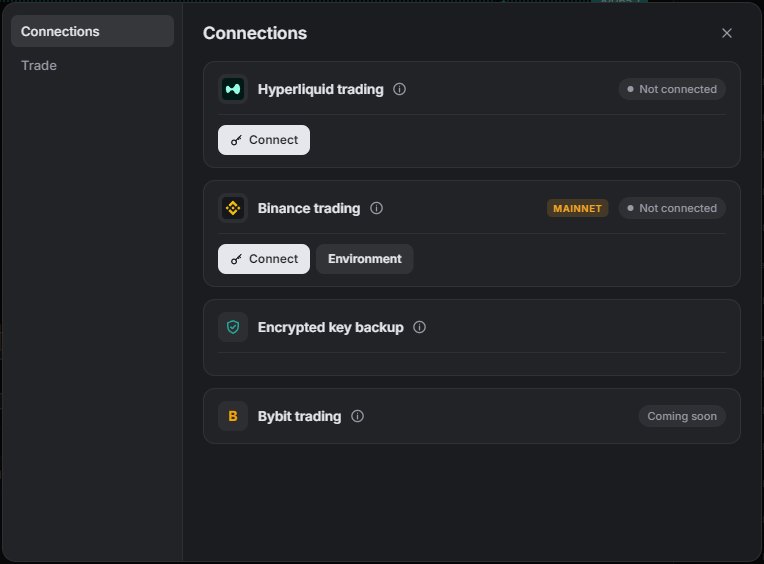
Connect › Connections (also in Account settings) has one card per venue:
- Hyperliquid trading: the wallet, whether the trading key is on and when it expires, the builder fee, and Disconnect. You can renew or revoke the browser trading key at any time.
- Binance trading: the key, the environment (Mainnet · real funds or Testnet · test funds), Reconnect and Disconnect. If you created a key but haven't finished, it shows Key created with Continue.
- Encrypted key backup and Bybit trading (coming soon).
Disconnecting removes the key from this browser. To be completely sure, also delete the API key on Binance, or revoke the trading key and the builder fee approval on Hyperliquid.
If something goes wrong
- "Wallet is on another network": switch the wallet to Arbitrum and try again.
- "No wallet was found" on a phone: open the page in your wallet's browser with one of the Open in … buttons.
- Binance refuses the key: check that Enable Futures is ticked, the IP is exactly 103.200.20.162, withdrawals are off, both keys were pasted in full, and the key belongs to the environment you chose.
- "Browser not supported": use a current Chrome, Edge, Firefox or Safari over https; no other way of storing keys is offered.