
AI Indicator bot
The AI Indicator bot trades the chart's market for you. It watches one indicator, Delta Vol or AI SMC, on the timeframe you pick, and opens, closes and flips the position on its own when a bar closes with a signal. It is the same bot, with the same settings, as the one in the Himbit app.
Open the Bot tab
On a computer, open the order panel (Panels › Trade, or the order panel on the right) and click Bot next to Market and Limit. On a phone, open the order sheet and tap Bot. The tab shows which indicator and market it trades, for example "Auto-enter trades with Delta Vol (BTC)." The bot trades the market that is on the chart when you start it.
The demo account shows the tab so you can look at the settings, but bots don't run on it: starting one says this feature is not available for demo accounts.
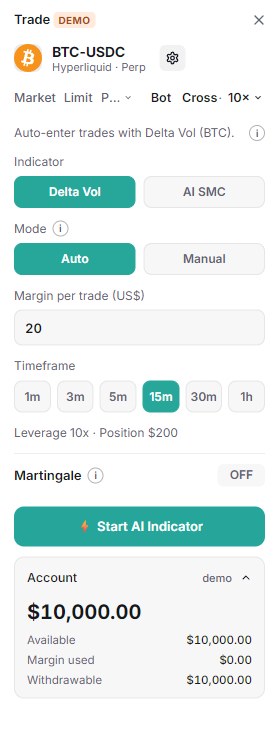
Delta Vol
Pick Delta Vol under Indicator. A BUY signal opens a Long, a SELL signal opens a Short, and the opposite signal closes the position and opens the other side. Entries are Market orders at the close of the signal bar.
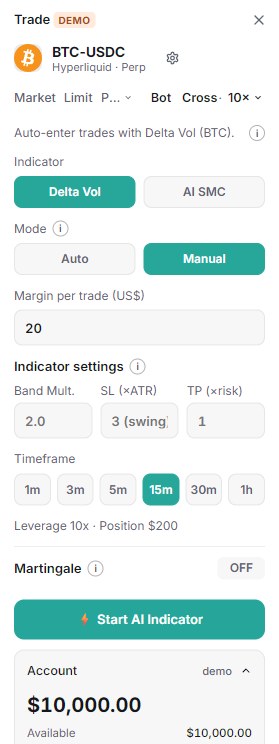
Mode sets how the stop and the target are placed:
- Auto: the stop follows the indicator (ATR), and there is no fixed target. The trade runs until the opposite signal flips it, or until the stop.
- Manual: you set Indicator settings yourself. Band Mult. is the width of the ATR band (2.0 by default). SL (×ATR) and TP (×risk) set the stop and the target: risk = ATR(200) × SL, target = risk × TP. Leave SL (×ATR) blank to keep the stop at the 25-candle swing instead.
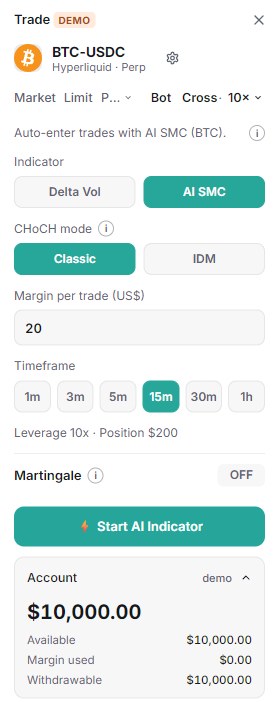
AI SMC
Pick AI SMC to trade the CHoCH (change of character) signals of the SMC chart. A green CHoCH opens a Long, a red CHoCH opens a Short, and an opposite CHoCH flips the position (Market at the candle close).
- CHoCH mode: Classic trades every CHoCH the SMC chart draws by default. IDM trades only a CHoCH on a swing confirmed by an inducement sweep (the chart's IDM setting): far fewer signals, later but stricter. Turn the bot off to change the mode.
- The stop sits at the swing the CHoCH broke and the target at twice that distance (R:R 1:2). You only set margin, leverage and Martingale.
Margin, timeframe and Martingale
- Margin per trade (US$): the margin each trade uses. The line under the timeframes shows the result with your account leverage, for example Leverage 10x · Position $200.
- Timeframe: the bars the bot reads, 1m, 3m, 5m, 15m, 30m or 1h.
- If the position is below the exchange's minimum, a warning asks you to raise the margin or the leverage; otherwise the bot can't enter.
- Martingale (off by default) raises the size after a loss. A losing trade (ROE ≤ −1%) multiplies the next trade's size by the Factor (for example 1.2), up to Max increases times. A win (ROE ≥ +1%) or reaching the maximum resets the size to the base.
Press ⚡ Start AI Indicator. While it runs, the tab shows ● RUNNING with the timeframe and the bot's position; ⚡ Stop AI Indicator turns it off.
Hyperliquid
On Hyperliquid the bot runs on Himbit's bot engine with your connected wallet. A bot you start here also shows in the Himbit app, and a bot started in the app shows here.
The wallet needs trading turned on first. If it isn't, the tab shows 🔓 Enable Trading: sign once (no gas) to open the channel, then start the bot. See Connect Hyperliquid and Binance. If the bot can't read your account leverage for the coin, set the leverage once in the order panel, then start again.
Binance: the bot key
On Binance the bot runs on Himbit's server, around the clock, with its own key. The key is kept encrypted on the server and can trade Futures only; it can never withdraw. It is a separate key from the one you trade with on the chart.
- Sign in with your Himbit ID. The Binance bot needs it.
- Press Create bot key. The tab shows a public key with Copy and Open Binance ↗.
- On Binance › API Management, create a Self-generated key and paste that public key.
- Turn on Enable Futures, leave withdrawals OFF, and restrict access to the trusted IP 103.200.20.162.
- Paste the API key Binance shows and press Verify and save. The tab then says the bot key is connected.
A key that can withdraw, that isn't restricted to an IP, or that doesn't have Futures enabled is refused, with what to change. Start over with a new key makes a new key pair. Stop the running bots before you replace the key.
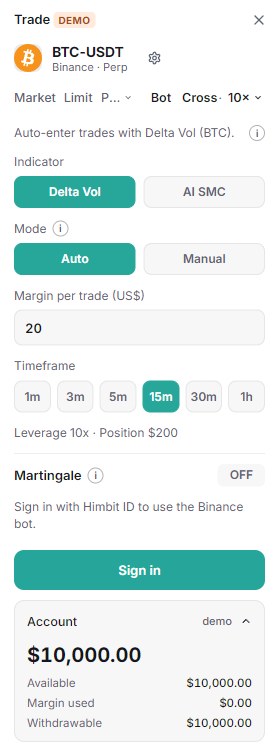
On a phone
The phone order sheet has the same Bot tab, with every setting above. Bots run on the server, so they keep trading when you close the app.
What the bot always does
- It enters only when a bar closes with a signal, never in the middle of a bar.
- Every trade has a stop placed on the exchange.
- The opposite signal closes the position and opens the other side.
- If the position falls below the exchange's $10 minimum, the bot stops itself.
- If the exchange keeps refusing its key, the bot pauses.
Automated trading uses real funds and can lose money. Start with a small margin, and check what the bot did in your positions and trade history.
If something goes wrong
- "Please turn on Enable Trading first" (Hyperliquid): enable trading for the wallet, then start again.
- "Reached the maximum of … running bots": turn one bot off and try again.
- "This symbol is not supported yet": the bot doesn't trade this market; pick another one.
- "Binance refused this key": check that the public key and the API key belong together, or start over with a new key.
- "The bot for … is coming soon": bots run on Hyperliquid and Binance only for now.