
Himbit Wallet
Himbit Wallet is a wallet built into Market Open. You can create one, or add one you already have, and trade on Hyperliquid without MetaMask or any other extension. It works the same in a desktop browser, on a phone and in the app on your Home Screen.
You'll find it in two places: the account menu › Himbit Wallet, and the Connect a wallet sheet: Create new wallet at the top, then Add existing wallet with Import phrase or private key. Prefer a wallet of your own? It's under More options › Connect external wallet.

Create a wallet
- Tap Create new wallet.
- Create a new PIN: 4 digits on the number pad, then Continue. Type the same 4 digits on Confirm your PIN and tap Confirm. The PIN encrypts the wallet on this device and is what you type to unlock it. It can't be recovered: if you forget it, you'll have to import the wallet again with its recovery phrase. Wallets made before 27/10 with a text password keep that password. Wallets made with an 8-digit PIN keep 8 digits.
- After a few seconds you'll see Your wallet is ready. Tap Trade with this wallet to use it on the chart, or Open wallet to see the address. If your device supports it, you can also Turn on Face ID / fingerprint here; see Lock, unlock and remove.
If another wallet is already connected for trading, the app tells you to disconnect it first.


Back up the recovery phrase
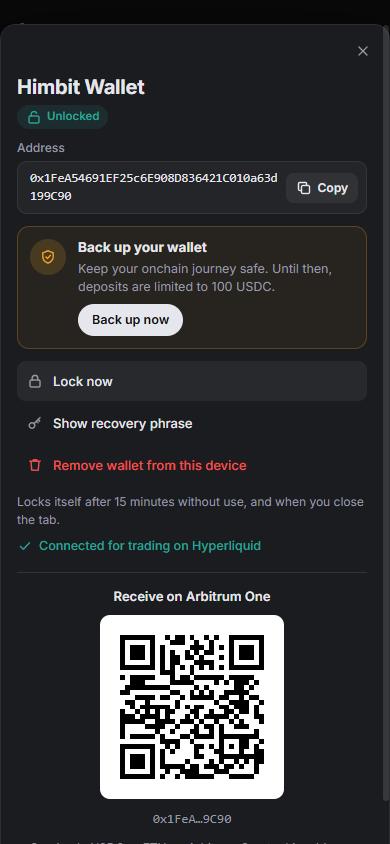
The recovery phrase is the 12 words that are the wallet. With it you can restore the wallet anywhere, even if you forget the PIN. Until it's backed up, deposits are limited to 100 USDC.
- Tap Back up now (on the ready screen, in the wallet, or in the account menu) and enter your PIN.
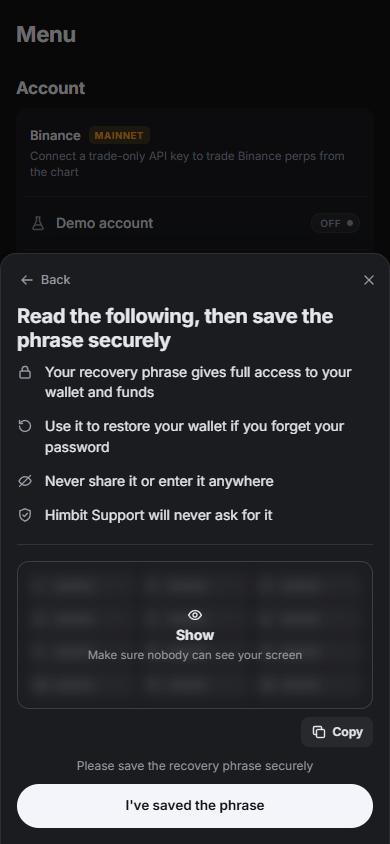
- Read the four points, then Show recovery phrase. The words start blurred: check nobody can see your screen, then reveal them.
- Write the words down on paper, in order. Copy works too, but other apps and websites can read the clipboard, so the app asks first and clears the clipboard after 60 seconds.
- Tap I've saved the phrase, then pass the check: pick the right word for three positions. A wrong answer gives you new questions.
Once you pass, you'll see Recovery phrase backed up and the deposit limit is lifted. Show recovery phrase in the wallet shows the words again whenever you need them, after your PIN.
Never share the phrase or type it into a website. Himbit Support will never ask for it.
Trade and deposit
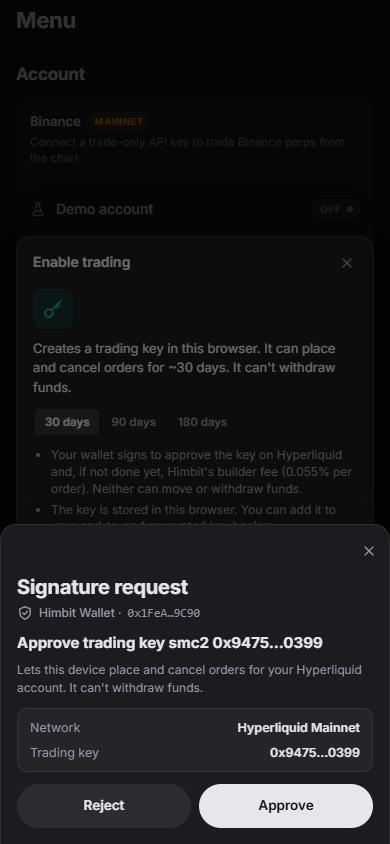
Tap Trade with this wallet, then Enable trading as with any wallet; see Connect Hyperliquid and Binance. The wallet signs the trading key and the builder fee for you, each after you approve it. The trading key can place and cancel orders but can't withdraw.
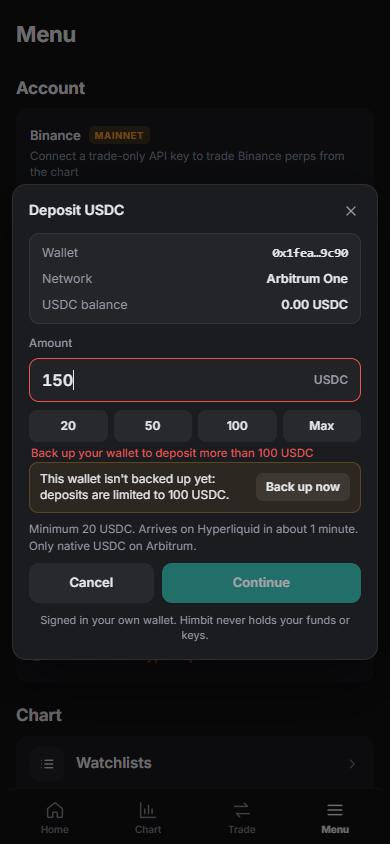
To fund it, send USDC or ETH on Arbitrum One to the address. The wallet shows it with a QR code under Receive on Arbitrum One. Other networks or tokens sent there may be lost. Then deposit to Hyperliquid from the chart as usual: minimum 20 USDC, native USDC on Arbitrum only, and it arrives in about a minute. The network fee is paid in ETH from the wallet, so keep a little ETH on Arbitrum.
Approve every signature
Nothing is signed silently. Before every signature or transaction, the wallet shows what it's about to sign and waits for Approve or Reject:
- Approve trading key: lets this device place and cancel orders on your Hyperliquid account, with its expiry date. It can't withdraw funds.
- Approve builder fee: the most Himbit can charge on orders you place through the app.
- Confirm transaction: for a deposit it shows the network, the Hyperliquid deposit bridge, the token and the amount. Anything it can't read is shown as a raw contract call, so look twice before you approve it.
Lock, unlock and remove
- The wallet locks itself after 15 minutes without use, and when you close the tab. Lock now locks it straight away. A locked wallet keeps its Hyperliquid connection, so your positions and orders stay on screen.
- Unlock asks for the PIN. After too many wrong tries you have to wait a few seconds before trying again.
- Face ID / fingerprint: tap Turn on Face ID / fingerprint on Your wallet is ready or in the wallet. It saves a passkey named "Himbit Wallet" in your phone's keychain. From then on the unlock dialog offers Unlock with Face ID / fingerprint first, and Or enter your passcode still works. If the browser doesn't support it, the app says so and you keep using the PIN. Turn off Face ID / fingerprint switches it off again.
- Forgot the PIN? Remove the wallet from this device and add it again with your recovery phrase.
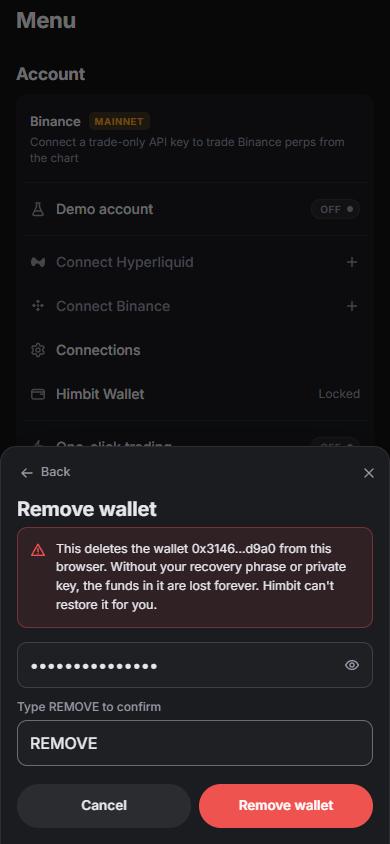
- Remove wallet from this device deletes it from this browser. Type REMOVE to confirm. If the wallet isn't backed up, the app warns you first: without the recovery phrase or private key, the funds in it are gone for good.
Add an existing wallet
Add existing wallet › Import phrase or private key takes a recovery phrase (12, 15, 18, 21 or 24 words) or a private key (64 hex characters, with or without 0x). Each word is checked against the word list as you type. Then create a PIN, as for a new wallet.
Don't import the phrase of a hardware wallet: it would put a key that should stay offline into a browser.


Your other devices
Signed in with your Himbit ID and with automatic backup on (the default), the wallet's recovery phrase (or the private key you imported) goes into your encrypted key backup together with your trading keys. Sign in with the same Himbit ID on a new device and the wallet comes back by itself: Wallet restored from your account asks you to set a PIN for that device. The old one isn't needed; each device has its own.
Be clear on what that means: while automatic backup is on, Himbit can technically decrypt your recovery phrase. The sync copy opens with a key held on Himbit's server, and the Himbit recovery copy opens with Himbit support's offline key. Whoever has the phrase controls the funds in the wallet. The switches are in Connections › Encrypted key backup; see Encrypted key backup.
- Signed out, nothing is backed up.
- With Sync and Automatic key backup off, nothing more goes to Himbit and the server copy is deleted. A backup you protect with your own password or passkey still includes the wallet. One gap for now: turning automatic backup off doesn't re-encrypt that copy yet. A fix is planned.
- There's no switch to leave out only the wallet.
- One Himbit Wallet per browser. If the new device already has a different Himbit Wallet, that one is kept and the backup's wallet isn't applied.
- Several Himbit IDs on one browser: one account's wallet and trading keys are never backed up or synced into another account. Signing out locks the wallet, and a wallet or key you removed isn't brought back by sync.
The paper copy of your phrase is the one backup that doesn't depend on anyone.
Good habits
- Keep the paper copy of the phrase somewhere safe and offline.
- Pick a PIN that isn't your phone's code, a birthday or 1234.
- Keep only trading money in a browser wallet. For larger savings, a hardware wallet is safer.
- Check that the address is smc.himbit.com before you type your PIN.